
Using it
Post this month's tuition
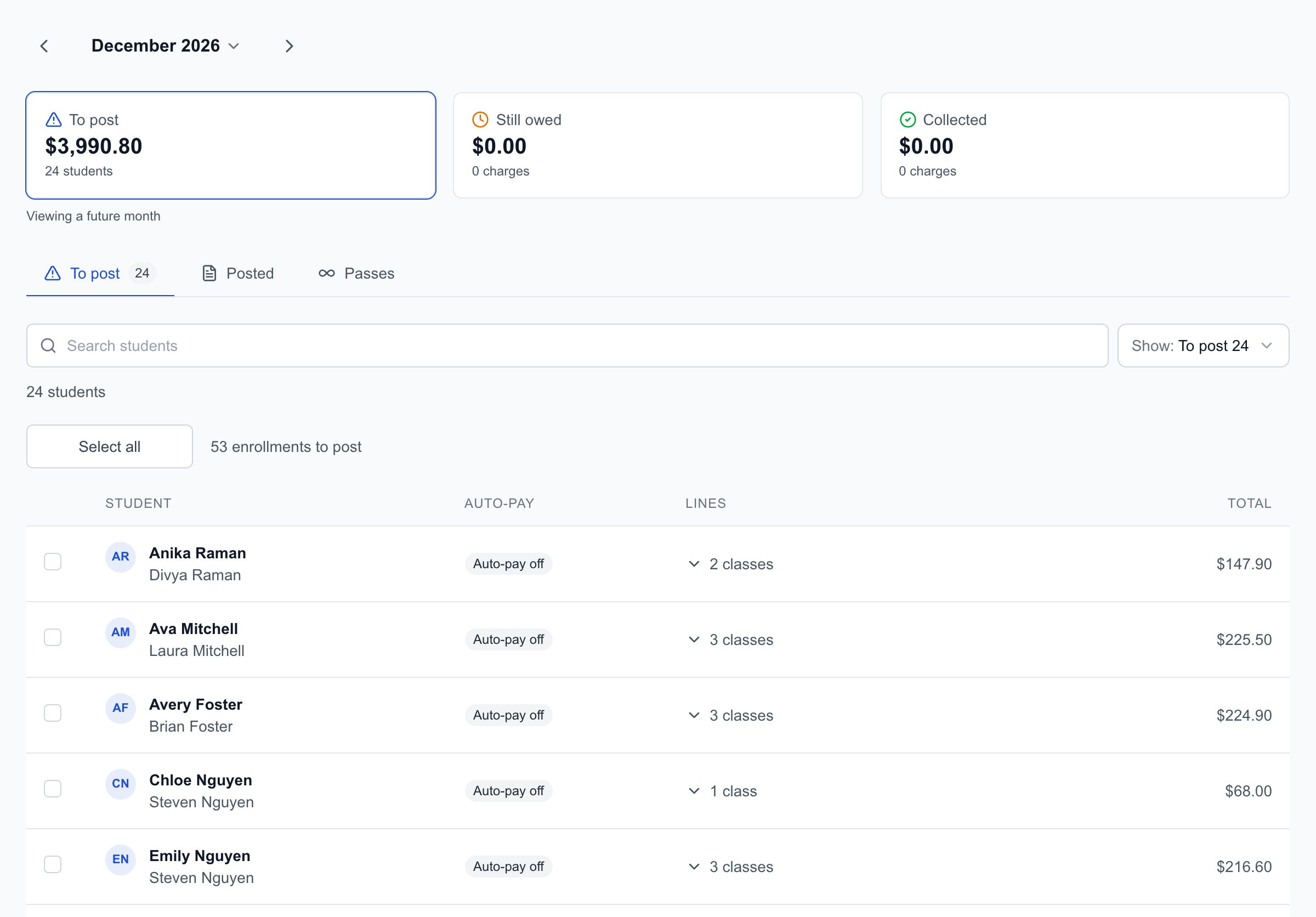
- Open Tuition. The month picker at the top chooses the month; every tab and tile below it is for that month.
- The To post tab lists the students who still have tuition to post for the month, one row per student with a line for each class. Each line shows the amount the family will be billed, after any proration and the family discount.
- Check the lines you want to post (or Select all), then press Post selected.
- The confirm window shows every line, the discounts, the due date and the total. Check them, then press Post tuition.
The posted charges move to the Posted tab. Each family gets one notice listing its new charges, unless the family has turned off "New charges" notices.
What you can change before you post
- Due date. Your studio's default due date is filled in, and the line under it says how it was worked out. You can pick any day from today on. You set the default in Settings → Billing & fees → Due dates: Default due date (days after posting).
- Charge the cards on file now. This switch is on by default. When it is on, families on auto-pay with a card on file are charged as soon as you post. Turn it off and nothing is charged now: families on auto-pay are charged automatically on the due date instead. Families not on auto-pay always pay from their notice. The lines under the switch say how many lines will be charged now and how many are left for families to pay from the notice.
- A promo code. Type one of your promo codes to take it off this posting (see "Promo codes on tuition" below).
- Apply override discount. Your own discount for this posting, with an Audit note of at least 10 characters saying why. Choose Percentage off each class (it comes off every class line, after the family discount) or Amount off each family’s total (it comes off each family's total once, not off every class — see "The override discount" below). A fixed amount can't be larger than the biggest family's total. A posting uses either a promo code or an override, not both.
- Adjust a single line. Press Set amount on a line and type the amount you want that family billed for it: $2.00 or more, or $0.00 to waive it. Add one note under "Why the amounts changed" — it is saved on every charge you adjusted.
The total in the confirm window is checked against your studio's records before you post, and what you see there is exactly what gets posted. If something changed in the meantime (another person posted a line, a family paid), the window refreshes the figures and asks you to look again.
The monthly tuition run: a reminder on your chosen day
You can have StudiFlo remind you each month that tuition is ready:
- Go to Settings → Billing & fees → Monthly tuition run.
- Switch on Turn on the monthly tuition run and pick a Tuition run day (1 to 28).
On that day you get a notification and an email, and the top of the Tuition page shows a banner such as "October tuition is ready to post — 41 charges, $6,120.00 as of now". The figures are live: they change as you post lines from the list or as students join and leave.
- Review & post checks everything still owed for the month and opens the same confirm window as above.
- Not now hides the banner. Nothing is lost — the lines stay on the To post tab.
The run never posts or charges anything by itself. If the month ends with tuition still not posted, you get a notification saying how many charges were never posted.
Set a line aside for this month (Dismiss)
Check lines on the To post tab and press Dismiss to skip them for this month — for example, a month you're giving a student free. A dismissed line isn't posted, isn't counted in the banner, and isn't offered in Add charges. The Dismissed tile (or Show: Dismissed) lists them, each with Restore to put it back on the list.
Students covered by a pass
A student whose classes are covered by an Unlimited pass has nothing to post for those classes. Choose Show: Covered by a pass to see them. A monthly pass has its own line on the To post tab each month, posted like any other line. Dismissing a monthly pass line comps that month: the pass isn't billed, and it keeps covering the student's classes.
The Posted tab
The Posted tab lists the month's posted tuition charges. You can search by student, parent or class, filter by status, show Overdue only, sort, and Export CSV. The export writes each status as the list shows it. Open a charge to see its details, record a payment made by cash or check, or edit, cancel or waive it.
Clear filters, on the line under the bar, clears the search and Overdue only; the status you chose and the sort stay. The same holds on the To post and Passes tabs: their Show and status choices stay.
The tiles at the top add up the month: To post (still to post), Still owed (posted and not yet collected, declined cards included), Collected, Failed, Refunds, Waived / cancelled, and Disputed, Overdue and Dismissed when they count something. Click a tile to open the list it counts.
The Passes tab
The Passes tab lists every Unlimited pass at your studio — granted by you from a student's Billing tab, bought by a family when enrolling, or added for everyone when the pass is included for all students. Search by student or family, filter by term, open the student, or Cancel pass.
Tuition from a family's page
On Families, open a family and press Add charges. Add this month’s tuition adds everything the family still owes for this month's tuition as one line, priced exactly as the Tuition page would price it. Posting it there posts it for the family; it then no longer appears on the To post tab.
How it works
Which classes appear on the Tuition page
Each class has a pricing type, set when you create it. Monthly and per-class tuition is billed month by month from the Tuition page. Per-term and one-day classes are billed once, when the student enrolls — they never appear on the To post tab. Drop-ins aren't tuition at all: a drop-in visit is its own charge at the class's drop-in rate, made when the visit is booked.
The lowest tuition price a class can have is $10.00.
How each pricing type is priced
- Monthly: the class's monthly price. In the month a student joins, the price is prorated by days if proration is on (Settings → Billing & fees → Proration).
- Per class: the class's price times the number of classes scheduled that month on or after the day the student joined. Classes you cancel are never billed. A month with no classes left to attend has nothing to bill, and stays open so classes you add later can still be billed.
- Per term: the term price, billed at enrollment. A student who joins after the term has started pays for the days left in the term, if proration is on.
- One-day class: always its full price, whatever day the student joins. It is never prorated.
First-month proration, worked out
A monthly class costs $120. A student joins on October 17, and the class's term runs all of October. October has 31 days, and the student is in the class for 15 of them (the 17th through the 31st):
$120 × 15 ÷ 31 = $58.06 for October. From November on, the student pays the full $120.
Proration counts the days of the month that fall inside the class's term. So if a term starts on September 8 and the student enrolled before then, September is billed at the full monthly price — the month's price covers the term's part of September. The same goes for a term that ends partway through a month: that last month is billed in full.
For a per-term class, the same idea runs over the whole term: a $300 term that lasts 100 days, joined with 60 days left, is billed $300 × 60 ÷ 100 = $180.
For a per-class class, the student is simply billed for the classes left. A $20 class that meets on Tuesdays has four classes in October 2026 (the 6th, 13th, 20th and 27th). A student who joins on October 15 is billed for the 20th and the 27th: $40.
The family discount: worked out over the whole month
If you set family discount tiers (Settings → Billing & fees → Family discounts), a family with several monthly or per-class classes pays less for its second, third and later classes. You can set up to 10 tiers, and a later class can never get a smaller discount than an earlier one.
StudiFlo looks at all of the family's monthly and per-class tuition for the month — every child, every class — and puts the classes in order from cheapest to most expensive. The cheapest class is the family's first class and is billed at full price; each next class gets the tier for its place.
Tiers: class 2 and up 10% off, class 3 and up 20% off. Mia takes Ballet ($80) and Jazz ($100); her brother Leo takes Hip Hop ($120).
- Ballet, $80 — first class, full price: $80
- Jazz, $100 — second class, 10% off: $90
- Hip Hop, $120 — third class, 20% off: $96
The family pays $266 instead of $300.
Because it's worked out over the whole month, the order you post in doesn't matter, and the discount is recalculated whenever a class is added or removed during the month:
- Paid charges never change. Neither do charges you've priced by hand (an Adjust, an override, a promo code, an edited amount) or charges with a card payment in progress or declined.
- Unpaid charges move. When a cheaper class joins the month, the dearer unpaid ones move up a place and can only get cheaper. When a class is removed, the others can move down a place and cost more. Before you confirm a cancel or an unenroll, the window tells you which charges will change; when a charge goes up, the family gets a "Charge updated" notice saying why.
- A waived charge still counts. If you forgive one child's class, the family keeps the discount on the others.
- Per-term and one-day classes are never part of the family discount, and neither are Unlimited pass charges. A pass counts as the family's first class, so the family's class lines start at the second place.
- Changing your tiers doesn't reprice charges already posted. The new tiers apply to the next posting, and to an unpaid charge whose place in the family's order changes.
Promo codes on tuition
A promo code added in the confirm window follows the same rules as at enrollment: it must be active, not expired, within its use limit and its per-family limit, and set to apply to tuition.
- A percentage code comes off every line of each family, after the family discount.
- A fixed-amount code comes off each family once — from its first line, with anything left over coming off the next.
- Each family uses the code once per posting. A family that has reached its limit, or comes after the code ran out of uses, is posted without it.
Promo codes and overrides never apply to Unlimited pass lines or to a line you adjusted.
The override discount
An override works like a promo code with no limits: a percentage comes off every class line of every family, after the family discount, and a fixed amount comes off each family's total once — from its first line, with anything left over coming off the next.
An override of $15 off each family's total. The Lee family has two lines this month, $80 and $90; the Park family has one, $120.
- Lee: $15 comes off the first line — $65 + $90 = $155
- Park: $120 − $15 = $105
Each family gets $15 off, not $15 off every class. A 10% override instead would take $8 and $9 off the Lees' lines and $12 off the Parks'.
The confirm window's estimate works the override out the same way, so the total you see is the total that gets posted. A family whose total is smaller than the fixed amount has its lines brought to $0, posted as waived.
The $2.00 minimum
No tuition charge is posted for less than $2.00, the smallest amount a card can be charged. If proration or discounts bring a line below it, the line is posted at $2.00.
A $40 monthly class joined on October 31 is 1 day of 31: $1.29. It is posted at $2.00.
A line that discounts bring all the way to $0 is posted as waived, so the family sees it with nothing to pay.
When cards are charged
- Switch on when you post (the default): families on auto-pay with a card on file are charged right away.
- Switch off: families on auto-pay are charged automatically early in the morning of the due date. If the due date is today or earlier, they're charged at the next morning's run. The confirm window says when.
- Families not on auto-pay, or without a card, pay from their notice on their Pay page. Families turn auto-pay on themselves; you can't turn it on for them.
A declined card leaves the charge posted and owed; it shows as Failed and counts in Still owed. Automatic retries, reminders and late fees then work as they do for any charge.
When a student leaves a class
When a student leaves a monthly or per-class class — whether you unenroll them or the family does:
- The month they leave in is still owed. If it was already posted, it stays as it was posted. If it hadn't been posted yet, it stays on the To post tab (see below).
- Every unpaid later month for that class is cancelled. A later month that was partly paid has its unpaid part let go.
- A later month that was already paid is kept. It is never refunded automatically; refund it yourself if you choose.
- The family discount on the family's other unpaid charges is recalculated (see above).
- A charge waiting on the family's bank, or in the middle of a card payment, isn't touched — the confirmation lists it as still owed for you to settle.
- The term's registration fee follows its own rule: when you unenroll a student from their last class of the term, you choose whether to keep or waive it; when the family takes the student out themselves, it stays owed.
For a per-term class, the unpaid part of the term that hadn't been taught yet is let go, worked out by days. For a one-day class, the whole charge is let go if the day hasn't come yet. A term that was already paid isn't refunded automatically.
The leave confirmation shows exactly which charges will be cancelled before you press it.
If the month they leave in hadn't been posted yet, it stays on the To post tab with the note "Left the class Oct 12 — this month is still owed", and so does any earlier month of that class you never posted. You post it like any other line, and Add this month’s tuition on the family's page includes it too. Later months never appear. Before anyone presses, the leave confirmation says this month is still owed, with about what it comes to — the family's confirm and yours alike — and when a family takes a child out, your notification says so too.
- Monthly: the month they leave in is billed at the full monthly price — leaving doesn't prorate it. (A student who also joined that month is still prorated for joining.)
- Per class: only the classes up to and including the day they left are billed.
Leo takes a $20 per-class class that meets on Tuesdays — October 6, 13, 20 and 27, 2026. He leaves on October 15, before October was posted. October stays on the To post tab for the 6th and the 13th: 2 × $20 = $40. Had the class been $120 a month instead, October would be posted at the full $120.
Coming back: if the student rejoins the same class, the months that were cancelled because they left are owed again and reappear on the To post tab. So does a later month that was partly paid: its line shows only the part that was let go, and posting it puts that part back on the same charge — the charge goes back to Part paid with its full amount, the money already paid stays on it, and no second charge is made. Add this month’s tuition doesn't include it; post it from the Tuition page.
Mia's November charge was $93.00 and $40.00 of it was paid when she left in October, so $53.00 was let go. She rejoins in November: November's line on the To post tab shows $53.00. Post it, and the November charge is $93.00 again, $40.00 paid, $53.00 still owed.
Months that stay closed
Once a month's tuition for a class has been posted, it is never offered again — even if you later cancel, waive or refund that charge. A cancelled, waived or refunded month stays closed for good. (The one exception is a month cancelled because the student left, which reopens if they return.) To bill a closed month again, add a charge by hand with Add charges.
Registration fees and the sibling discount
A term can have a registration fee, set on the term. Each student is charged it once per term, when they first enroll in one of the term's classes. If the term has a sibling discount, a student whose brother or sister has already been charged that term's fee pays the discounted fee instead (a percentage or a fixed amount off). The $2.00 minimum applies here too. Registration fees are never part of the family discount.
The Unlimited pass
The Unlimited pass lets one price cover every class a student takes. You set it up in Settings → Billing & fees → Unlimited pass:
- Offer the Unlimited pass: families can buy a pass when they enroll, or you add one for a student. Everyone else is billed class by class.
- Included for all students: every student you enroll gets a pass, and the pass replaces their class tuition.
- Billing — per term or per month. A per-term pass is one charge when it's added and covers every included class for the term; it's prorated like a per-term class when proration is on. A monthly pass is one charge a month, posted from the To post tab.
- Price (at least $10.00) and an optional Sibling price that second and later children in a family pay instead.
A monthly pass bills its full price every month it covers, including the month it starts — it's never prorated. That's because it covers every class that whole month, including the days before it started.
While a pass covers a student, their class lines aren't billed (private lessons aren't included). A pass that covers the class when the student enrolls also covers the term's registration fee. Discounts don't apply to pass charges.
When a family buys a pass themselves, the unpaid tuition it covers comes off their bill, so they don't pay twice for the same class. The pass sheet tells them before they buy, and both of you get a notification of what came off:
- A per-term class: the part of the charge from the pass's first day to the end of the term comes off. The days before the pass stay owed — the pass doesn't cover them.
- A monthly or per-class class: unpaid months from the pass's first month onward come off. An earlier month stays owed.
- Money already paid stays paid. It is never refunded automatically; refund it yourself if you choose.
- A charge in the middle of a card payment, or waiting on the family's bank, stays on the bill for you to settle, and auto-pay won't take it.
When you add a pass yourself, nothing comes off automatically: you see the overlap and decide.
Maya's family owes $360.00 for a term that runs for 180 days, with 120 days left. They buy a pass today. $240.00 comes off the charge, and $120.00 for the days before the pass stays owed.
Cancelling a pass ends its cover: a month that's already paid stays covered through its last day, and an unpaid month ends today. After that, each class is billed by its own pricing again. Cancelling a pass doesn't unenroll the student.
Common questions
Why can't I post tuition?
Your free trial or your plan has ended. Posting tuition is paused until you subscribe from Settings → Subscription. Tuition you've already posted stays due, and auto-pay still charges it on its due dates.
Why isn't a student on the To post list?
Usually one of these:
- That month is already posted for the class — or was cancelled, waived or refunded, which closes it.
- You dismissed the line for this month (check the Dismissed tile).
- An Unlimited pass covers the class (choose Show: Covered by a pass).
- The class is per-term or one-day, which is billed at enrollment.
- It's a per-class class with no classes left to attend this month after the student joined.
- The student left the class before this month began (a student who left during the month is still listed for it), the student is archived, or the class's term hasn't started yet.
Why is a line less than the class price?
Proration for a student who joined during the month, the family discount, or fewer classes in the month for a per-class class. The line shows the reason, and the confirm window breaks down each discount.
Does posting charge the families' cards?
Only for families on auto-pay with a card on file, and only right away if "Charge the cards on file now" is on. With the switch off, auto-pay families are charged on the due date. Everyone else pays from their notice.
A sibling's charge went up after a child left a class. Why?
The family discount is worked out over the whole month. When a class is removed, the remaining unpaid classes can move to a lower discount tier. The confirmation told you before you confirmed, and the family got a "Charge updated" notice. Paid charges never change.
A student left partway through the month before I posted. Is that month still billed?
Yes. The month a student leaves in is still owed, so it stays on the To post tab with a note saying when they left. A monthly class is billed for the full month; a per-class class for the classes up to the day they left. Any earlier month you never posted stays too. Dismiss the line if you'd rather not bill it.
How does a fixed override discount work when I post several families?
It comes off each family's total once — $15 off means $15 off each family, not $15 off every class. A percentage override comes off every class line instead. The confirm window shows the result before you post.
I waived a month by mistake. Can I post it again?
Not from the To post tab — a waived, cancelled or refunded month stays closed. Add a new charge for it with Add charges.
I changed my family discount tiers. Do posted charges change?
No. The new tiers apply to the next tuition you post, and to unpaid charges whose place in a family's order changes.
Can I turn on auto-pay for a family?
No. Families turn auto-pay on themselves on their Cards & auto-pay page. StudiFlo offers it to a family each time they pay a charge by card from their Pay or Home while it's off, and you can have the sign-up checkout ask every family to choose: switch on Ask every family to choose in Settings → Billing & fees → Auto-pay at sign-up.
What does the monthly tuition run do on its day?
It reminds you that the month's tuition is ready, by notification, email and a banner on the Tuition page. It never posts or charges anything until you press Post tuition.
Why was a $1 line posted at $2.00?
$2.00 is the smallest amount a card can be charged, so no tuition line is posted for less. If you'd rather not bill it at all, dismiss the line, or adjust it to $0.00 to waive it.
Can I see who posted or set aside tuition?
Yes. Posting tuition, setting it aside for a family, bringing it back, cancelling unposted tuition, and giving or cancelling a pass are each recorded in Recent activity on Staff & locations → People under Money, with who did it — you, or an admin by name — and the amount.