
Using it
Find a charge
The page has two tabs: All charges and Billing history.
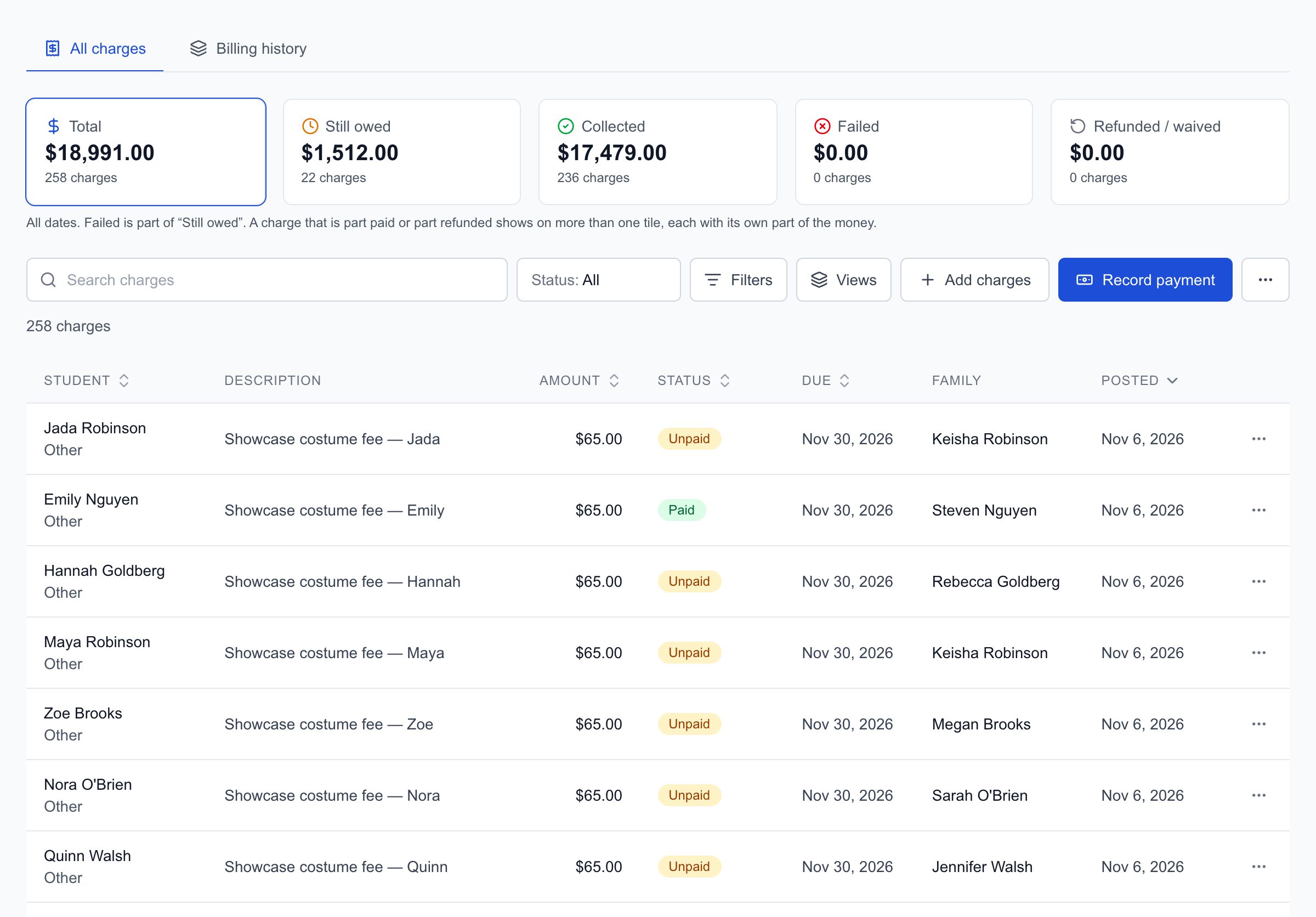
On All charges:
- Search charges finds a charge by student, parent, description or charge code.
- Status narrows the list to one or more statuses: Unpaid, Part paid, Paid, Failed, Waiting on the bank, Refunded, Part refunded, Waived, Disputed and Cancelled.
- Filters has Posted (the dates the charges were posted), Type (Tuition, Registration fee, One-time charge, Late fee), Charge code and Overdue only.
- Clear filters, on the line under the bar, clears the search, these filters and a chip such as "Posted together". Status and the sort stay — change the status with Status or a tile (Total shows every status). When nothing shows, the list says why: "No charges match these filters", or "No charges in “Paid”" when the status you chose has none.
- Views offers two ready-made views — Overdue charges (oldest due date first) and Tuition still owed — and lets you save your own filters with Save current filters….
- Sort by newest or oldest posted, due soonest, amount or student. Click a row to open the charge.
A chip such as "Family: the Johnsons", "Posted together" or "Paid together" appears when you arrive from a link — a family's page, a posting, or a card payment that covered several charges. Clear the chip to see everything again.
More → Export CSV downloads the list exactly as filtered. Each charge's status, type and discount are written in the words the list and the charge's panel use — Unpaid, Part paid, Cancelled, Registration fee, Family discount.
The tiles
The tiles at the top add up the charges posted in the dates you've chosen (all dates if none):
- Total — every charge, at its full amount.
- Still owed — what families still owe on charges that are Unpaid, Part paid, Failed or Waiting on the bank. A declined card is still owed, so it counts here.
- Collected — the money you've kept: paid charges, the paid part of part paid charges, and what's left after a part refund.
- Failed — the declined part of Still owed, shown on its own. It isn't added on top.
- Refunded / waived — money handed back, plus charges you waived or cancelled.
- Disputed — only appears while a family's bank is reviewing a card payment. A disputed charge sits in this tile alone, at its full amount.
The money tiles add up to Total. A charge that's part paid shows on two tiles, each with its own part of the money. Click a tile to list the charges it counts — the count on the tile is always the number of rows you get. The Status filter and Overdue only narrow the list but never change the tiles.
Add charges
Add charges is the one place you put a new charge on families' bills. You can open it from:
- the Charges page (choose the family first),
- the Students page, with students selected,
- a class's roster (Add charges for the class),
- a student's panel, or a family's panel and the student Billing tab (the family's children are listed with a checkbox each).
Then:
- Fill in up to 10 lines. Each line has a Description (the family sees it), an Amount and a Charge code. Every line is posted to each checked student or child.
- Pick a Due date, or leave it blank for your studio's default due date. The line under the field says which day blank means. You can't pick a day that's already passed. You set the default in Settings → Billing & fees → Due dates: Default due date (days after posting) — a charge posted with no due date is due that many days later.
- Add a Note if you like — it's for your records, and families don't see it.
- Press Review charges. The review lists every family with its total, and any family that's skipped and why — for example "Already posted", or "Looks like a repeat" when the same line was posted to that family in the last 24 hours. Turn on Post anyway beside a repeat if you really mean to post it twice.
- Decide whether to charge cards now (below), then press Post charges.
Each line must be at least $2.00 and at most $99,999.99. From a family, Add this month’s tuition adds the month's tuition as a line, priced exactly as the Tuition page prices it.
Each family gets one notice listing its new charges (by email and in the app), unless they've turned off "New charges" notices.
Charge the card on file now
On the review, the switch Charge the card on file now (or Charge the cards on file now for several families) is off by default here (the Tuition page's post window has it on by default):
- Off: nothing is charged now. Families on auto-pay with a card on file are charged automatically on the due date. Everyone else pays from their notice.
- On: families on auto-pay with a card on file are charged as soon as you post, and the button becomes Post and charge card. If a card is declined, the charges stay posted and owed.
The switch only appears when at least one family is on auto-pay with a card. The lines under it name the families who will pay from the notice instead.
Charge templates
If you post the same lines often (a costume fee, a recital fee), save them: press the save button beside the lines ("Save these lines as a template"). Next time, choose it from Load a template. More → Charge templates on the Charges page lets you edit, rename or delete them. A template holds one-time and registration lines only, never tuition, and deleting one changes no charge.
Charge codes
Every charge has a charge code, so you can filter and report by it. Four come built in — Tuition, Registration, Late Fee and Other — and are used automatically by charge type. You can rename them but not delete them.
Add your own in Settings → Billing & fees → Charge codes: a Name, a Code (2 to 20 capital letters, numbers or hyphens, unique in your studio, and not starting with "SYS-") and an optional Color. A line with one of your own codes posts as a one-time charge. A code that charges already use can't be deleted.
Open a charge: the Charge panel
Click any charge to open its panel. It shows the status, the amounts (with any discount), every payment and refund on it, the due date, the billing month, the charge code and the family's auto-pay setting. The buttons at the bottom depend on the charge:
- Charge card — charges what's left to the family's saved card. After a decline it reads Retry charge. It charges only this charge, and it works even if the family has auto-pay off — the confirm says so first.
- Record payment — the family paid by cash, check, Venmo or another way (see the "Payments, refunds and disputes" article).
- Issue refund — give money back (see the "Payments, refunds and disputes" article).
- Edit charge — change the amount, due date or description. You must say why; only your studio sees the reason. Editing never charges a card.
- Cancel charge and Waive charge — see below.
- Charge receipt downloads a receipt once you've added your studio's address in Settings.
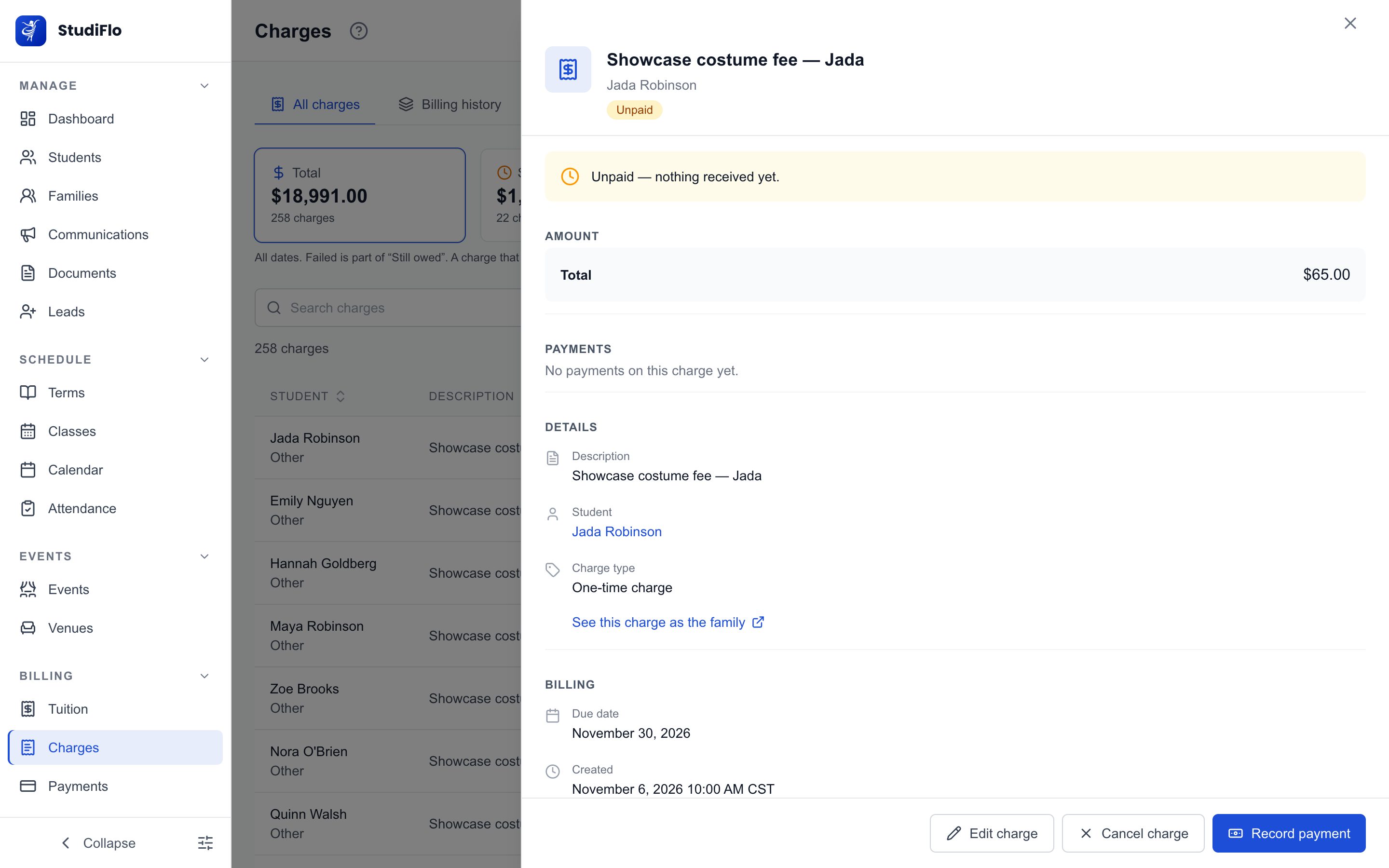
The ⋯ menu on each row of the list has the same actions: Open charge, Edit, Cancel, Waive, Record payment and Download receipt. Charging a card is only on the panel.
The panel also says who did what, by name: Waived by, Last edited by and the card line under the details, "Cancelled by …" on a cancelled charge, and who recorded or voided each payment and refund. The card line reads Card charged by when that person's press is what paid the charge. It reads Card last tried by when the card was declined, is still waiting on the family's bank, or the charge was paid another way afterwards. A charge that was cancelled because a whole class, a single class or an enrollment was cancelled names the person who did that. A person shows with their role beside the name, such as "Sam Lee · Admin" or "Maria Lopez · Owner". Changes made before this was recorded show no name.
Cancel or waive a charge
- Cancel takes the charge off the family's bill as if it had never been posted. Use it for a mistake. The charge shows as Cancelled.
- Waive leaves the charge on the family's list as forgiven — nothing is collected, and it can't be undone. The charge shows as Waived.
Both ask for a reason that only your studio sees, and both have a Let the family know checkbox (on by default) that sends the family one notice in the app, without your reason. A late fee can't be cancelled, only waived. On an unpaid charge, Waive is in the row's ⋯ menu; on the panel it appears once some money has been paid on the charge.
A cancelled or waived tuition month isn't offered on the Tuition page again. If it turns out to be owed after all, post it with Add charges.
Billing history
The Billing history tab lists what you've posted, newest first: one row for each time you posted with Add charges, and one row for each tuition posting. Show switches between Posted by hand (the default), Tuition runs and All. Open a posting to see its charges, press Charge card now to charge the families' saved cards, or Record payment.
If an old draft from before Add charges worked this way is still listed, open it to Post it (it's charged on its due date) or Discard it (nothing is charged and the family is told nothing).
How it works
When a card is charged
A charge is only taken from a card in these ways:
- When you post, with the switch on. Families on auto-pay with a card on file are charged straight away.
- On the due date, automatically. Early each morning, StudiFlo charges every Unpaid charge that's due that day or earlier — and what's left on a Part paid one — for families who are on auto-pay with a card on file. A charge whose card was declined isn't taken this way: its retries are. The confirm and the result screen show the time in your studio's time zone. A charge due today that you post after that morning's run is taken the next morning.
- When you press a button: Charge card on a charge, Charge card now on a posting, or Charge card on file on a family's panel.
- When the family pays from their Pay page.
For a family not on auto-pay, a charge you post with a later due date is listed on their Pay under Coming up until that day: it isn't in the amount they're asked to pay, and nothing asks them to pay it early — though they can, with Pay all. On its due date it joins the total. A family on auto-pay sees it under "Auto-pay takes these" instead, and it's charged on its due date.
Families who aren't on auto-pay, or have no card, are never charged automatically: they pay from their notice. Families turn auto-pay on themselves — you can't turn it on for them. StudiFlo offers it to a family each time they pay a charge by card from their Pay or Home while it's off ("Pay automatically next time?"), and Ask every family to choose (Settings → Billing & fees → Auto-pay at sign-up) has the sign-up checkout ask every family to choose auto-pay or paying each charge themselves.
When a family turns auto-pay on, their charges that aren't due yet will be charged on their due dates. Charges that are already due are left for the family to pay — StudiFlo never charges a backlog by surprise. On the panel such a charge says "Automatic charging: Off for this charge"; you can still use Charge card.
Several charges in one card payment
When several of a family's charges are charged at the same time, they're normally taken as one card payment, with one processing fee and one receipt — the list marks them "Paid together". An Unlimited pass charge is always its own card payment. The confirm before you charge tells you how the charges will be grouped.
Statuses
- Unpaid — posted, nothing paid yet. (The family sees "Due".)
- Part paid — some of it is paid.
- Paid — paid in full.
- Waiting on the bank — the family's bank wants them to confirm the card payment. They do it on their Pay page with Confirm with your bank. They have 24 hours; after that it's cancelled and nothing is charged. When StudiFlo sends the family a notice about it, the notice tells them the time limit; the panel tells you whether they were sent one, so you know whether to let them know yourself. You can press Cancel card payment yourself.
- Failed — the card was declined, or the card payment was cancelled. The panel says which.
- Refunded, Part refunded, Waived, Cancelled and Disputed — see the "Payments, refunds and disputes" article for refunds and disputes.
Overdue
A charge is overdue when it's still owed (Unpaid, Part paid, Failed or Waiting on the bank) and its due date was before today, on your studio's calendar. A charge due today isn't overdue until tomorrow. The same rule is used by Overdue only, the dashboard and Reports. Being overdue doesn't by itself add a late fee or send a reminder — those follow their own settings, below.
Automatic retries of a declined card
When a card is declined, the charge stays posted and owed, and StudiFlo tries the card again by itself. Each try waits longer than the last — the waits run 1, 3 and 7 days, in that order — and StudiFlo stops after 3 tries. Each wait is counted from the last decline. The family is told before each try and asked to update their card. Retries happen even if the family has since turned auto-pay off. You get an email for the first decline, and for each try that fails (at most one a day for a family), unless you turn off Failed card payments in Settings → Notifications.
Mia's $100 charge is declined on October 1. StudiFlo tries again on October 2. Declined again, it tries on October 5, and then on October 12.
The panel shows the next try ("Next automatic retry: …"). If the last try fails, you get an "Automatic retries stopped" notice and email, naming the family, and the family is told no more tries will be made. You can still press Retry charge, record a payment made another way, or waive the charge — waiving it stops the retries. Retries also stop on a charge whose payment you corrected, whose card was removed, or that lost a chargeback; the panel says "Automatic retries: Off since …".
Payment reminders
In Settings → Billing & fees → Payment reminders, switch on Enable payment reminders and choose the days after the due date to send them (Day 1 to Day 90, up to 5 days; the suggested days are 3, 7 and 14). Reminders are off until you switch them on. On each of those days, families with an overdue charge get an email and a notice in the app.
A declined charge isn't reminded while its automatic retries are still running — once the retries are over, it's reminded like any other overdue charge. Charges waiting on the family's bank aren't reminded.
Late fees
In Settings → Billing & fees → Late fee automation, switch on Enable late fees and set:
- Late fee type — a Fixed amount ($) or a Percentage (%) of what's still owed, with an optional Maximum late fee (cap) for a percentage.
- Grace period (days) — how many days after the due date the charge can stay unpaid with no fee (7 if you leave it). The fee is added the day after the grace period ends, and the example under the settings names that day.
When charges are still owed after their grace period, StudiFlo adds one late fee per family per due date — however many of the family's charges were due that day. A family with five competition instalments all due November 10 gets one late fee, not five. If you choose Per month under One late fee per family in Billing & fees, all of a family's charges due in the same month share one late fee instead ("Late fee for: 3 charges due in November"). A fixed fee is added once; a percentage is of everything still owed on that day's charges (per month, on the month's charges late when the fee is added), and the cap applies once. A due date (or month) that already has a late fee never gets another, a late fee never gets a late fee of its own, and a charge with less than $2.00 still owed doesn't count toward one. The late fee is linked to the charge owing the most that day and is named for the day ("Late fee for: 5 charges due Nov 10"), or for the charge when only one was late. The family gets a "Late Fee Applied" notice. The late fee is a new charge, due on your studio's default due date, and is not charged to a card when it's added: on its due date it's charged automatically only if the family is on auto-pay and every charge it was added for would have been. A declined charge doesn't get a late fee while its retries are still running.
Grace period 7 days, $25 fixed fee. Leo's $120 charge was due October 1 and is still Unpaid. The grace period runs October 2 through October 8. On October 9 — 8 days after the due date, the day after the grace period ends — a $25 late fee is added, due on your default due date. Leo's family now owes $145.
The $2.00 minimum
No charge you type can be less than $2.00 — the smallest amount a card can be charged. Amounts StudiFlo works out (prorated tuition, a percentage late fee, a discounted line) are raised to $2.00 if they come out lower; one that comes to exactly $0 is posted as waived instead.
Changing a charge after money is paid on it
Once money is paid on a charge, it can't be edited or cancelled, so the family's receipts always match. The panel tells you what to do instead:
- A recorded payment (cash, check…): void it if it was never received, or reapply it if it was meant for another charge. Then the charge can be changed.
- A card payment: nothing unlocks the charge, even after a refund. To bill less, waive the charge and post a new one at the right amount; to bill more, post a new charge for the difference; to give money back, use Issue refund.
Where the money goes
Card payments go to your Stripe account, less the processing fee taken from each card payment (the Charge panel shows it as Processing fee), and Stripe pays them out to your bank. Payments you record yourself carry no fee. See the "Payouts and processing fees" article.
Common questions
Why can't I post new charges?
Your free trial or your plan has ended. Add charges is paused until you subscribe from Settings → Subscription. Charges already posted stay due: families keep paying them, auto-pay still charges them on their due dates, and you can still record a payment or charge a card on file for them.
Why wasn't a family's card charged when I posted?
The Charge the card on file now switch was off (it's off by default), or the family isn't on auto-pay, or has no card on file. With the switch off, families on auto-pay are charged automatically on the due date. Everyone else pays from their notice.
When exactly is a card charged on the due date?
Early in the morning of the due date, in your studio's time zone — the confirm and the result screen show the time. If you post a charge due today after that morning's run, it's charged the next morning.
Can I charge a family who has auto-pay off?
Yes, with Charge card on a charge, or Charge card on file on the family's panel, if they have a saved card. The confirm warns you first that their auto-pay is off. Posting with the switch on never charges an auto-pay-off family.
Can I turn on auto-pay for a family?
No. Families turn it on themselves on their Cards & auto-pay page. To get more families on it: StudiFlo offers it after each card payment they make from their Pay or Home, and Ask every family to choose in Settings → Billing & fees → Auto-pay at sign-up has the sign-up checkout ask every family to choose.
What's the difference between Cancel and Waive?
Cancel removes the charge as if it was never posted — use it for a mistake. Waive keeps it on the family's list as forgiven, and can't be undone. Neither collects any money.
How do I stop the automatic retries on a declined charge?
Waive the charge, or record the payment if the family paid another way. Once a charge isn't owed any more, the retries stop.
How many times is a declined card tried again?
3 times, waiting longer before each try, as described above. After the last one you're notified and the charge stays owed. You can press Retry charge any time.
Why can't I edit this charge?
Money has been paid on it — by card, or by a payment you recorded. The panel explains what unlocks it. A card payment never unlocks it: waive and post a new charge, or post a new charge for the difference.
Why can't I cancel a late fee?
Late fees can only be waived. Open the row's ⋯ menu and choose Waive. To waive all of a family's late fees at once, open the family and press Waive late fees.
Can I change the default due date?
Yes. Go to Settings → Billing & fees → Due dates and change Default due date (days after posting), then save. It sets the due date of every charge posted with the due date left blank — and of late fees — from then on. Charges already posted keep their due dates.
Can I turn off automatic retries?
No, there's no setting for it. To stop the retries on one charge, waive it or record the payment if the family paid another way.
What does "Looks like a repeat" mean on the review?
The same line was posted to that family in the last 24 hours. The family is skipped unless you turn on Post anyway beside the line.
Why does a part paid charge show on two tiles?
Its paid part counts in Collected and its unpaid part in Still owed. The money tiles still add up to Total.
Is a charge due today overdue?
No. It becomes overdue the day after its due date.
Does a late fee get charged to the card straight away?
No. It's posted as a new charge due on your default due date, and charged automatically then only if the family is on auto-pay.
Can I post tuition from Add charges?
Only from a family: Add this month’s tuition adds the month's tuition, priced as the Tuition page prices it. For many families at once, use the Tuition page.
Why is a charge "Failed" when the card wasn't declined?
Failed also covers a card payment that was cancelled — for example when the family didn't confirm with their bank within 24 hours. The panel says which.