
Using it
Find a student
- Search students matches a student's name, their parent's name or their parent's email. Type several words to narrow it ("Emma Johnson").
- The status choices at the top: Current (everyone who isn't archived — the default), Enrolled (in at least one class now), Not enrolled (had a class here before, but none now) and Archived.
- Filters: Balance (Any, Still owed, Overdue, Paid up), Groups, Auto-pay (On or Off) and Card on file (On file or None).
- Views has two ready-made lists — Overdue balances and No card on file — and you can save your own.
- Clear filters, on the line under the bar, clears the search, the filters and the groups. The status you chose (Current, Enrolled, Not enrolled, Archived) and the sort stay — the status choice itself changes them. When nothing shows, the list says why: "No students match these filters" when a search or filter left nothing, "No students in “Archived”" when the status you chose has none.
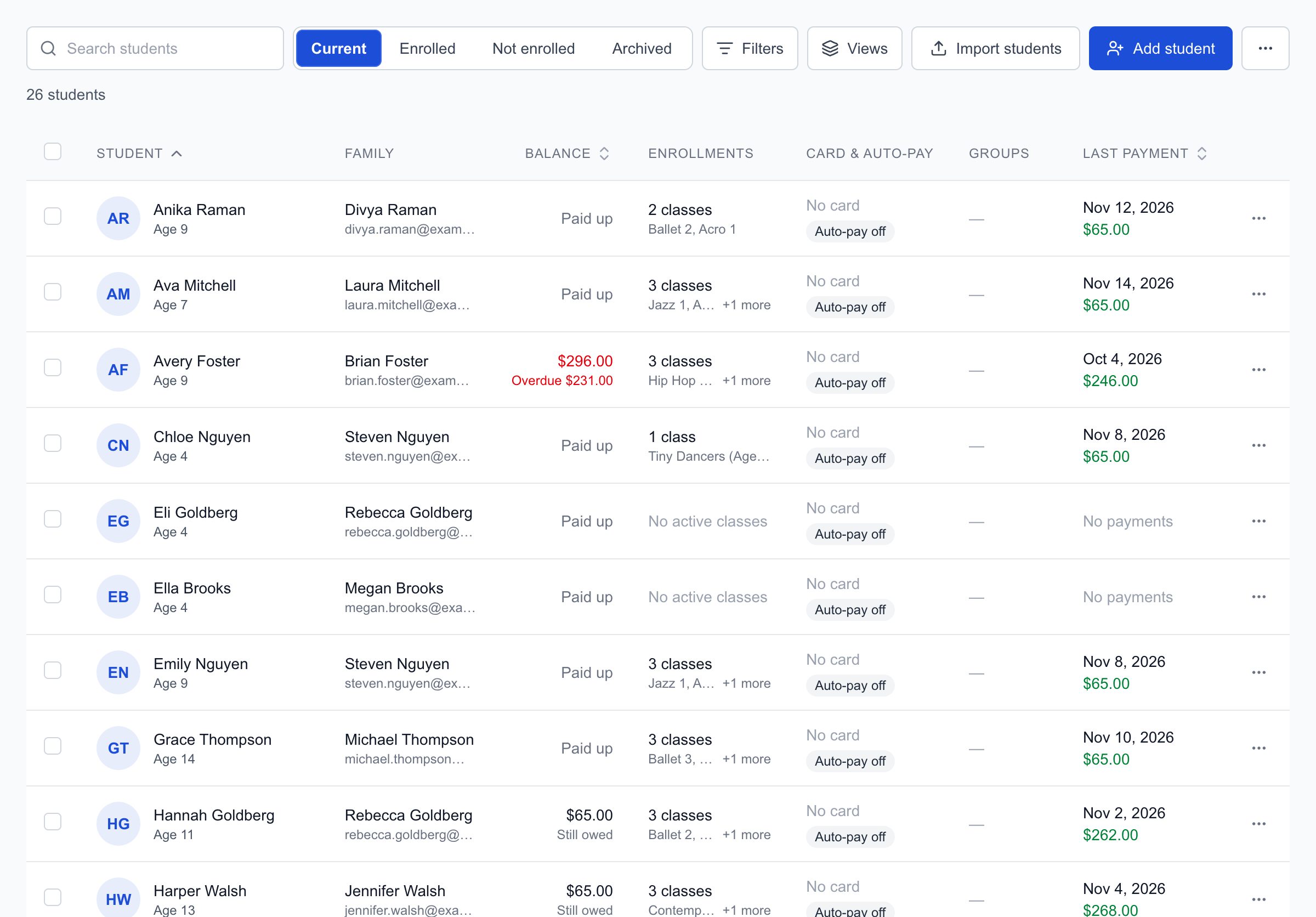
Each row shows the student (with their age), their parent, their Balance, their classes, their card and auto-pay, their groups and their last payment, depending on how wide your screen is. Archived students are grayed out. Click a row to open the student; click the parent's name to open the family.
Add a student
- Press Add student.
- Under Student information, enter the First name and Last name (required), and if you like the Date of birth, Notes and Medical and allergies.
- Under Parent information, enter the Parent email (required), and optionally the parent's name and phone.
- Fill in any of your custom fields under Additional information (required ones are marked).
- Press Add student.
What happens next depends on the parent's email:
- The email belongs to a family already at your studio. The child is added to that family right away. The family isn't emailed, and their details aren't changed by what you typed.
- It doesn't. The form shows "…isn't a family at your studio yet." Press Send invitation: the parent gets an email inviting them to join, and the child — with their birth date, medical note and custom fields — joins their family when they accept. Until then you'll find the invitation on Leads. Press Back to change the email instead.
Emergency contacts aren't on the Add student form — add them afterwards with Edit student.
Import a roster from a spreadsheet
Import students is at the end of the page's toolbar (under ⋯ when the toolbar is short of room) and, while you have no students yet, in the middle of the page. Press it and follow the steps:
- Upload a .csv file — up to 500 rows and 5 MB. One row per student.
- Map columns. For each column in your file, pick the field it fills, or Skip this column. Student First Name, Student Last Name and Parent Email are required. You can also map parent first and last name, parent phone, student date of birth, notes, Medical and allergies, an emergency contact's name, phone and relationship, and any of your custom fields. StudiFlo guesses the common column names for you.
- Preview shows the first rows and any errors. Rows with errors are left out; the rest import.
- Families (only if some rows are for families already at your studio): choose Add new children to these families — a child already on file is skipped (the default), or Leave these families as they are.
- Read the sentence above Import — it says exactly what will happen ("Import will add 2 children to families already here and email an invitation to 1 new family…") — then press Import.
The last screen counts what was added, already there, invited and skipped. If any rows failed, Download error report gives you a file listing each one.
Open a student's record
Click a student to open their panel. The header shows their age, status, groups, any sign-offs still needed and any Unlimited pass. View as the … shows you their family's pages as the family sees them.
- Overview — date of birth, Medical and allergies, notes, emergency contacts, the parent's contact details, the family's card and auto-pay, the student's Groups (with Edit groups) and custom fields (with Edit custom fields).
- Enrollments — the student's classes for the chosen Term, past and present. Enroll in class adds a class; Unenroll takes them out of one, and its confirm says what happens to the family's charges, including a month you haven't posted yet, which is still owed.
- Billing — the student's Balance, Paid this month and Paid all time; their Unlimited pass (Add pass, and Cancel pass from the pass's menu); what's Still owed, with Charge card on file and Add charges; and their payment history.
- Attendance (when attendance is on) — every class they were marked for, how often they attended, and each mark. By day shows the same classes a day at a time, with the days missed — four classes missed in one evening is one day; press a class there to open its roll. Present and Late count as attended; Absent and Excused count as missed, each counted on its own. A term counts its own classes and the year-round ones, and the class filter names each class with its term. Click a row to open that class's roll: it opens on this student's row, highlighted, and the back arrow brings you back to their Attendance, on the view you left. With make-ups on, a missed class has Book make-up, and booked make-ups are listed at the top (see "Attendance, make-ups and drop-ins").
- Sign-offs — the documents and waivers their parent needs to sign, and which are done. Send reminder emails the parent about a waiver.
At the bottom: Archive student, Edit student and Add charges for the student.
Edit a student
Open the student and press Edit student. You can change their name, date of birth, notes, Medical and allergies, emergency contacts (Add contact, Remove) and custom fields. Press Save changes. You can't move a student to a different family here.
Enroll a student in a class
- Open the student, go to Enrollments and press Enroll in class.
- Pick a class. Full classes can't be picked: Max capacity is a hard limit here just as on the class's Students tab, and a place on offer to a family on the waitlist counts as taken. If the class fills while you're choosing, the enrollment is refused with "Class is at capacity". If the student is outside the class's age range, check Enroll anyway (override age range).
- Posted at enrollment says what will be added to the family's bill now — a per-term or one-day class's price and any registration fee — or that nothing is due at enrollment because monthly tuition is posted from the Tuition page.
- If you offer the Unlimited pass, you can include one here and choose how it's paid.
- Let the family know — on when this enrollment posts a charge (a registration fee, a per-term or one-day class's price, or a pass that isn't free), off when it only adds the student to the class. When it's on, the family gets the enrollment email and, if charges were posted, one notice of them. Turn it off and the family isn't told. Turn it on for a plain enrollment to send just the enrollment email.
- Press Enroll in the class.
You can also enroll many students into one class at once from the class's Students tab — see the "Classes and enrolling" article.
Groups
Groups are your own labels — "Competition team", "Saturday kids" — used to filter the list, send announcements, add charges and decide who signs a waiver.
- Add, rename, recolor or delete groups: the ⋯ menu at the top → Manage groups.
- Put many students in a group: check them, then Assign group.
- Set one student's groups: open them, then Edit groups on the Overview.
Deleting a group leaves its students where they are; they just leave the group.
Act on many students at once
Check students (or select every page that matches your filters) and use the bar that appears:
- Add charges — opens the Add charges editor for the checked students (see the Charges article).
- Assign group
- Send announcement — starts an announcement to their families.
- Export CSV — a spreadsheet with names, birth dates, notes, parent contacts, classes, groups, balance, last payment, emergency contacts and custom fields.
- Copy emails — copies the parents' email addresses.
- Archive, or Restore when you're looking at Archived students.
Archive and restore
Archive a student from their row's menu, the bar, or Archive student in their panel. They move to Archived and drop off the other lists. Archiving from the panel says how many enrollments it ended; on Reports → Enrollment those count as dropped enrollments that day. To bring them back, choose Archived, check them and press Restore.
How it works
Students and families
Every student belongs to one family — the parent account they were added under. StudiFlo never creates a family for you: a new family joins by accepting your invitation, from Add student, Invite parents or an import. That way a parent always chooses to join, and you never see whether an email already has a StudiFlo account.
A student shows on your list when they've had a class at your studio, or when their family is at your studio and the child is yours (added by you, enrolled or charged here, or at no other studio). So a child a parent adds from their own account appears too.
Families at two studios. If a family also belongs to another studio, you see a child who isn't in any of your classes by name and age only — their notes, medical note, emergency contacts and photo stay hidden, and Edit student is grayed out, until they're enrolled in one of your classes.
Who is told what
- Adding a student to a family already here: nobody is emailed.
- Adding a student for a new email, or importing rows for new families: each new family gets one invitation email. A family whose invitation is still open gets no second email — the new children are added to the invitation they already have.
- An invitation link works for 30 days after it was last sent. Resend it from Leads if it lapses.
- Enrolling a student from their record: with Let the family know on, the family gets the enrollment email and one notice of any charges posted; off, nobody is emailed. Either way the charges show on the family's Pay page, and families on auto-pay are charged on the due date. Adding an Unlimited pass sends the family a notice of its own.
- Archiving: a family is told only if an Unlimited pass was cancelled.
Importing: what's matched and what's skipped
- Rows are matched to families by parent email (capital letters don't matter).
- Families already here: a row for a child the family already has — same first and last name, and the same birth date when both have one — is skipped, so importing the same file twice doesn't make duplicates. A child listed twice in the file is added once.
- New families: all the rows with the same parent email become one invitation, with every child on it.
- Dates of birth can be written YYYY-MM-DD or MM/DD/YYYY. A date with slashes is always read month first.
- Medical and allergies cells that say nothing ("None", "N/A", "No known allergies") are left blank, so no one gets a medical tag by mistake. Several medical columns are combined into one note.
- Names must be in two columns, first and last. A single "Full Name" column isn't split — split it in your spreadsheet and upload again.
- An emergency contact is added only when the row has both a name and a phone.
- An import never enrolls students in classes, puts them in groups or charges anyone.
Medical and allergies
A student has one Medical and allergies note, up to 500 characters. Whoever takes roll at your studio sees a Medical tag on the student that opens it. Teachers using a roll-call link see it only if you turn on Show medical notes on teacher links in Settings → Attendance. Families can see and edit their own child's note. The general Notes field is never shown on roll call.
Custom fields
You define extra fields in Settings → Custom fields — text, number, date, a dropdown or a checkbox — and choose whether each is required and whether parents can't see it, can see it, or can edit it. They appear on Add student, Edit student, the student's Overview and the import's column list. Required fields are checked when you add or edit a student, but not on an import.
The balance
A student's Balance is what's still owed on their charges at your studio — after payments and refunds, and including declined cards and payments waiting on the family's bank. It is Overdue when any of those charges is past its due date. The list, the Billing tab and the export all use the same figure.
Archiving
Archiving hides the student and:
- ends their active classes — no more tuition is billed for them from then on;
- cancels any Unlimited pass they hold, and waives an unpaid pass charge.
It doesn't cancel or waive anything else: charges already posted stay on the family's bill, including later months already posted. To let go of unpaid later months the way leaving a class does, Unenroll the student from each class first (the Tuition article explains what that cancels), then archive.
There's no delete — archiving keeps the student's history. Restoring brings the student back but not their classes: enroll them again.
A student who has never been enrolled in a class can be archived, restored and put in groups like anyone else. The one exception is a child whose family also belongs to another studio and who isn't enrolled or billed at yours (see "Families at two studios" above): the archive leaves them as they are and says so ("Not archived: …"). Enroll them in a class first, or ask the parent.
Common questions
Does adding a student invite the parent?
Only when the parent's email isn't already a family at your studio. Then you press Send invitation, the parent gets an email, and the child joins their family when they accept. A family already at your studio gets no email.
Why can't I just create the parent's account myself?
StudiFlo never adds a family without their say-so. New families join by accepting your invitation. You'll find each invitation on Leads.
Where's the child I just invited?
On Leads, with the invitation, until the parent accepts. Then the child appears on Students in their family. Until a family accepts, the empty Students page shows how many families are invited; See invitations opens them on Leads.
What columns does my spreadsheet need?
One row per student with the student's first name, last name and the parent's email. You can add the parent's name and phone, the date of birth (MM/DD/YYYY or YYYY-MM-DD), notes, Medical and allergies, one emergency contact and your custom fields. Up to 500 rows; the file must be a .csv.
Will importing the same file twice create duplicates?
No. Children already in their family are skipped, and families with an open invitation aren't emailed again. The sentence above Import tells you what will happen before you press it.
Does importing enroll students in classes?
No. It adds students and sends invitations. Enroll them afterwards from each student's Enrollments tab, or from a class's Students tab.
My file has one "Full Name" column. Why weren't the names imported?
The import needs first and last names in separate columns and doesn't split a whole name. Split the column in your spreadsheet and upload the file again.
What's the difference between archive and delete?
There's no delete. Archiving hides the student, ends their classes and cancels any Unlimited pass, and keeps their history. Restore brings them back.
If I archive a student, what happens to their charges?
Charges already posted stay on the family's bill; only an unpaid Unlimited pass charge is waived. To cancel unpaid later months as well, unenroll the student from their classes first, then archive.
I restored a student. Why aren't they in their classes?
Archiving ended their classes, and restoring doesn't put them back. Enroll them again from the Enrollments tab.
Why can't I archive a student I just added?
You can — a student doesn't need a class to be archived. If you see "Not archived", the child's family also belongs to another studio and the child isn't enrolled or billed at yours yet, so their record isn't yours to change. Enroll them in a class first, or ask the parent.
Who can see a student's medical note?
Whoever takes roll at your studio, as a Medical tag. Teachers on roll-call links see it only if you turn that on in Settings → Attendance. The family can see and edit it too.
How do I add emergency contacts?
Open the student, press Edit student, then Add contact. An import can also bring one contact per row.
How do I put students into groups?
Check them on the list and press Assign group, or open a student and press Edit groups. Add groups from ⋯ → Manage groups.
Why can't I delete a group?
A waiver is set to be signed by that group. Change who needs to sign the waiver first.
How do I bill one student, or a few?
Check them and press Add charges, or open a student and press Add charges for them. Each family gets one notice listing its new charges.
Can I enroll a child who's younger than the class's age range?
Yes. Pick the class and check Enroll anyway (override age range).
Why can't I enroll this student?
The class may be full, the parent may have a waiver to sign before the class, the student may be archived, or your StudiFlo subscription may not be active.
How do I find students who owe money or have no card on file?
Use Filters → Balance (Still owed, Overdue) or Card on file → None, or the Overdue balances and No card on file views.
Can I move a student to another family?
Not from the Students page — a student stays in the family they were added under.
Can I see who added, changed or archived a student?
Yes. Adding, editing, archiving and restoring a student, enrolling or unenrolling them, an import, and deleting a student group or a custom field are each recorded in Recent activity on Staff & locations → People, with who did it — you, or an admin by name — and when. Choose People, Enrollment, Deletions or Imports under Show.