
Using it
Turn attendance on
Attendance is off until you turn it on. Go to Settings → Attendance and switch on Take attendance. You can then take roll from the dashboard's Today's classes, the Attendance page, the Calendar, each class's Attendance tab, and teachers' roll-call links.
The Attendance page
Attendance shows one day's classes — today when you open it — and, under Needs roll, the classes from the last 14 days that still have students unmarked.
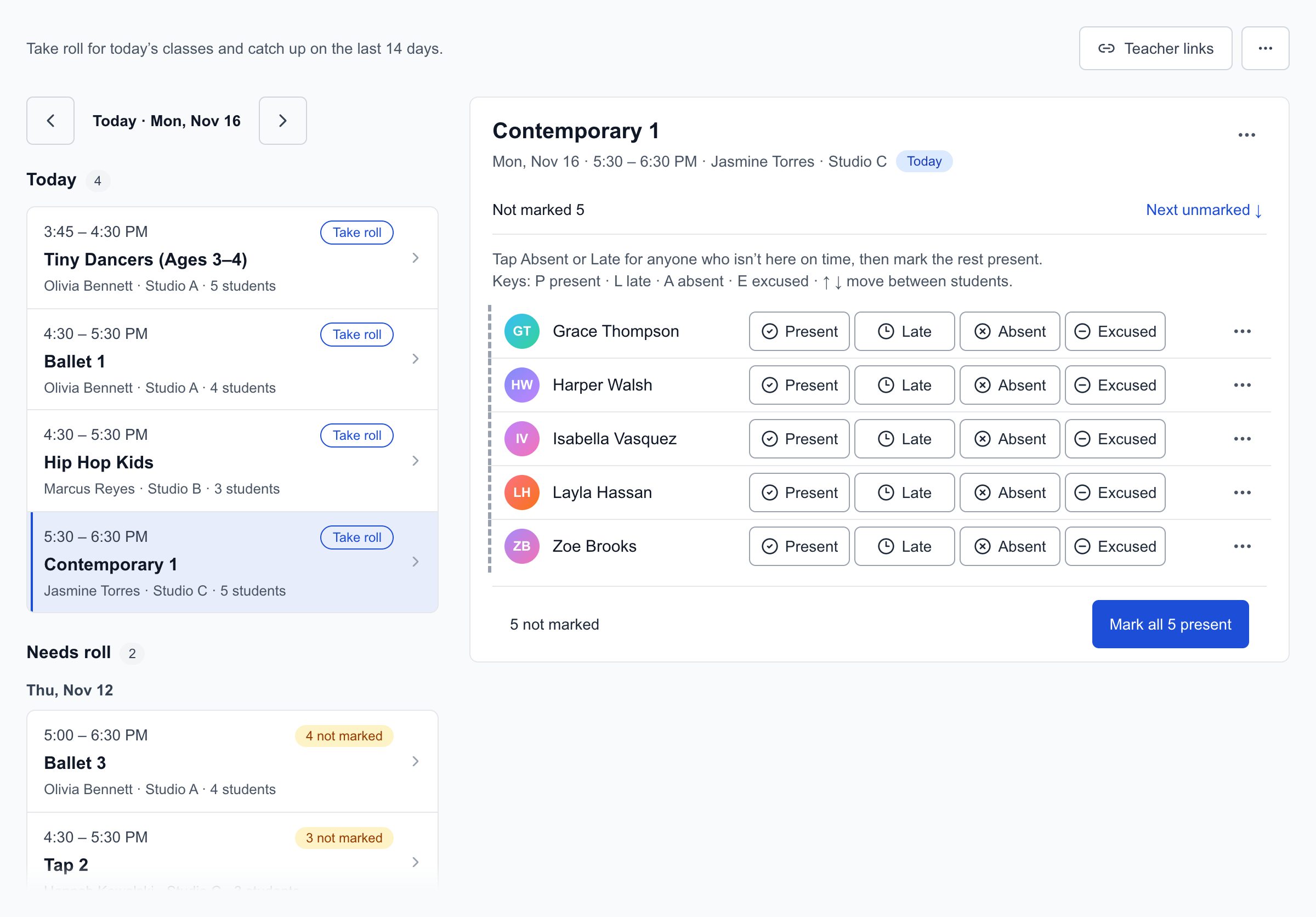
- ‹ and › step a day back or forward. You can go back as far as you like (yesterday's roll the next morning, say) and a few days ahead to see what families have told you.
- Each row shows the class's time, name, teacher and room, how many students are on the roll, and where the roll stands ("Take roll", "8 of 15 marked", "Roll taken"). The teacher is that day's: a covered class reads "Jordan Lee · Substitute for Amy Chen".
- Click a row to open its roll. On a wide screen the roll opens beside the list.
- When every class has its roll, the list says "All caught up". For older classes, pick their day with the arrows, or open the class's Attendance tab.
- Teacher links (top right) is where you give teachers their roll-call links (see below).
- More actions (the ⋯ beside it) holds Export attendance, which downloads attendance as a spreadsheet (see below).
Take roll
- Open the class's roll.
- Tap Absent or Late for anyone who isn't there on time.
- Press Mark the rest present (or Mark all present when nobody is marked yet). Students you've already marked stay as they are. Undo is offered straight after.
- Press Done.
Every tap saves on its own — there's no Save button. On a keyboard, P, L, A and E mark the student you're on and the arrow keys move between students. Next unmarked jumps to the next student without a mark, and Find a student searches the roll.
On each student's row:
- Tags show a Drop-in, a Trial visitor, New on a student's first class since they enrolled, and Medical, which opens their Medical and allergies note.
- If the family has said the child won't attend, the row says so, with their reason.
- The row's menu has Add note (staff only — families never see notes), Clear mark, Excused ahead for a future class, and Open the student's profile.
The Roll actions menu at the top has Open class and Clear roll…, which puts every mark for that day back to Not marked (families' "won't attend" reports stay).
The roll's header names that day's teacher and room — "Jordan Lee · Substitute for Amy Chen · Main Studio" when a substitute has the class. On a class that hasn't started, Change teacher sits beside it: it gives the class to a substitute, or gives it back (the "Calendar" article has the steps).
A strip at the top counts the roll: "Roll taken" or "Not marked 3", then Present, Late, Absent and Excused.
A teacher with an account
A teacher you've invited to sign in (see the "Staff and locations" article) takes roll from their own Today page: they tap Take roll on one of their classes and the roll opens full screen on their phone, the same roll you use — for their own classes only. They can finish or fix their own classes' rolls for 7 days (only rows nobody else marked, and their own marks), and read the list for a class up to 14 days ahead (names, photos, and medical notes if you allow them) without marking it. They can't clear a family's "won't attend", open a student's record, or change attendance settings. A mark a teacher makes signed in says who made it — "Marked by Amy Chen" — on your roll and on another teacher's view of the same class; a mark you make reads "by you" to you and your name to them. When you give such a teacher a class to cover with Change teacher, no link is made: it's on their Today page.
Who to call
On a roll, a student's ⋯ has Who to call: their emergency contacts as the family entered them — name, relationship and phone — with a button to call. It's looked up when you press it, one student at a time, and nothing is kept on the device. Teachers with an account see it for their own classes on the day of class, unless you turned their emergency-contact switch off on Staff & locations → Access; a teacher's roll-call link never shows it.
A roll for another day
- A past class — open it from Needs roll, by picking its day, or from the class's Attendance tab. Changes are saved to that day.
- A future class — its roll opens on the day. Until then you can see who's reported they won't attend, and mark a student Excused ahead when a family calls you.
- A cancelled class has no roll to take. Marks made before it was cancelled are kept.
Teacher roll-call links
Give each teacher a private link to take roll on their own phone or the studio iPad — no sign-in needed.
- On Attendance press Teacher links (or Settings → Attendance → Manage, or the teacher's panel on Staff & locations).
- Every active teacher is listed. Press Create link beside a teacher.
- The link is shown once. Press Copy link or Share…, or open it on the teacher's phone and add it to the home screen. If it's lost, make a new one.
From a teacher's row menu, New link replaces their link (the old one stops working right away) and Turn off link stops it. Marks already taken always stay. A teacher's link also stops when you make the teacher inactive, and when it hasn't been used for 60 days.
The list holds your teachers — the people whose Teaches classes is on. A substitute from outside your studio isn't in it; they get a link of their own. Turning Teaches classes off for a teacher turns their roll-call link off, and a link can't be created for someone with it off.
A substitute's link
When you give a class to a substitute with Change teacher, how they take roll depends on who they are:
- A teacher with a working roll-call link sees the class on that link on the day, marked "Covering for Amy Chen". Nothing new to send.
- Anyone else — someone from outside your studio, or one of your teachers who has no roll-call link — gets a temporary link to just the classes they're covering. The Change teacher window shows it once, for you to copy; with an email on file it's emailed to them as well.
- You, when you cover a class yourself, take roll from your own screens.
A substitute's link opens on Where and when: each class they cover with its level, day, time, room and whom they're covering for, your note on that class ("From the studio: …"), your studio's name and address, a button to open the place in maps, and one number under Who to call. When a class is at a location with its own address, the maps button is on that class and your studio's address is labelled Studio office. They can read all of that from the moment they get the link. A class on a later day says "The attendance list opens on the day of class."; today's says "Take attendance below when class starts." With no class today, the page is headed Your classes instead of today's date. The foot of the page says the link "stops working 12 hours after your last class." The email they're sent lists the same classes, with your note on each.
If a substitute loses the link, open the class's Change teacher and press Send a new link. It asks first, because their old link stops working.
Export attendance to a spreadsheet
On Attendance, open More actions (the ⋯ at the top right) and choose Export attendance. The same export is under More actions on Reports → Attendance, starting from the dates and class you picked there.
- What to download:
- By student (the default) — each student's classes and marks, with Classes missed, Days, Days missed and Days partly missed.
- Every mark — one row for each student at each class: the date, day, start and end time, class, the class's term (or Year-round), who taught that class (the substitute, when it was covered), student, how they were on the roll (Enrolled, Drop-in, Make-up or Not enrolled), their mark, any reason the family gave for not coming, the staff note on the mark, who marked it (the studio, a teacher's roll-call link, a substitute's link, or the family) and when. Use it to sort and total attendance your own way.
- By class date — one row for each time a class met or was cancelled: the date, time, class, its term, who taught it, Held or Cancelled with the reason, and how many were Present, Late, Absent, Excused or Not marked. It's the one export that lists cancelled classes — it downloads even when every class in your dates was cancelled — and the place to spot a roll that was never taken.
- By class — each class and its term: how many times it met, its students and their marks.
- One class's grid — one class, its students down the side and its dates across. Pick the class.
- Dates: your current term, the last 30 days, this month, last month, another term, or Pick dates (up to 366 days). A term counts its own classes and the year-round ones (classes with no term) — a class of another term that meets during it isn't counted there. The other choices count every class that met in those dates.
- Class: all classes, or one. Each class is listed with its term — "Beginner Ballet · Fall 2026", "Open Stretch · Year-round" — so two classes with the same name can be told apart by their term. When you've picked a term, its own classes show by name alone. If you pick a class and then a term it doesn't belong to, the report says so and nothing is counted for it.
- Press Download CSV. The file opens in Excel, Numbers or Google Sheets.
The line under the choices says how many classes the file counts. If no class met in those dates, the export says so instead of downloading an empty file.
Absence alerts
In Settings → Attendance, under Absence alerts, choose Tell me when a student misses a number of classes in a row — from 2 to 10, 3 to start with. Turn the alert's email on or off in Settings → Notifications.
Drop-ins
Book a drop-in for a student from the class on the Calendar — open the class on that day and press Book drop-in. The Calendar article has the details. A drop-in appears on that day's roll with a Drop-in tag, and you mark them like anyone else.
How it works
Who is on a roll
A class's roll for a given day is:
- the students enrolled in the class on that day — someone who joined later isn't on earlier rolls, and someone who left still shows on the rolls from before they left;
- anyone already marked on it;
- drop-ins booked into the class on that day;
- free trial visitors booked into it (see the "Leads, free trials and inviting families" article).
So a term ending, or a student leaving, never wipes their past marks from a class.
The four marks
| Mark | Counts as | Use it for |
|---|---|---|
| Present | Attended | In class |
| Late | Attended | In class, arrived late (the time it was marked is kept) |
| Absent | Missed | Missed class without an excuse |
| Excused | Missed | Missed class with a good reason, or the family told you ahead |
A student's attendance figure is the classes they attended (Present or Late) out of the classes they were marked for — a class nobody marked doesn't count against them. An Excused class is a missed class: it lowers the figure and counts in absences and days missed, and every report shows Excused in its own column so you can tell it from Absent. A drop-in counts as having come only when marked Present or Late.
Days missed
Besides counting classes, StudiFlo counts each student's days. A day counts as missed when every class the student had that day was missed — a student with four classes in an evening who stayed home has missed four classes but one day. A day where they missed one class and came to another is partly missed. As with classes, Present and Late count as attended and Absent and Excused as missed, and a day with a class not yet marked (and none attended) isn't counted either way until the roll is taken. Days count once they're over: today's classes count as classes now, and today counts as a day from tomorrow.
Reports → Attendance shows Days missed beside each student's absences, and the By student export has every day figure. On a student's panel, open Attendance and press By day: each day they had a class is one row, with every class that day and its mark, and the day itself reads Missed, Partly missed, Attended or Not all marked. Above them are the student's Days, Days missed, Partly missed and Days attended. Press a class in a day to open its roll and change its mark: the roll opens on the student's row, highlighted, and the back arrow returns to their By day. By class goes back to one row a class; the view you pick is kept on that device. The term and class filters apply to both.
When a family says their child won't attend
Families can tap "won't attend" on a class from their schedule, with an optional reason (Sick, Away or Something else) and a note for you. When they do:
- the child is marked Excused on that class's roll, and the row shows the family's reason;
- you get a notification ("Mia won't attend");
- the teacher's link shows only the reason, never the family's note.
The family can take it back ("can come after all") until the class starts; you're notified then too. Once you or a teacher has marked the child, the family can't change it — they're told to contact you. You can always change any mark yourself.
Teacher links
- A teacher's link opens the classes they teach, today only — plus last night's classes until 6 AM your studio's time, so a late class can be marked after it ends. That's the classes they're the teacher of, and any class they're covering as a substitute that day. When exactly one of the classes they're teaching is on now (from shortly before it starts until a little after it ends), the link opens straight on its roll.
- When a substitute covers one of their classes, the class stays on the usual teacher's link, marked "Jordan Lee is covering", and they can still open its roll. The link never opens straight onto a class someone else is covering. On the substitute's own link the class is marked "Covering for Amy Chen".
- Teachers see students' names and today's marks — never payments, prices or families' contact details. They see medical notes only if you switch on Show medical notes on teacher links in Settings → Attendance. Emergency contacts are never shown.
- Marks made on a teacher's link are credited to that teacher, and the roll says who marked it ("Marked on Maria Santos's link").
- On a link, Clear roll clears only the marks that link made that day. To change an earlier day's roll, the teacher asks you.
- If attendance is turned off, links show "Roll call is off" until you turn it back on.
A substitute's temporary link
A substitute who has no roll-call link of their own gets a temporary one. It differs from a teacher's link in what it reaches and how long it lasts:
- It reaches only the classes they're covering, never anything else at your studio. A further class you give the same person is added to the link they already hold.
- Where and when shows at once, days ahead: the class and its level, the day and time on your studio's clock, the room, whom they're covering for, your note on the class, your studio's address and the Who to call number you confirmed (your studio's phone if you gave none). It never names a student.
- One place to go. When a class meets at a location with its own address, the link's maps button opens that address, and your studio's address is shown as the studio office. Otherwise the maps button opens your studio's address.
- The roll opens on the day, and works like a teacher's link: students' names and marks, medical notes only if you've switched them on for links, and never payments, prices, a family's contact details or an emergency contact.
- With attendance off, the link still shows where and when, and "Roll call is off" in place of the roll.
- It ends 12 hours after the last class on it ends. There's no 60-day rule for it. When you give a class back, pick someone else, or the class is cancelled, that class leaves the link straight away, and a link with nothing left on it stops working ("Nothing to cover right now."). Making the substitute inactive ends it too.
- Marks made on it read "(substitute)" — the roll says "Marked by Jordan Lee (substitute)", and the Every mark export says "Jordan Lee (substitute's link)".
- Send a new link, in the class's Change teacher window, replaces a lost link after you confirm: the old one stops working, and the new one carries every class of theirs still to come and is emailed to them when they have an email on file. It's for classes that haven't started: a class already under way can't be given a link, so take that roll yourself.
Taking roll with a weak connection
Marks are saved on the device first and sent as soon as there's a connection, so roll call keeps working in a studio with patchy Wi-Fi. The roll says when marks are waiting to send ("You're offline. 3 marks are kept on this device…"). If marks never reach StudiFlo — the device was signed out first, or they waited more than a week — StudiFlo tells you which, so you can take them again.
Absence alerts
Once a day, StudiFlo checks each student's marks across all their classes at your studio, newest first. A run of Absent marks in a row that reaches your number sends you one notification (and an email, if it's on), naming the classes missed and linking to the student's Attendance tab.
- Present, Late or Excused ends the run and starts the count again.
- A class whose roll wasn't taken is skipped — it neither counts nor breaks the run.
- You're told once per run, and only while its latest absence is within the last 14 days — lowering the number doesn't dig up old absences.
Your number is 3. Leo is marked Absent in Ballet on Monday, Absent in Jazz on Wednesday, and nobody takes Thursday's roll. He's marked Absent again in Ballet the next Monday: that's three absences in a row (Thursday is skipped), so you get one alert. If he's marked Present the Wednesday after, the next alert waits for three new absences.
Make-ups
A make-up books a student who missed a class into another class on another day, free of charge. Make-ups are on unless you turn them off: Settings → Attendance → Make-ups (shown while Take attendance is on — a make-up is for an absence, so make-ups work only while attendance is on).
- Open the student's page and go to Attendance. A class they were marked Absent or Excused for has Book make-up once the class has started, and the Make-up column says until when it can be booked — 30 days after the missed class. A family's "won't attend" counts: once the class starts, you can book their make-up.
- Pick a class from the list: upcoming classes within that time that have a place left and that the student isn't already in. Each names its own teacher — "Substitute: Jordan Lee" on one a substitute is covering.
- The student then appears on that class's roll. The booking is listed at the top of the student's Attendance tab, where Cancel make-up cancels it.
- The missed class keeps its mark — Absent or Excused — and still counts as missed. Its roll says "make-up booked", then "made up" once the student is marked Present or Late at the make-up. While a make-up is booked, that mark can't be changed on roll call — cancel the make-up first. Once it's made up, the mark stays.
- Each absence can be made up once — a make-up that's cancelled or runs out can't be booked again.
- Families don't book make-ups themselves; you book them.
- Turning make-ups off stops new bookings and hides the make-up column; make-ups already booked stay booked.
You can still give a student an extra class as a drop-in from the Calendar — that one is charged at the class's drop-in rate.
Drop-ins and attendance
A drop-in takes a place in the class on that day, appears on its roll, and is charged at the class's drop-in rate when it's booked. If that class is cancelled, the drop-in is let go and its money settled (the Calendar article explains how). Families can book and cancel their own drop-ins until the class starts.
Common questions
How do I turn on attendance?
Go to Settings → Attendance and switch on Take attendance. Roll call then appears on the dashboard, the Attendance page, the calendar and each class.
What's the quickest way to take roll?
Open the class, tap Absent or Late for anyone who isn't there on time, then press Mark the rest present. Every tap saves on its own.
I forgot to take roll yesterday. Can I still do it?
Yes. Open Attendance — yesterday's class is under Needs roll — and take it as usual. Changes are saved to that day. For a class older than 14 days, step back to its day or open the class's Attendance tab.
Can I take roll before class starts?
You can mark today's classes at any time on the day. A class on a later day opens for roll on its day — before then you can only mark a student Excused ahead.
How do teachers take roll without signing in?
Give each one a roll-call link: Attendance → Teacher links → Create link. It opens the classes they teach, for today, and they can add it to their phone's home screen.
A teacher lost their link, or left. What do I do?
Open Teacher links and choose New link (the old one stops working right away) or Turn off link. Making the teacher inactive on Staff & locations turns their link off too. Marks already taken stay.
How does a substitute take roll?
A teacher with a roll-call link sees the covered class on that link on the day. Anyone else gets a temporary link when you assign them with Change teacher — shown once for you to copy, and emailed to them when they have an email on file. It shows where and when straight away, and the roll on the day.
How long does a substitute's link work?
Until 12 hours after the last class on it ends. It also stops when you give the class back, pick someone else, or the class is cancelled and nothing else is left on it.
The substitute lost their link. What do I do?
Open the class, press Change teacher and then Send a new link, and confirm. Their old link stops working. The new one is emailed to them when they have an email on file, and shown once for you to copy.
Can a substitute see families' phone numbers?
No. A substitute's link shows your studio's address and one number to call — yours — and on the day the students' names and marks. It never shows a family's contact details, an emergency contact, payments or prices. Medical notes follow your Show medical notes on teacher links switch.
Can the usual teacher still take roll when a substitute has the class?
Yes. The class stays on their roll-call link, marked with who is covering, and they can open its roll.
Can teachers see medical notes?
Only if you switch on Show medical notes on teacher links in Settings → Attendance. It's off to start with. Teachers never see payments, prices, families' contact details or emergency contacts.
Can I export the raw attendance data?
Yes. On Attendance, open More actions → Export attendance and choose Every mark: one row for each student at each class in the dates you pick, with the class, who taught it that day, date, time, mark, the staff note, and who marked it and when. It's a CSV for Excel, Numbers or Google Sheets.
Can I see which classes were cancelled, or which rolls weren't taken?
Yes. In More actions → Export attendance, choose By class date: one row for each class in the dates you pick, Held or Cancelled (with the reason you gave), and its Present, Late, Absent, Excused and Not marked counts. A held class with everyone Not marked is a roll nobody took.
Which classes does a term's attendance count?
A term counts its own classes and the year-round ones (classes with no term), on the term's dates. A class that belongs to another term isn't counted there, even when it meets during it — a summer class running into September counts in Summer, not Fall. To count every class that met on some dates, whatever its term, choose Pick dates (or the last 30 days, this month or last month). Class lists name each class with its term, so two classes with the same name can be told apart. A student's Attendance tab, and the family's attendance card, open on your current term — unless none of the student's classes are in it, when they show every term.
Can I see how many days a student missed, not just classes?
Yes. A day counts as missed when every class they had that day was missed, so four classes missed in one evening is one day. Reports → Attendance shows Days missed in Most absences and By student, and the By student export adds Days and Days partly missed.
Does Excused count as attended?
No. Only Present and Late count as attended. Excused is a missed class — it lowers a student's attendance figure and counts in their absences and days missed — but every report and export shows Excused in its own column, so you can always tell an excused absence from an unexcused one. Excused never starts an absence alert.
Why is a student already marked Excused?
Their family told you ahead of time that they won't attend. The row shows the family's reason. You can change the mark if you need to.
Can a family change a mark?
Only their own "won't attend" report, and only until the class starts and before anyone has marked the child. Every other change goes through you.
How do absence alerts work?
When a student is marked Absent in a number of classes in a row — 3 unless you change it — you get one notification linking to their attendance. Present, Late or Excused starts the count again, and a class with no roll taken is skipped.
Why didn't I get an absence alert?
The run may have been broken by a Present, Late or Excused mark, the classes may not have had their roll taken, or the latest absence is more than 14 days old. Check the email setting in Settings → Notifications if you expected an email.
Why isn't a new student on last week's roll?
A roll lists the students enrolled on that day. A student who joined this week appears from the day they joined.
What happens to marks if I cancel a class?
Marks made before the cancel are kept, read-only. The cancelled class no longer needs roll.
Does StudiFlo do make-up classes?
Yes — make-ups are on unless you switch them off in Settings → Attendance. For a class the student was marked Absent or Excused for, open their Attendance tab and choose Book make-up, within 30 days of the missed class. Families don't book make-ups themselves.
How do I turn make-ups off?
Go to Settings → Attendance and switch off Make-ups. Nobody can book a new make-up; ones already booked stay booked. Make-ups also stop while Take attendance is off.
I clicked Mark the rest present by mistake. Can I undo it?
Yes — press Undo straight away. Marks changed since are kept. Or use Clear roll… in the Roll actions menu to start the day's roll again.
Marks didn't save on my phone. Why?
The phone may be offline: marks wait on the device and send when it's back online. If the device was signed out, or the marks waited more than a week, StudiFlo says which marks didn't save so you can take them again.