
Using it
Move around the calendar
- ‹ and › step back and forward a month (or a week); Today jumps back to today.
- Month | Week switches the view on a tablet or computer, and the calendar remembers your choice. On a phone the calendar is a list of days, opening on today.
- Filters narrows the calendar to one Teacher or one Location. A teacher's classes are the ones they teach — a class they're covering for someone else included — and their own classes that a substitute is covering. The line under the bar counts the classes shown, with a chip for each filter and Clear filters.
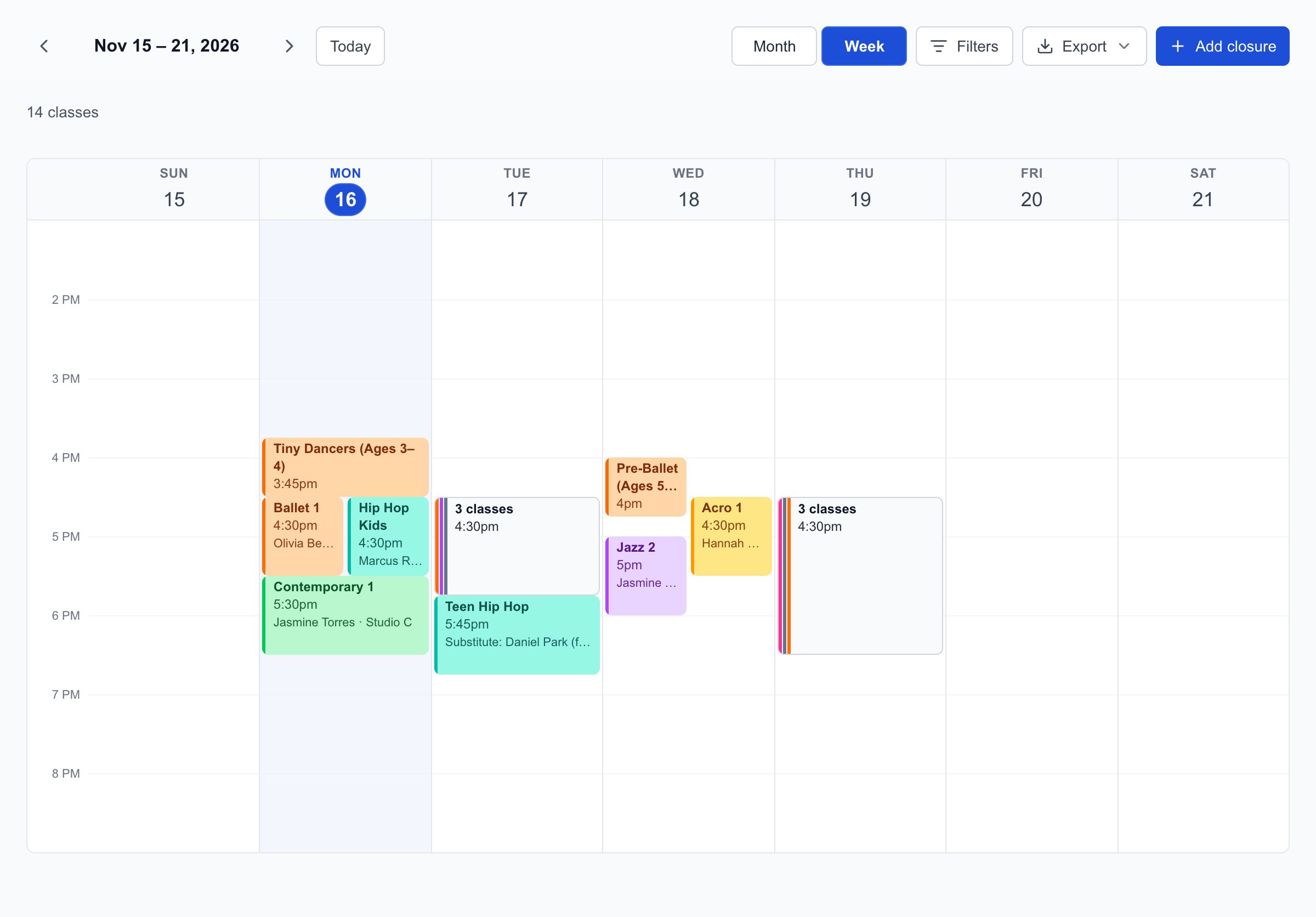
Each class is drawn in its own color (set on the class — see the "Classes and enrolling" article). Today is marked in your studio's color, on your studio's clock. A day the studio is closed is shaded and labelled with the closure's reason; a cancelled class is grayed out. When a day has more classes than fit, press +2 more — the number is how many are hidden — to see them all.
With attendance on, each class that has happened shows where its roll stands — Take roll, how many are marked, or Roll taken.
A class a substitute is covering names them where the teacher shows — "Substitute: Jordan Lee (for Amy Chen)" in the week view and the phone's list of days, and when you hold the pointer over a class in either view.
Open a class
Click a class to open its Class window. It shows the class, the day and time, the teacher and room, and how many students are enrolled (plus any trial visitors). The teacher shown is the one for that day: a covered class reads "Substitute: Jordan Lee (for Amy Chen)", and one with nobody set reads "No teacher set".
- Roll (when attendance is on) — where the roll stands, with Take roll, Open roll or View roll. Pressing it opens the roll call for that class (see the "Attendance, make-ups and drop-ins" article). A class on a later day shows when its roll opens, and how many families have said their child won't attend.
- Change teacher — beside the teacher, on a class that hasn't started and isn't cancelled (see "Change a class's teacher" below).
- Notes — notes for your studio about this class. They save on their own as you leave the box ("Saving…", then "Saved"). A substitute from outside sees the note on their link, as "From the studio: …" — a good place for where to park or which music to use.
- Book drop-in — for a class that takes drop-ins, on today's classes and later ones. Shows the drop-in rate.
- Cancel this class — for a class on a later day than today.
- Restore this class — for a cancelled class.
Change a class's teacher
Use Change teacher when a teacher is out for a class, or when a class gets a new teacher for good. It's beside the teacher's name in the Class window, on a roll's header on Attendance, and under the teacher on a class's panel on Classes, where it opens the class's next date. It's offered for a class that hasn't started and isn't cancelled, and it needs an active trial or subscription. For a class that has already started, the window says so and offers Record who taught: it opens Staff & locations → Hours on that day with Check who taught already open on that class, to record who really taught it.
- Change the teacher for…
- Just this class — a substitute for this one class. The class keeps its usual teacher.
- A range of days — "Amy is out for three weeks": one substitute for every one of the usual teacher's classes between a First day and a Last day, up to 8 weeks at a time. The window lists the classes it found ("9 classes of Amy's between these days."). A class someone else already covers is listed but left as it is — change it on its own. A class the absent teacher was covering for someone else is covered too, and is marked — "Amy is covering this for Ben — it stays Ben's": the substitute takes it, still covering for Ben, and Ben is emailed who covers it now. Classes that have started or are cancelled aren't included. Only the classes the window listed are changed: if one changed while the window was open — it was given to someone else, or a new one appeared — it's left as it is and you're told which ("1 class changed while this was open, so it was left alone: … Open “Change teacher” again to check it."). If one of the teacher's classes isn't on the calendar yet for part of the range, the window says so — "Tap 1 is not on the calendar after Thu, Nov 21 yet. Change those classes when they appear." — and those classes aren't changed. Offered when the class has a usual teacher.
- Every class from now on — a new teacher for the class, starting with its next date. Classes already taught keep who taught them.
- Who covers?
- A teacher here — pick one of your active teachers. Each says whether they're free at this time, and how they'll get in: "signs in to StudiFlo to take roll" (the class is on their Today page — no link is made or sent), "has a roll-call link", or "gets a link to this class". Someone teaching another class at that time is marked ("Teaching Tap 1 at 4:30 PM"), not hidden. For A range of days, someone teaching at the time of any of those classes is marked "Busy during 2 of these classes", with the first clash named. Substitutes from outside you've used before are in the list too ("Outside substitute · covered Oct 30").
- Someone from outside — type their First name and Last name, and if you have them an Email and Phone. They're added to Staff & locations → People as an outside substitute. With an email, they're sent a link to the class and its roll. Offered for Just this class and A range of days.
- I'll teach it — you teach it yourself. The first time, StudiFlo asks "Which teacher are you? We'll only ask once." — choose I'm in the list or Add me. The staff profile you choose must be active, teach classes and have no account of its own; otherwise StudiFlo says which and asks you to pick another. It's the same choice as I also teach on Staff & locations. An admin covers as the person set as their Teaches as on Staff & locations; an admin with no Teaches as isn't offered I'll teach it and picks a teacher instead.
- A swap. If the teacher you picked has a class of their own at that time, you're asked, below the list, "Swap, so Amy takes Tap 1?". Neither answer is chosen for you: Swap has each teacher take the other's class that day; Don’t swap — they keep Tap 1 too leaves the other class alone.
- The teacher's other classes that day. When the usual teacher has other classes that day that haven't started, they're listed under a line like "Amy’s other classes on Thu, Nov 19 — check any Jordan should cover too" ("today" when the class is today). A class someone else already covers says so — "checking it moves it from" them.
- Read What happens — it says, in plain sentences, who is emailed now, how the substitute gets in, what the usual teacher sees, and whose hours the class counts for.
- Email the families of [class] — check it to email each family once (see "Who is told when a teacher changes" below). For a range it reads Email the families of these classes. It isn't offered for Every class from now on, which emails the two teachers but no families.
- Who to call — shown when the substitute gets a link of their own (never for a teacher who signs in to take roll or already has a roll-call link). It starts as your studio's phone; "Use a cell number if nobody will answer the studio line." It's the number on the substitute's link and email.
- Press the button — Assign Jordan, Swap with Dana, Cover it myself or Make Dana the teacher of Ballet 2.
A message then says what was done and what was sent — "Jordan covers Ballet 2. We emailed Jordan and Amy. 3 families emailed." — or "Families were not emailed." when the box was off or no family was due one.
When the substitute gets a link of their own, the next screen shows it — once. It says "We emailed it to Jordan." or, when there is no email on file or the email didn't send, "It wasn't emailed — copy the link and send it to them." To pass it on yourself, press Copy link, Share… (on a phone or a browser that has a share menu) or Text Jordan (when you have their phone number — it opens a text with a short message and the link), then Done. The link is shown only on this screen, so share it before you press Done. If the substitute already holds a link from an earlier class, the new class is added to it ("This class was added to the link Jordan already has."), and Send a new link replaces it if they've lost it: "Their old link stops working.", and the new one is shown for you to copy and emailed to them when they have an email on file.
A covered class opens with a banner — "Jordan Lee is covering for Amy Chen" — and two buttons:
- Give back to Amy returns the class to its usual teacher. You can give it back until the class starts, and choose again whether to email the families.
- Send a new link makes the substitute a new link when they've lost theirs (not offered for a teacher who signs in to take roll or has a roll-call link: there is no link to replace). It asks first — "Send Jordan a new link? Their old link stops working." — with Send a new link and Keep the old link. The new one reaches every class they cover that's still to come, not only this one (for someone with more than 150 classes coming up it reaches the next 150, and you're told how many it left out); it's shown once for you to copy, and emailed to them when they have an email on file. Nothing else about the class changes and nobody else is told. It's offered for a substitute who uses a link of their own, not for a teacher with a roll-call link.
You can also pick a different substitute for a covered class: it stays covered for the same usual teacher.
A class that has started can't be changed here. To correct who taught it, use Check who taught in Staff & locations → Hours.
Book a drop-in
- Open the class and press Book drop-in.
- Pick the student. Students already enrolled in the class aren't offered, and a student who already has a drop-in on this class is shown as "Already has drop-in".
- Add a note if you like, and press Book drop-in.
The student is added to that day's roll, and a charge for the drop-in rate is posted to their family (see "Drop-ins" below). Book drop-in is grayed out when the class is full.
Cancel one class
- Open the class and press Cancel this class.
- Type a Cancellation reason (required) — for example "Teacher unavailable".
- Notify enrolled parents is checked: each enrolled family gets a notification and an email saying the class is cancelled, with your reason. Uncheck it to tell them yourself.
- The window lists anyone booked into the class as a visitor — drop-ins and trial visitors — and what will happen to each one's money.
- Press Cancel this class.
If the class had a substitute, they're emailed that it's cancelled, and so is the usual teacher. Anyone who couldn't be emailed — no email on file, or the email didn't send — is named in a message: "Jordan Lee couldn't be emailed. Call or text them."
If anything is left for you to settle — a drop-in paid in cash, for example — the window stays open and says what, with Try again and a link to the charge.
To bring a class back, open it, press Restore this class and confirm ("Restore this class?"); you'll see "Class restored". It goes back on the calendar as scheduled; drop-ins cancelled with it stay cancelled, and families aren't told. A restored class that had a substitute and hasn't started comes back as its usual teacher's, and you're told who had been covering ("Jordan Lee had been covering this class. It's Maria's again — set a substitute again if you still need one."). Deleting a closure does the same for every class it had cancelled. A class that had already met keeps whoever taught it. A date of a class that was cancelled as a whole can't be restored — a cancelled class doesn't come back.
Close the studio for a holiday (closures)
- Press Add closure (in the ⋯ menu on smaller screens).
- Pick the Start date and End date (the same day for a single day) and type a Reason — "Thanksgiving break".
- Under Classes affected you see how many classes the closure will cancel, and any drop-in or trial visitors booked into them with what will happen to their money.
- If the closure starts before today, the days already past keep their classes unless you check Also cancel the classes already past. The line under it says how many past classes that would cancel. A past class with a roll taken or a drop-in, make-up or trial booked is never cancelled — when every past class has one, the box isn't offered.
- Press Add closure.
Every class from today on in those days is cancelled — today's included — and the days are shaded on the calendar. To remove a closure, click the shaded day, open it and press Remove closure — the classes it cancelled come back, except those of a class cancelled as a whole since.
Export, subscribe or print
Press Export calendar (in the ⋯ menu on smaller screens):
- Download the month — a calendar file of that month's classes to open in Google Calendar, Apple Calendar or Outlook. Each class names its own teacher; a covered one reads "Substitute: Jordan Lee (for Amy Chen)".
- Subscribe — once your studio has a public web address: Copy calendar link, Add to Google Calendar or Add to Apple Calendar. A subscribed calendar keeps itself up to date.
- Print — prints the calendar as it's shown, with any filters.
How it works
Where a class's dates come from
You never add a class's dates one by one. A class's weekly schedule makes them — every scheduled weekday from the start of its term to the end. A one-day event has a single date. Year-round classes have no end date: their dates are kept topped up months ahead, and more are added at the start of each month.
When a class's schedule or its term's dates change, its upcoming dates are lined up with the new schedule. Past classes never change, cancelled ones stay cancelled, and a class with attendance or someone booked into it is never removed — you're told which ones stayed. The "Classes and enrolling" article has the details.
Everything on the calendar uses your studio's time zone, set in Settings → Profile — so "today", the roll's day and when a class counts as past are your studio's, wherever you are.
Cancelling a class: what happens
- Enrolled families get a notification and an email with your reason when Notify enrolled parents is checked. Their schedules show the class as cancelled either way.
- Drop-in visitors are let go: an unpaid drop-in charge is cancelled, and a drop-in paid by card is refunded to that card. A drop-in paid another way (cash, check), one in a card dispute, or one whose card payment is still going through is left for you to settle — you get a notification saying what to do, and nothing more is collected from the family for it until you do. Each visitor's family is told once what happened to their booking and their money.
- Trial visitors are let go too, and their families are told.
- Attendance already taken on the class is kept, read-only.
- Tuition. Per-class tuition counts only classes that aren't cancelled, so a class cancelled before you post the month isn't billed. If you'd already posted that month, the posted charge doesn't change — adjust or refund it yourself. Monthly and per-term tuition don't change when a class is cancelled.
You can cancel only classes on a later day than today. A class that's already happened, or today's, stays on the record — mark its roll instead.
Substitutes and a class's teacher
Each date of a class keeps its own teacher. It starts as the class's usual teacher, and Change teacher changes it in one of two ways.
Just this class makes the person a substitute for one class:
- The class reads "Substitute: Jordan Lee (for Amy Chen)" on your calendar, your dashboard's Today's classes, the roll and the downloaded calendar file. The class itself still names its usual teacher.
- That class's hours count for the substitute, not the usual teacher (see the "Staff and locations" article).
- How the substitute gets in. A teacher with a working roll-call link sees the class on that link on the day. Anyone else — someone from outside, or a teacher with no roll-call link — gets a temporary link to the classes they're covering (the "Attendance, make-ups and drop-ins" article describes it). When you cover it yourself, you take the roll from your own screens.
- The usual teacher still sees the class on their roll-call link, marked "Jordan Lee is covering", and can still open its roll.
- Someone from outside who has covered before is found again by their email — or by their name, when you give no email — so their hours and their link stay with one person.
- You can't give a class to the person who already teaches it, to someone inactive, or change one that has started or is cancelled.
A teacher can hand off one of today's classes when signed in to StudiFlo (only their own class, before it starts, and only to another teacher at your studio). It's the same as Just this class: the class shows as covered, the other teacher, you and each admin who gets studio notices are emailed, and families are not (the "Staff and locations" article has the details).
Every class from now on changes the class's own teacher, exactly as picking a new Teacher in Edit class does:
- Classes that haven't started move to the new teacher. Classes already taught keep who taught them.
- A class with a substitute keeps its substitute, now covering for the new teacher — unless the new teacher is that substitute, in which case it's simply theirs.
- The new teacher must be someone who teaches classes: a substitute from outside can cover a class but can't be a class's teacher until Teaches classes is turned on for them on Staff & locations.
- The new teacher is emailed that the class is theirs, with the first class they teach themselves and any class a substitute still covers; the teacher it was taken from is emailed who teaches it now. When a substitute holds every date that's on the calendar, the emails say "from now on" without a date. You aren't emailed when either one is you, and a teacher who has been made inactive isn't emailed. Families aren't emailed — tell them yourself if you want to.
A swap is two substitutions made together: each teacher covers the other's class, and each class's hours follow who teaches it. To undo a swap, give each class back.
Who is told when a teacher changes
For Just this class, a swap and a give-back, StudiFlo emails:
- The substitute — one email however many classes they took, with each class, its day, time and place, whom they cover, your studio's address and phone, the Who to call number, and how they get in: their roll-call link, a button that opens their temporary link, or the link they already hold.
- The usual teacher — that their class is covered and by whom, or that it's theirs again.
- For Every class from now on — the teacher who now has the class, and the teacher who had it.
- A substitute who loses a class — because you gave it back or handed it to someone else.
- The families, only when Email the families of [class] is checked — one email per family, listing each class of their children that changed: "Beginner Ballet on Thursday, November 19 at 4:30 PM will be taught by Jordan L.", or "… is back with Amy Chen." It goes to families with a child enrolled in the class and to families with a drop-in or make-up booked into the class on that day. Families with a free trial booked aren't emailed. A family that has stopped these emails is left out.
Whoever makes a change is never emailed about it — you're not emailed about a class you cover yourself, or about a substitute you put on your own class. When someone else makes the change — an admin gives you a class to cover, or puts a substitute on a class you teach — you are emailed like any teacher, owner included. Anyone who should have been emailed but couldn't be — they have no email on file, or the email didn't send — is named on your screen: "Jordan Lee couldn't be emailed. Call or text them."
The families box always starts checked for someone from outside, and for a class less than 24 hours away. For one of your own teachers on a class further off, it starts from what you chose last time on that device — unchecked the first time.
What families and the public see
- Signed-in families see the class's teacher for that day on their schedule, whether or not you emailed them: "Substitute: Dana Kessler" for one of your teachers, and first name and last initial — "Substitute: Jordan L." — for someone from outside.
- Your public calendar link and your trial booking page never name a substitute from outside: they keep showing the class's usual teacher. One of your own teachers covering a class is named there.
- You always see the full name.
When a covered class changes
- Cancelled, or closed by a closure: the substitute is emailed that they're no longer needed, and the usual teacher is emailed too; anyone who couldn't be emailed is named for you to call or text. A class you bring back later — with Restore this class, or by removing the closure — comes back as its usual teacher's, not the substitute's, as long as it hasn't started, and you're told who had been covering (after a closure: "2 classes had a substitute before this closure (Jordan Lee and Chris Vale). They’re back with their usual teachers — to keep a substitute, open the class and choose “Change teacher” again."). A class that had already met when it was cancelled keeps whoever taught it.
- Moved to a new time on the same day (you changed the class's schedule): the class keeps its substitute, who is emailed the new time.
- Moved to another day (a new weekday, a new date for a one-day class, or new term dates): the old dates are removed and new ones made, and a substitute doesn't follow. You're shown who was dropped — "A substitute was on a class that moved", with each name, day and time — and each of them is emailed that the class moved and they're no longer needed that day. To keep one, open the class on its new day and choose Change teacher.
- The substitute is made inactive or deleted: the classes they were going to cover go back to the usual teachers, who are emailed that the class is theirs again.
In every case a substitute's temporary link is updated to match: a class they no longer cover leaves it, and the link ends when nothing is left on it.
Closures
A closure cancels every class on its days, from your studio's today on — today's classes included, even though a single class can only be cancelled on a later day. Days already past are left alone unless you check Also cancel the classes already past, and even then a past class that has a roll taken, or a drop-in, make-up or trial booked, stays as it was.
- Enrolled families aren't notified by a closure — let them know with an announcement from Communications. Only families with a drop-in or trial booked on those days are told, along with what happened to their money.
- Drop-ins on the closed days are let go exactly as when you cancel a class.
- Per-class tuition isn't billed for the closed days, as long as you haven't posted that month yet.
- Two closures can't overlap.
Removing a closure brings back every class it cancelled — except any you had also cancelled yourself. Drop-ins it cancelled stay cancelled, and no family is told, so let families know the classes are back on.
Drop-ins
A drop-in is one visit by a student who isn't enrolled in the class, at the class's drop-in rate.
- You can book a drop-in from the calendar for today's classes (even after the class has started — handy for a walk-in) and later ones, never earlier days.
- Families can book drop-ins themselves from their account, up until the class starts, and can cancel their own booking until it starts.
- A drop-in takes a place in the class, so a full class can't take one.
- The charge for the drop-in rate is posted to the family when it's booked (never less than $2.00). It's due on the class's day or your default due date, whichever comes first — never before today. Families on auto-pay are charged for it right away; everyone else pays from their Pay page.
The subscribe link
The subscribe link is public: anyone who has it can see your schedule for the next three months — your public classes only, with each one's location and teacher. A class covered by a substitute from outside your studio keeps showing its usual teacher there. A private class never appears in it, and neither does a class of a Completed or Cancelled term or a cancelled class. It shows class times only, never students or families. A downloaded month is a one-time copy and doesn't update.
Common questions
How do I add a class to the calendar?
Create the class on the Classes page with its weekly schedule. Its dates appear on the calendar for its whole term.
A class is missing from the calendar. Why?
Check the Filters — a teacher or location filter hides other classes. Otherwise open the class on Classes: make sure it has a weekly schedule, then press Refresh calendar on its Schedule tab.
How do I cancel a class for one day?
Click the class, press Cancel this class, type a reason and press Cancel this class. Keep Notify enrolled parents checked to tell the families.
How do I close the studio for a holiday?
Press Add closure, pick the dates, give a reason and press Add closure. Every class on those days from today on is cancelled. Families with only enrolled students aren't told by the closure itself — send an announcement.
Are families told when I add a closure?
Only families with a drop-in or trial booked on those days. Tell enrolled families yourself with an announcement from Communications.
I cancelled a class by mistake. Can I undo it?
Yes. Open it and press Restore this class. Drop-ins cancelled with it stay cancelled, and families who were told about the cancellation aren't told it's back — let them know.
Why can't I cancel today's class?
Only classes on a later day than today can be cancelled. Today's class stays on the record; take its roll as usual, or mark students absent.
Does cancelling a class refund families?
Drop-ins paid by card are refunded to the card automatically, and unpaid drop-in charges are cancelled. Enrolled families' tuition doesn't change; if you'd already posted per-class tuition for that month, adjust or refund it yourself.
A teacher is out sick. How do I get a substitute?
Click the class, press Change teacher, keep Just this class, and pick A teacher here, Someone from outside or I'll teach it. Check the teacher's other classes that day if the same person is taking them, decide whether to email the families, and press Assign. The substitute is emailed where and when.
A teacher is out for a few weeks. Do I change every class one by one?
No. Open any of their classes, press Change teacher, choose A range of days, set the First day and Last day (up to 8 weeks), pick who covers and press Assign. Every one of their classes in those days goes to the substitute in one go: the substitute gets one email listing them all and one link for all of them, and the usual teacher gets one email too. For a longer absence, do the next 8 weeks now and the rest later.
A class already started and the teacher didn't show. How do I record the substitute?
Change teacher only changes classes that haven't started. Open the class and press Record who taught — Check who taught opens on that class — and pick who really taught it. (Or go to Staff & locations → Hours, find the class and press Check who taught.) Their hours follow. Nobody is emailed and no link is made — if the substitute needs to take the roll right now, you can take it for them from Attendance.
The substitute only has a phone number. How do I send them the link?
After you assign them, the link screen has Text Jordan when their phone number is on file — it opens a text on your phone with a short message and the link — and Share… and Copy link for any other way. The link is shown only on that screen; if it's lost, use Send a new link.
Can families see the substitute?
Yes. Their schedule shows "Substitute:" and the name on that class — the full name for one of your teachers, first name and last initial for someone from outside. They're emailed only if you check Email the families of [class]. Your public calendar link keeps the usual teacher when the substitute is from outside.
The substitute lost their link. What do I do?
Open the class, press Change teacher, and on the "is covering for" banner press Send a new link, then confirm. Their old link stops working. The new one is emailed to them when they have an email on file, and shown once for you to copy and send yourself. A teacher who uses their own roll-call link gets a new one from Teacher links instead.
The teacher didn't show and class has already started — what do I do?
Change teacher is only for classes that haven't started. Take the roll yourself from Attendance. Afterwards open Staff & locations → Hours, unfold the row of the teacher the class is under, open that class's ⋯ menu and choose Check who taught — pick whoever really taught it and press Save. The class then counts for that person.
I picked the wrong substitute. Can I undo it?
Yes, until the class starts. Open the class, press Change teacher and then Give back to the usual teacher — or pick a different substitute. After the class has started, correct it with Check who taught in Staff & locations → Hours.
How do I change a class's teacher for good?
Press Change teacher on one of its dates and choose Every class from now on, or pick a new Teacher in Edit class. Classes that haven't started move to the new teacher; earlier ones keep who taught them. With Change teacher, the new teacher and the one who had the class are each emailed; families aren't.
Can two teachers swap classes for a day?
Yes. Open one teacher's class, press Change teacher, and pick the other teacher. If they teach at that time you're offered Swap. To undo it, give each class back.
Does the substitute need a StudiFlo account?
No. A teacher with a roll-call link sees the class there. Anyone else gets a temporary link by email, or one you copy and send, that shows where and when and opens the roll on the day.
Is per-class tuition billed for cancelled classes?
No — per-class tuition counts only classes that aren't cancelled. That works out by itself if you cancel before you post the month. A charge already posted doesn't change.
How do I book a drop-in for a student?
Click the class, press Book drop-in, pick the student and press Book drop-in. The class must take drop-ins (set on the class) and have a place free.
Can families book drop-ins themselves?
Yes, for classes that take drop-ins, from their own account — up until the class starts. They can cancel their own drop-in until it starts too.
How do I put my schedule on my phone's calendar?
Press Export calendar and choose Add to Google Calendar or Add to Apple Calendar, or Copy calendar link for another app. Subscribing needs your studio to have a public web address.
Can I share the calendar with families?
Yes — the subscribe link is public, so you can share it. It lists your public classes with times, places and teachers — never a private class, and never students.
How do I print the schedule?
Press Export calendar, then Print. Filter by teacher or location first to print one teacher's or one room's schedule.
Why are the times off?
The calendar uses your studio's time zone, set in Settings → Profile. Check it's right for your studio.
What does "+2 more" on a day mean?
That day has more classes than fit in the box — two more, in this case. Press it to see the full list for the day.