
Using it
Find a class
- Search classes finds a class by name.
- The term choice at the top: Current terms (classes in terms that aren't completed or cancelled, plus year-round classes — the default), All terms, Year-round, or one of your terms.
- Filters: Teachers, Level and Drop-in (only classes that take drop-ins).
- Clear filters, on the line under the bar, clears the search and the filters. The term choice and the sort stay. A term choice with no classes says so: "No classes in “Year-round”".
- Sort by name, schedule, most enrolled, or term.
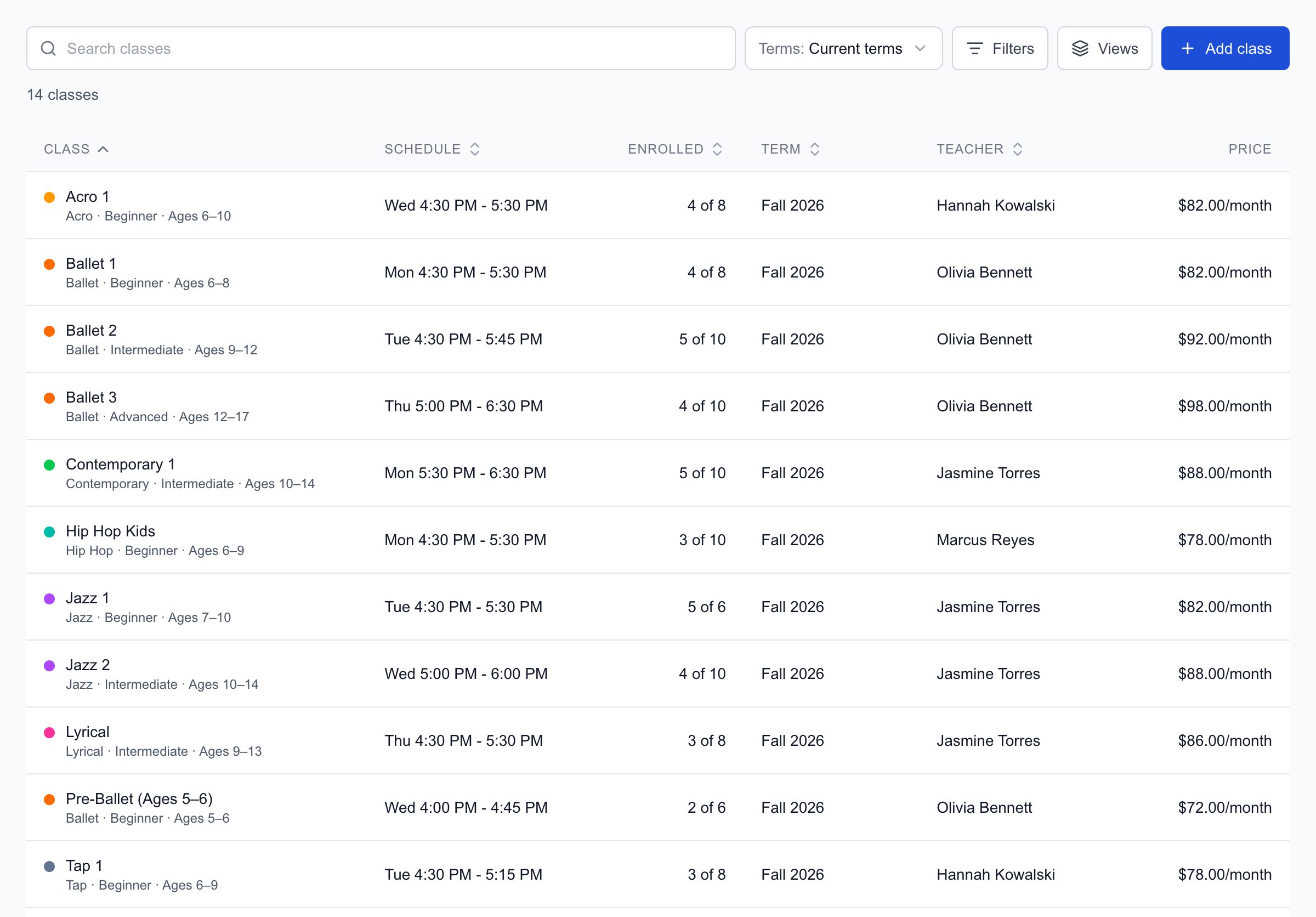
Each row shows the class with its calendar color, style, level and ages; its Schedule; Enrolled (out of its capacity, and its waitlist if it has one); and on wider screens its Term ("Year-round" if it has none), Teacher ("No teacher" if it has none) and Price. Click a row to open the class.
Create a class
- Press Add class.
- Class info:
- Class name (required).
- Term — pick one, or leave it on Year-round for a class that isn't part of a term. A class's term can't be changed after you create it.
- Class type — the style, such as "Ballet". Classes of the same type share a calendar color.
- Calendar color — pick one of the swatches, or leave it on Auto (see "Calendar colors" below).
- Description, Teacher, Location, Skill level (All Levels, Beginner, Intermediate or Advanced), Minimum age and Maximum age (in steps of half a year), Max capacity and Duration (minutes) — all optional. Leave Max capacity blank for no limit.
- Private class — hidden from your public listings and your public calendar link, and only you can enroll students in it.
- Offer a trial — Off or Free trial, with an optional note families see before their first class. See the "Leads, free trials and inviting families" article.
- Pricing:
- Pricing type — Monthly Rate, Per Class or Per Term — and the price, at least $10.00.
- Drop-in eligible — lets students who aren't enrolled come to single classes. Set the Drop-in rate, at least $2.00.
- Schedule:
- For a weekly class, add each day it meets with its start and end time.
- For a class that happens once, turn on One-day event and pick the Event date and times. A one-day event must belong to a term, its date must fall within the term, and it's always priced per term — a one-time charge.
- Press Add class. Its dates appear on the Calendar for the whole term.
Look at a class
Click a class to open its panel:
- Details — teacher, location, price, capacity, duration, term, level, ages and calendar color. Under the teacher’s name, Change teacher opens the class's next date that hasn't started: give that one class to a substitute, or give the class a new teacher from then on (the "Calendar" article has the steps). It isn't shown when the class has no date in the next 60 days.
- Schedule — the weekly schedule, and Refresh calendar (see below).
- Students — who is enrolled, with search, Add students, Add charges for the class, Export roster and, in each row's menu, Unenroll.
- Waitlist — the students waiting for a place, in order.
- Attendance — each date of the class and its roll, when attendance is on (see the "Attendance, make-ups and drop-ins" article).
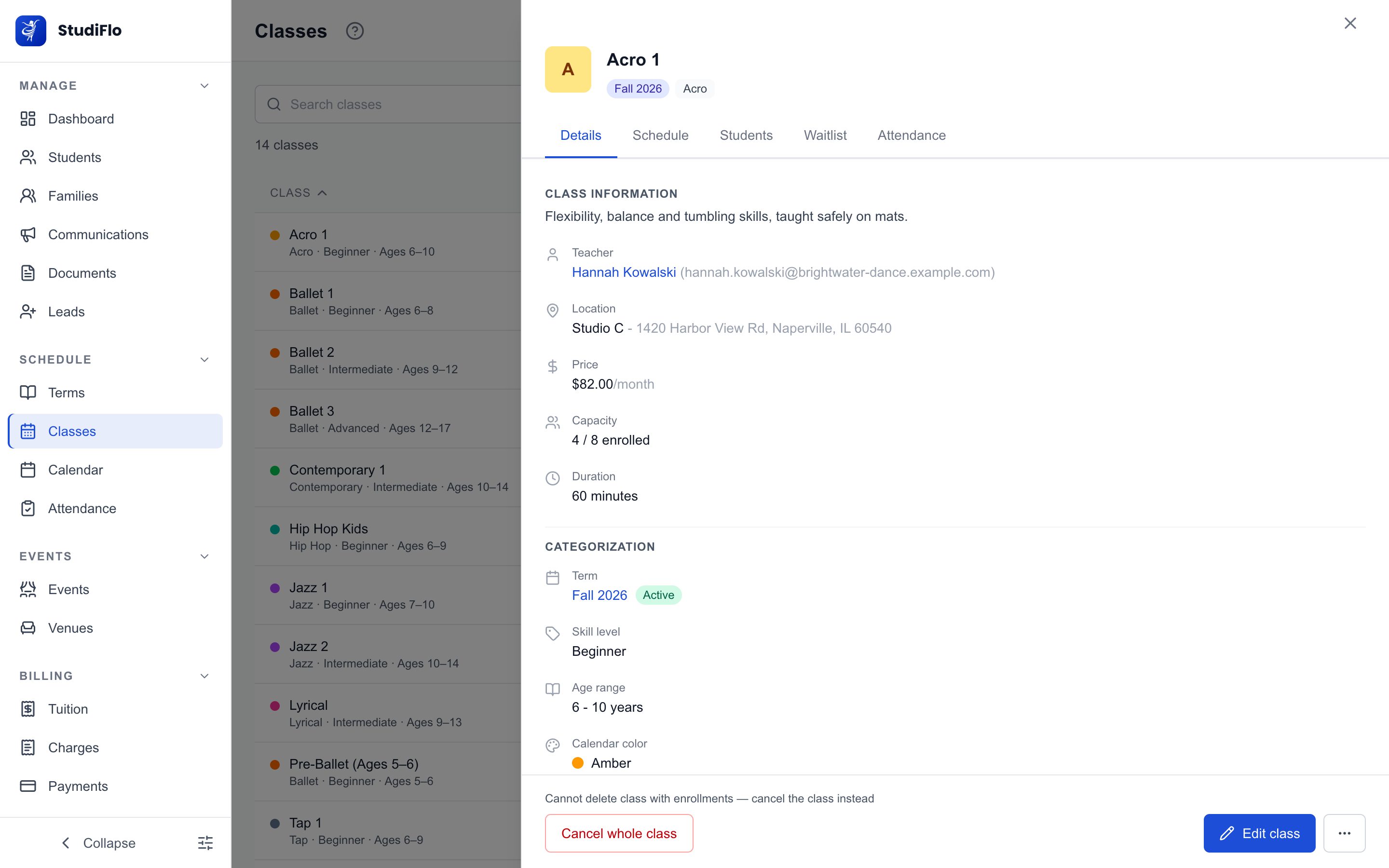
At the bottom: Cancel whole class, Delete class and Edit class.
Enroll students
- Open the class, go to Students and press Add students.
- Check the students to enroll — up to 40 at a time. Search by name, or by the parent's name or email. Students already in the class, archived students and children who so far only attend another studio aren't listed.
- Check the summary before you confirm:
- It warns you if you've picked more students than there are places left. A class at capacity can't take more.
- A student outside the class's age range needs Enroll anyway checked.
- A student whose parent still has a waiver to sign before this class can't be enrolled yet. Uncheck them, or press Remind the parent to sign.
- If you offer the Unlimited pass, choose who gets one and how it's paid.
- Let the family know — on when the enrollment posts a charge: the family gets the enrollment email and one notice of the charges posted. Turn it off and the family isn't told.
- Press Enroll with the count. The result lists the passes added, registration fees posted and tuition posted, and anything that was already posted or skipped.
You can also enroll one student from their own record — see the Students article.
Unenroll a student
On the Students tab, open the student's row menu and choose Unenroll. The confirm says what will happen to the family's charges before you press Unenroll:
- If this is the student's last class in the term and the term's registration fee is unpaid, choose Keep it (the default) or Waive it.
- If this was the last class their Unlimited pass covers, you can cancel the pass too.
- When money comes off the family's bill, Let the family know is on: the family gets a notice of what changed.
- If this month's tuition hasn't been posted yet, the confirm says it's still owed, with about what it comes to. It stays on the Tuition page's To post tab for you to post.
Manage the waitlist
When a class is full, families can join its waitlist from their own account. The Waitlist tab lists them in the order they joined, each with a status: Waiting, Offer sent (with the time left), Enrolled, Expired or Declined.
- Offer the spot to the first student waiting sends that family an offer now — for example, after you've raised the class's capacity. It needs a free place: when every place is taken or already on offer to another family, no offer is sent and you're told to raise the capacity or wait for a place to open.
- Remove, in a row's menu, takes a student off the waitlist.
Add charges for everyone in a class
On the Students tab, press Add charges for the class. The Add charges editor opens with every active student in the class selected — for a costume fee or a recital fee, say. See the Charges article.
Export a class roster
On the Students tab, press Export roster for a spreadsheet of the class's students.
Edit a class
Press Edit class, change what you need, and press Save changes. The term can't be changed. If you change the schedule, the class's upcoming dates are lined up with it (see "Changing a schedule" below).
Picking a new Teacher gives the class's dates that haven't started to the new teacher; classes already taught keep who taught them (see "Changing a class's teacher" below). The list offers your active people who teach classes — a substitute from outside your studio isn't in it.
If upcoming classes have a substitute and your change would move the class to other days, a warning shows above the buttons before you save: "2 upcoming classes have a substitute. A class that moves to another day loses its substitute — you'll be told who, and so will they."
Refresh calendar
Refresh calendar on the Schedule tab lines up the class's upcoming dates with its current weekly schedule — missing dates are added and ones that no longer fit are removed. Use it if the calendar ever looks out of step with the schedule.
Cancel or delete a class
- Cancel whole class stops a class that has students (see "Cancelling a class" below). It can't be undone.
- Delete class removes a class completely. You can delete a class only when nobody is enrolled, it hasn't been cancelled, it has never met and none of its upcoming classes has a substitute — a class with students is cancelled instead, so its history is kept, and a class that has met stays so its teacher's hours stay on record.
How it works
What enrolling posts
Enrolling posts only the charges that belong to the start of a class. Monthly and per-class tuition is never posted at enrollment — it's posted month by month from the Tuition page, with the first month counted from the day the student joined.
| The class is… | Posted when the student enrolls |
|---|---|
| Monthly or per class | Nothing for tuition (the term's registration fee, if it's the student's first class of the term) |
| Per term | The term price — prorated by days if the term has already started and proration is on — plus any registration fee |
| A one-day event | Its full price, plus any registration fee |
Lily enrolls in a $300 per-term class on a term with a $25 registration fee. It's her first class of the term. Posted at enrollment: $300 + $25 = $325, due on your studio's default due date.
Charges posted at enrollment are due on your studio's default due date. Families on auto-pay are charged automatically then; everyone else pays from their Pay page. The Tuition article explains proration, the family discount and the registration fee's sibling discount in detail.
If the term has already ended, you can still enroll a student, but no tuition is posted; a registration fee still is.
A student who was in the class before, left, and is enrolled again in the same month they left picks up where they left off: the months cancelled because they left are owed again. Enrolled again in a later month, they start afresh from the day they come back: the months they were away aren't billed.
Who can enroll, and where
- You can enroll any student in any class from the class's Students tab or the student's record, whatever the term's registration dates say — as long as there's room, the student isn't archived, and their parent has signed any waiver needed before the class.
- Families can enroll their own children online — while your studio has a trial running or a subscription (see "Your StudiFlo subscription"; otherwise they're told "This studio isn't taking online sign-ups right now — contact the studio.") — in classes that are active and not private, in a term that is Upcoming or Active and accepting enrollments (see the Terms article) — and only within the class's age range. A class of a Completed or Cancelled term never takes a family's enrollment.
Capacity and the waitlist
Max capacity is a hard limit: when a class is full, nobody can be enrolled — by you or by a family — until a place opens. Families can join the waitlist instead.
When a student leaves a full class, the next student on the waitlist is offered the place automatically. Only one offer goes out at a time.
- The family gets a notice and has your studio's time to accept — 48 hours unless you change it in Settings → Classes (12 to 72 hours). The notice names the deadline.
- While the offer is open, the place is held for that child: nobody else can take it — not even you. The class page says whose place it is and until when. To free it, wait for the offer to end or remove the child from the waitlist.
- If the family accepts, the child is enrolled and the usual enrollment charges are posted.
- If they decline, or the time runs out, the place is offered to the next student waiting.
Raising a class's capacity doesn't send offers by itself — press Offer the spot to on the Waitlist tab. A place on offer counts as taken, so you can offer only as many places as are free: with a capacity of 12, 11 students enrolled and one offer open, the class is full until that offer ends.
Waivers at enrollment
- A waiver for everyone must be signed before any enrollment: a student whose parent hasn't signed it can't be enrolled — by you or by the family — until they do.
- A waiver for particular classes: when a family enrolls online in one of those classes, they sign it as part of enrolling. When you enroll the student yourself, the enrollment goes through and the family is asked to sign afterwards.
- A waiver for student groups never holds up an enrollment.
The "Waivers and sign-offs" article explains how to choose who signs what.
Changing a schedule
When you change a class's schedule (or its term's dates):
- Past dates never change.
- An upcoming class on a day the class still meets, at a new time, moves to the new time — with anyone booked into it.
- Dates the schedule no longer wants are removed — unless someone is booked into them or attendance was taken. Those stay, and a message lists them ("2 dates stayed on the calendar"). Cancel one from the Calendar once you've told the family.
- Classes you cancelled stay cancelled.
- A class with a substitute. A new time on the same day keeps the class and its substitute, who is emailed the new time. A class that moves to another day — a new weekday, a new date for a one-day event — is a new class on the calendar, and the substitute doesn't follow it. After you save you're told who was dropped ("A substitute was on a class that moved", with each name, day and time, and "To keep them, open the class on its new day and choose “Change teacher”."), and each of them is emailed that the class moved and they're no longer needed that day. Anyone who couldn't be emailed is named — "Jordan Lee couldn't be emailed. Call or text them." Refresh calendar and a change to a term's dates say the same.
Changing a class's time, place, teacher or price doesn't notify families and doesn't change charges already posted. A new price applies to tuition you post from now on. Families with a free trial booked are told if the class's location changes.
Changing a class's teacher
A class has one usual teacher, and each date of the class keeps its own. When you pick a new Teacher in Edit class (or choose Every class from now on in Change teacher):
- classes that haven't started move to the new teacher;
- classes already taught keep who taught them, so the earlier teacher's hours don't change (see the "Staff and locations" article);
- a class a substitute is covering keeps its substitute;
- nobody is emailed — tell the new teacher and the families yourself.
A substitute from outside your studio can cover single classes but can't be a class's teacher, whether you're creating the class or editing it: "An outside substitute can cover one class, but can't be the class's teacher. Turn on “Teaches classes” for them first." Turn that switch on in their Edit form on Staff & locations.
To have someone else teach just one class, use Change teacher and keep Just this class.
Cancelling a class
Cancel whole class is for a class that won't run any more. When you confirm ("Cancel this whole class?"):
- every student's enrollment in the class ends, and every upcoming date of the class is cancelled — on Reports → Enrollment, they count as dropped enrollments that day;
- each enrolled family's unpaid charges for the class are cancelled — its tuition, the term's registration fee where this was the child's last class that term, and any late fees on them;
- money already paid is never refunded automatically. After the cancel, the class panel lists each family who had paid for the cancelled classes, with Issue refund beside them;
- drop-in visitors booked into the cancelled classes are let go: an unpaid drop-in charge is cancelled and a card payment for one is refunded to the card. Anything StudiFlo can't settle by itself — money recorded by hand, for example — is left for you, with a notification saying what to do;
- each family is told once, by notification and email, what was taken off their bill, what's still owed and what they'd already paid;
- a substitute who was going to cover one of the cancelled classes is emailed that they're no longer needed.
The confirm shows the visitors and what becomes of their money before you press Cancel whole class. A cancelled class can't be reopened — create a new class instead.
Calendar colors
Every class has a color on the calendar and on families' schedules. Pick one yourself, or leave Auto: when you save, Auto gives the class the color its class type already has (so all your Ballet classes match), or, for a new type, the color your classes use least. The form tells you which color Auto will pick ("Auto: Teal, the color Tap already has."). A class you clone into a new term keeps its color.
Common questions
Why can't I enroll a student — the class is full?
Max capacity is a hard limit, whether you enroll from the class's Students tab or from a student's Enroll in class. Raise the capacity with Edit class, or wait for a place to open. If a place is on offer to a family on the waitlist, it's held for them until the offer ends.
Does enrolling charge the family?
Only for per-term and one-day classes and the term's registration fee, which are posted at enrollment. Monthly and per-class tuition is posted from the Tuition page each month. Families on auto-pay are charged on the due date.
Can I enroll a student outside the class's age range?
Yes. Check Enroll anyway when you enroll them. Families can't enroll a child outside the range themselves.
Why does it say a parent has unsigned waivers?
The parent hasn't signed a waiver that's for everyone, and it must be signed before any enrollment. Press Remind the parent to sign, and enroll the student once they've signed.
How does the waitlist work?
When a full class has a place free up, the first student waiting is offered it automatically and their family has 48 hours to accept — or the time you set in Settings → Classes, from 12 to 72 hours. If they don't, it's offered to the next. Families join the waitlist themselves from their account.
Can I add a student to the waitlist myself?
No — families join the waitlist from their own account. If you have room for a student, enroll them directly.
I raised the capacity. Why didn't anyone on the waitlist get an offer?
Offers go out automatically only when a student leaves. After raising the capacity, press Offer the spot to on the Waitlist tab.
Why can't I enroll a student, book a drop-in or offer a waitlist seat?
Your free trial or your plan has ended. Enrolling, booking a drop-in and offering a waitlist seat are paused until you subscribe from Settings → Subscription; families already enrolled keep their classes and keep paying.
Why can't I delete a class?
It has students, it has been cancelled, it has already met, or one of its upcoming classes has a substitute. A class with students is cancelled instead of deleted, so its records are kept; a cancelled class stays for your history; and a class that has met with a teacher stays so that teacher's hours stay on record — you're told "This class has already met, and its teacher's hours are on record, so it can't be deleted. Use Cancel whole class instead." A class time that was already past when you created the class — a class added this afternoon with a morning time today — doesn't count as having met. With a substitute set on an upcoming class, you're told "One of this class’s upcoming dates has a substitute. Open that date on Calendar, choose “Change teacher” and give it back to its usual teacher. Then you can delete the class."
What happens to families' charges when I cancel a class?
Unpaid charges for the class are cancelled and each family is told. Anything already paid stays paid — the class panel then lists those families with Issue refund so you can refund them if you choose.
Can I undo cancelling a class?
No. A cancelled class can't be reopened, and its dates stay cancelled — removing a closure or changing the term's dates doesn't bring them back. Create a new class and enroll the students again.
I changed a class's time. Are families told?
No. Changing a class's schedule, location or teacher doesn't notify families — let them know with an announcement from Communications. The calendar and families' schedules update straight away. A substitute covering one of its classes is emailed the new time.
I changed a class's teacher. What happens to the classes already taught?
They keep who taught them. Only classes that haven't started move to the new teacher, so the earlier teacher's hours for past classes don't change.
How do I get a substitute for one class?
Open the class and press Change teacher under the teacher’s name (it opens the next class), or open any class on the Calendar. Keep Just this class and pick who covers. The class's own teacher doesn't change.
I moved a class to another day. What happened to its substitute?
A class that moves to another day gets new dates, and a substitute doesn't follow them. You're shown who was dropped and they're emailed. Set them again on the new day with Change teacher.
I changed a class's price. Do posted charges change?
No. The new price applies to tuition you post from now on. Charges already posted keep their amount; edit one from the Charges page if you need to.
Can I move a class to another term?
No. A class's term is set when you create it. Create the class in the other term — or clone the term.
What's the difference between a private class and a public one?
A private class doesn't appear on your public class listing or your public calendar link, families can't enroll in it themselves and it can't offer a free trial online. Only you can enroll students in it.
Does my public listing change when I edit a class?
Yes, straight away. Every class on your public listing also has its own page, which a family opens from the class's name. Editing, cancelling or deleting a class updates the listing and the class's page at once — a cancelled or deleted class's page says "not found". See "Your public page and class listing".
What's a drop-in?
A single visit by a student who isn't enrolled, charged at the class's drop-in rate. Turn on Drop-in eligible and set the rate. See the "Attendance, make-ups and drop-ins" article for booking one.
What does Refresh calendar do?
It lines up the class's upcoming dates with its weekly schedule. Classes with attendance or bookings on them are never removed, and past and cancelled classes don't change.
Why are two of my classes the same color?
With Auto, classes of the same class type share a color. Pick a different color in Edit class to tell them apart.