
Using it
Create a term
- Open Terms and press Add term.
- Fill in the form:
- Term name (required) and an optional Description.
- Start date and End date (both required). The end date must be after the start date.
- Registration opens and Registration closes (optional). Families can enroll online only between these dates. Registration can't close after the term ends.
- Accept enrollments (on by default). Turn it off to stop families enrolling online, whatever the registration dates say — for example, to close registration early. Turn it back on to reopen.
- Registration fee (optional). A one-time fee each student pays the first time they enroll in one of the term's classes. Leave it blank for no fee. It must be $0 or at least $2.00.
- Sibling discount (optional, under the fee). Turn it on, pick a Discount type — Percentage (%) or Fixed amount ($) — and a Discount value. A fixed discount needs a registration fee and can't be more than the fee.
- Status — Upcoming (the default), Active, Completed or Cancelled (see "Term status" below).
- Set as default term. The default term is filled in for you when you create a class or enroll a student. Only one term can be the default; making this one the default takes it off the old one (the form warns you).
- Press Add term.
Find a term
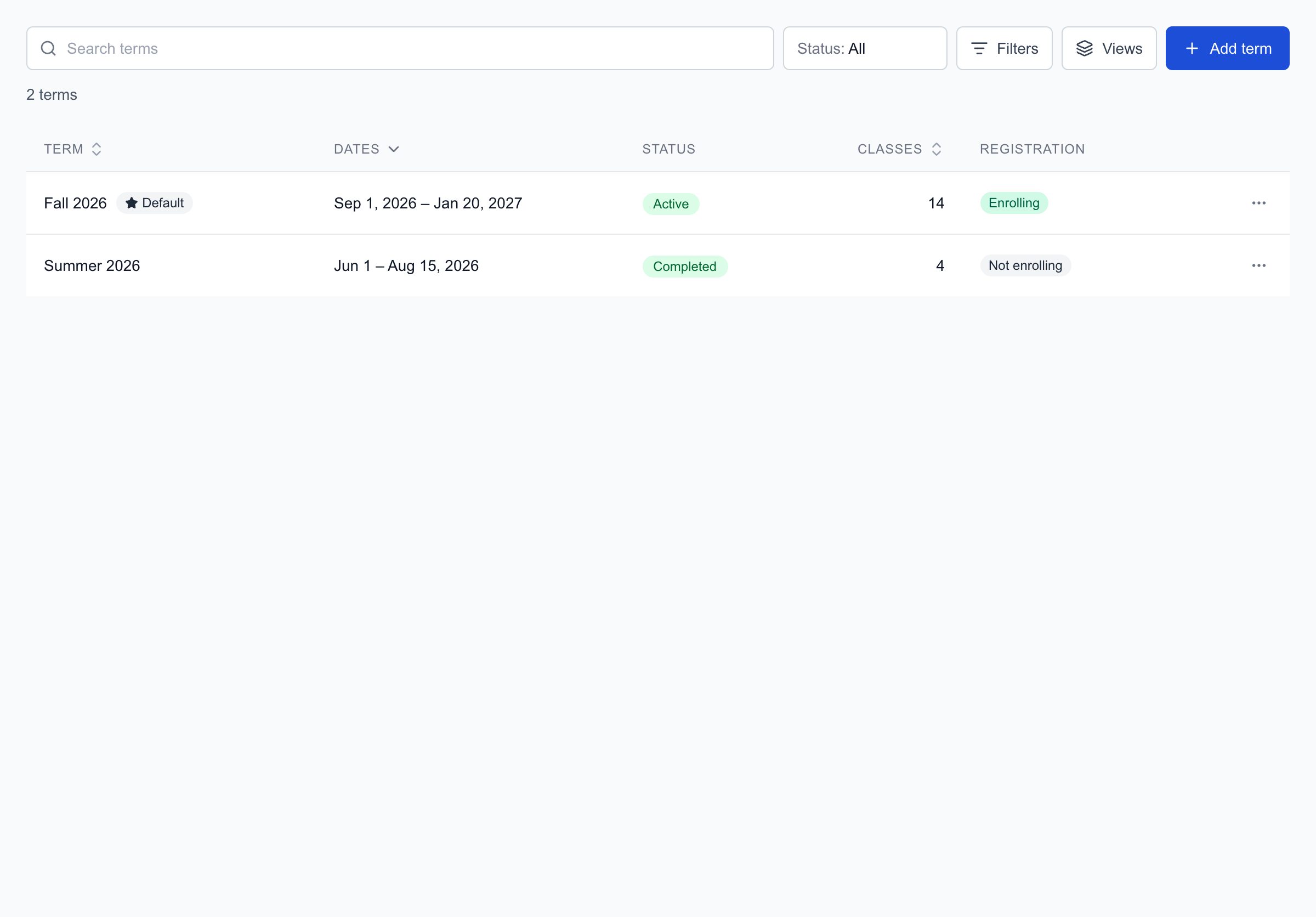
The list shows each term's name (with a Default badge on the default term), its dates, its status, how many classes it has, and Registration — Enrolling or Not enrolling, with the registration dates under it. If you offer the Unlimited pass, an Unlimited passes column shows how many students hold one and how many are enrolled without one.
- Search terms finds a term by name.
- The status choices show only the terms with those statuses.
- Filters → Registration shows the terms families can enroll in right now (Enrolling now) or can't (Not enrolling).
- Clear filters, on the line under the bar, clears the search and Registration. The status choices and the sort stay.
- Sort by newest, oldest, name or number of classes.
Each row's ⋯ menu has Clone and Make default. Make default isn't offered on a completed or cancelled term.
Look at or change a term
Click a term to open its panel:
- Overview shows the term's dates, its registration window, fee and whether it is Accepting enrollments, its sibling discount, and its Unlimited pass details.
- Classes lists the term's classes with their schedule, teacher and how many students are enrolled. Click one to open it.
At the bottom of the panel:
- Edit term opens the same form as Add term. Press Save changes when you're done.
- Clone term copies the term (see below).
- Assign to enrolled students… gives Unlimited passes to students in the term (see below).
- Delete term removes the term. It's grayed out, with the reason, when the term has classes or is the default term.
Copy last term to start the next one (Clone)
Cloning is the quick way to set up a new term with the same classes.
- Press Clone on the term's row, or Clone term in its panel.
- Give the new term a name (it starts as the old name with "(Copy)") and its Start date and End date.
- Check Registration opens and Registration closes. Once you pick the new start date, they move with it: each keeps the same distance from the term's start as on the old term. If registration opened two weeks before the old term began, it opens two weeks before the new one. Type your own dates to change them, or clear them for no registration window. Change the Registration fee if it's different this time.
- Under Classes to clone, every class is checked. Uncheck the ones you don't want. One-day classes are never copied, because they belong to one date.
- Press Clone term. The new term's panel opens.
What a clone copies: each checked class with its name, type, description, teacher, location, level, ages, capacity, length, pricing, drop-in rate, private setting, weekly schedule and calendar color, and the waivers that are set for that class. The term's description, Accept enrollments setting and sibling discount are copied too. The new term's classes go on the calendar for the new dates.
What a clone never copies: students, enrollments, waitlists and Unlimited passes. The new term starts as Upcoming and isn't the default term.
Give Unlimited passes to a term's students
If you offer a per-term Unlimited pass (Settings → Billing & fees → Unlimited pass), press Assign to enrolled students… in the term's panel:
- Check the students to give a pass to. Nothing is checked to start with; Select all eligible checks everyone who doesn't already hold one.
- Choose how it's paid: the families owe it, or Free — no charge.
- Charge the cards on file now is off by default. Turn it on to charge families' cards as soon as you confirm; leave it off and families on auto-pay are charged on the due date, while everyone else pays from their notice.
- Optionally pick a Start date. Left blank, each pass starts on the best day for that student — the term start, or the first month they haven't already been billed for.
- The window shows exactly what will be posted, per family. Press Assign passes.
The button is grayed out when nobody is enrolled yet, or when every enrolled student already holds a pass. It isn't offered on a completed or cancelled term. If your Unlimited pass is billed monthly, give it from each student's Billing tab instead — the term's button is for per-term passes.
How it works
Term status
A term moves through its statuses by itself, on your studio's calendar:
- A new term is Upcoming. On its start date it turns Active by itself, within the first hour of the day.
- A term completes itself. Within the first hour of the day after its end date, the term becomes Completed — an Active term, or one still marked Upcoming: its students' enrollments end on the term's last day, its Unlimited passes end, and you get a notification saying how many enrollments were completed.
- You can still set the status yourself in Edit term. Set a term to Cancelled to stop it for good; a cancelled term is never changed by these rules.
What the status changes:
- The Classes page shows Current terms by default: classes in terms that aren't Completed or Cancelled, plus year-round classes.
- A Completed or Cancelled term can't be made the default, and passes can't be assigned in it.
- Families can't enroll online in a Completed or Cancelled term, whatever its registration settings say. Upcoming and Active terms follow the registration settings below.
When families can enroll online
A family can enroll in a class of a term from their own account when all of these are true:
- the term is Upcoming or Active (never Completed or Cancelled);
- Accept enrollments is on;
- today is inside the registration window, if you set one (between Registration opens and Registration closes);
- the term hasn't ended yet (the end date itself still counts);
- the class is active and not private.
The Enrolling / Not enrolling badge on the Terms list, its Registration filter and Accepting enrollments on the term's Overview follow these same rules: a term that has ended, or is Completed or Cancelled, shows Not enrolling even with Accept enrollments on. You can always enroll a student yourself from the class, whatever the registration settings say.
Your public class listing shows each Upcoming and Active term under its own button, with its name and dates, and each listed class's own page shows its term's name and dates. Editing or cloning a term updates them straight away (see "Your public page and class listing").
Registration fees and the sibling discount
The registration fee is charged once per student per term — when the student first enrolls in any of the term's classes, whether you enroll them, the family does, or they accept a waitlist spot. Enrolling in a second class of the same term doesn't charge it again. It is posted to the family's bill like any other charge.
With a sibling discount, a student whose brother or sister has already been charged the term's fee pays less:
Registration fee $25. Sibling discount 10%. Mia enrolls first and is charged $25.00. Her brother Leo enrolls a week later: $25 − 10% = $22.50.
With a fixed $5 sibling discount instead, Leo pays $25 − $5 = $20.00.
The $2.00 minimum applies: a discount never brings a fee below it.
A $5 fee with a $4 sibling discount would be $1. Leo is charged $2.00.
A discount that takes the whole fee (100%, or a fixed amount equal to the fee) means no fee is posted for that student at all.
A student whose Unlimited pass covers the class when they enroll has the registration fee included in the pass — it's recorded as waived, not charged.
When a student leaves their last class of the term, the fee follows the rule in the Tuition article: if you unenroll them, you choose to keep or waive it; if the family takes them out, it stays owed.
How term dates shape the calendar and tuition
- Class dates. A class meets on its weekly schedule from the term's start date to its end date. Closures you add on the Calendar page cancel the classes on those days.
- Changing the dates lines up each class's upcoming dates with the new term dates: dates are added inside them and removed outside them. Past dates are never touched. A date that has attendance, a drop-in or a trial booked on it is kept even if it no longer fits, and a message lists them ("2 dates stayed on the calendar") — cancel one from the Calendar page once you've told the family. A date that is removed loses its substitute, if it had one: a second message names them ("A substitute was on a class that moved"), and they're emailed that they're no longer needed that day.
- Tuition. Monthly tuition in the month a student joins is prorated over the days of that month that fall inside the term, and a per-term class is priced over the whole term. The Tuition article has the worked examples.
- Year-round classes belong to no term: they have no registration fee and no end date, and their dates are kept topped up on the calendar months ahead.
Deleting a term
You can delete a term only when it has no classes and isn't the default term. A term that has ever had an Unlimited pass — even one later cancelled or completed — can't be deleted either, because the passes and their charges belong to it; cancelling the passes doesn't change that. To retire such a term, set its status to Cancelled instead. Deleting a term can't be undone.
Common questions
How do I set up next term's classes quickly?
Clone the current term: press Clone on its row, give the new term its name and dates, check the registration dates, uncheck any classes you don't want, and press Clone term. The classes, schedules and prices come across; students don't.
Why didn't my students come across when I cloned the term?
A clone copies classes, never enrollments. Families enroll in the new term's classes themselves, or you enroll them from each class's Students tab.
Why does my cloned term say "Not enrolling"?
Usually because registration hasn't opened yet: a clone's registration dates move with its start date, so they keep the same lead time as the old term. If that's not it, check that Accept enrollments is on, and that registration didn't already close — edit the term and set Registration opens and Registration closes to the dates you want (or clear them).
How do I close registration early?
Edit the term and turn off Accept enrollments. Families can no longer enroll online, whatever the registration dates say. You can still enroll students yourself.
Can families enroll before the term starts?
Yes, as long as Accept enrollments is on and today is inside the registration window (or you set no window). Set Registration opens to the day you want enrollment to start.
Does a term become Active by itself?
Yes. An Upcoming term turns Active on its start date, and becomes Completed the day after its end date, both on your studio's calendar. You don't need to change it by hand.
What happens when a term ends?
It becomes Completed early the next day: enrollments in its classes end on the term's last day, its Unlimited passes end, and you get a notification. Nothing is charged or refunded by it.
Does a cancelled term stop families enrolling?
Yes. Families can't enroll online in a Cancelled or Completed term, even with Accept enrollments left on. You can still enroll a student yourself from the class.
Who pays the registration fee?
Every student, once per term, the first time they enroll in one of the term's classes. A second class in the same term doesn't charge it again. Students in year-round classes never pay one.
How does the sibling discount work?
It lowers the registration fee for a student whose brother or sister has already been charged that term's fee. A $25 fee with a 10% sibling discount is $22.50 for the second child. It applies to the registration fee only, not to tuition — for tuition, use the family discount in Settings → Billing & fees.
I changed the registration fee. Do students who already enrolled pay the new amount?
No. A registration fee is posted when the student enrolls, at the fee the term has then. Changing it affects students who enroll afterwards.
I changed the term dates. What happens to classes that were already on the calendar?
Each class's upcoming dates are lined up with the new term dates: added inside them and removed outside them. Past dates don't change, and a date with attendance or a booking on it stays — you'll see a message naming those. Charges already posted don't change.
Why can't I delete a term?
It still has classes, it's your default term, or it has had Unlimited passes. Delete its classes and make another term the default; a term that has had passes stays for your records — set its status to Cancelled if you're done with it.
What is the default term for?
It's filled in for you when you create a class or enroll a student, so you don't have to pick it each time. Make a different term the default from its row's ⋯ menu.
Can I move a class to a different term?
No — a class's term can't be changed after the class is created. Create the class in the other term, or clone the term.