
Using it
Choose your web address
Your pages live at studiflo.com/studio/ followed by your address — for example studiflo.com/studio/sunrise-dance, with the classes at studiflo.com/studio/sunrise-dance/classes. You can choose the address in three places:
- While setting up your studio, in the Your public page field. You can leave it empty and decide later. The page goes live when you finish setup.
- On the Leads page, while you have no address, a notice says "Families can't find you online yet" and suggests one. Press Use this address (or Choose another). The confirm says what becomes public: your studio's name and logo, your phone, street address and website, a way to email you, a sign-in and sign-up for families, and your classes — how many, the ages, days, times and prices, and your current term. Press Publish my page. You'll see "Your page is live", with Copy link and Open. Hide for 30 days puts the notice away on that device.
- In Settings → Profile → Web address and timezone, in the Custom URL field. Next to the field, StudiFlo checks whether the address is free ("Checking…", then "Available").
An address is 3 to 50 characters long and uses only lowercase letters, numbers and hyphens. It must start and end with a letter or a number. An address another studio already has, or one that StudiFlo uses for its own pages, is refused.
Share your pages
The Share your studio card on your Dashboard has a copy button and an open button for each link:
- Studio portal page — your studio page, where families sign in.
- Parent sign-up link — straight to creating a family account with your studio.
- Public classes page — your class listing.
- Ticket sales page — shown while ticket sales are open (see "Selling tickets").
The card also shows your Join code and a QR code. The QR code opens the parent sign-up link ("Scan to sign up"). Until you've chosen a web address, the studio page, class listing and ticket rows say "Set your custom URL in Settings → Profile". The parent sign-up link and the join code work either way.
Hide a class from the listing
Open the class and switch on Private class ("Hidden from public listings. Only the studio can enroll students."). An inactive class is hidden too.
Close enrollment for a term
On Terms, edit the term. Switch off Accept enrollments, or set Registration opens and Registration closes dates. Outside those dates, or with the switch off, the term's classes stay listed but their button says Enrollment closed.
Change what the pages show about your studio
Your studio's name, contact email, phone number, address, website, logo and brand color all come from Settings → Profile. Change them there and the pages change with them.
How it works
Your studio page
Your studio page, your class listing, your free trial page and your ticket page share one bar across the top: your logo (or your studio's initials) and name, which take a family back to your studio page, then Classes, Free trial while at least one class takes free trial bookings online, Tickets while your ticket page has shows on sale, Contact (an email to your contact email) and Sign in. The page a family is on is underlined. On a phone, the links sit in a row under your name. Sign in opens a sign-in page with your logo and colors, and a family that signs in there lands on their Home for your studio.
When you've added Your website in Profile, a line above the bar says "Back to" your website (for example "Back to yourstudio.com") and takes families there.
The bar has no Sign in on your studio page, because the page itself is the sign-in, or on your free trial page, because a trial needs no account.
On your studio page, from the top:
- Your studio's name and Sign up for classes, with a line under it — "[term] is open. See days, times, prices and spaces left, then sign up online." while a term takes sign-ups, otherwise the same line without the term. Then Find a class, which opens your class listing, and Book a free trial while at least one class takes free trial bookings online (see "Leads, free trials and inviting families").
- Beside it on a computer, the same Sign in your families have always used — email and password, Forgot your password?, and First time here? with Create account. On a phone, a short card takes its place under the buttons: Already a family here? with Sign in, and "New here? Create an account".
- At a glance: the ages your classes cover (for example "3 to adult"), how many classes you list and on which days, the term your class listing opens on with its dates, and "Free trial class" when you offer one. A box shows only when there's something to put in it.
- Find a class by age: one tile per age band that has classes, each with how many and See classes. A tile opens your class listing on that age, on the same term the listing opens on, and counts what that view shows — a class with no ages set shows under every age, so it's counted in every tile. A tile appears only when at least one class with ages set fits it.
- Tickets on sale, with the show's name, date and Get tickets, while your ticket page has a show on sale.
- Contact the studio: your street address, Call with your phone number, Email the studio and Visit our website — each only if you've filled it in.
Everything on the page comes from what you've already set up: your classes and terms, your shows and Profile. There's nothing to write for it.
A family that signs in here lands on their Home for your studio. A family that's already signed in sees Join [your studio] instead of the sign-in, or "You already belong to" your studio if they're already one of your families. Buttons and accents use your brand color.
Your class listing
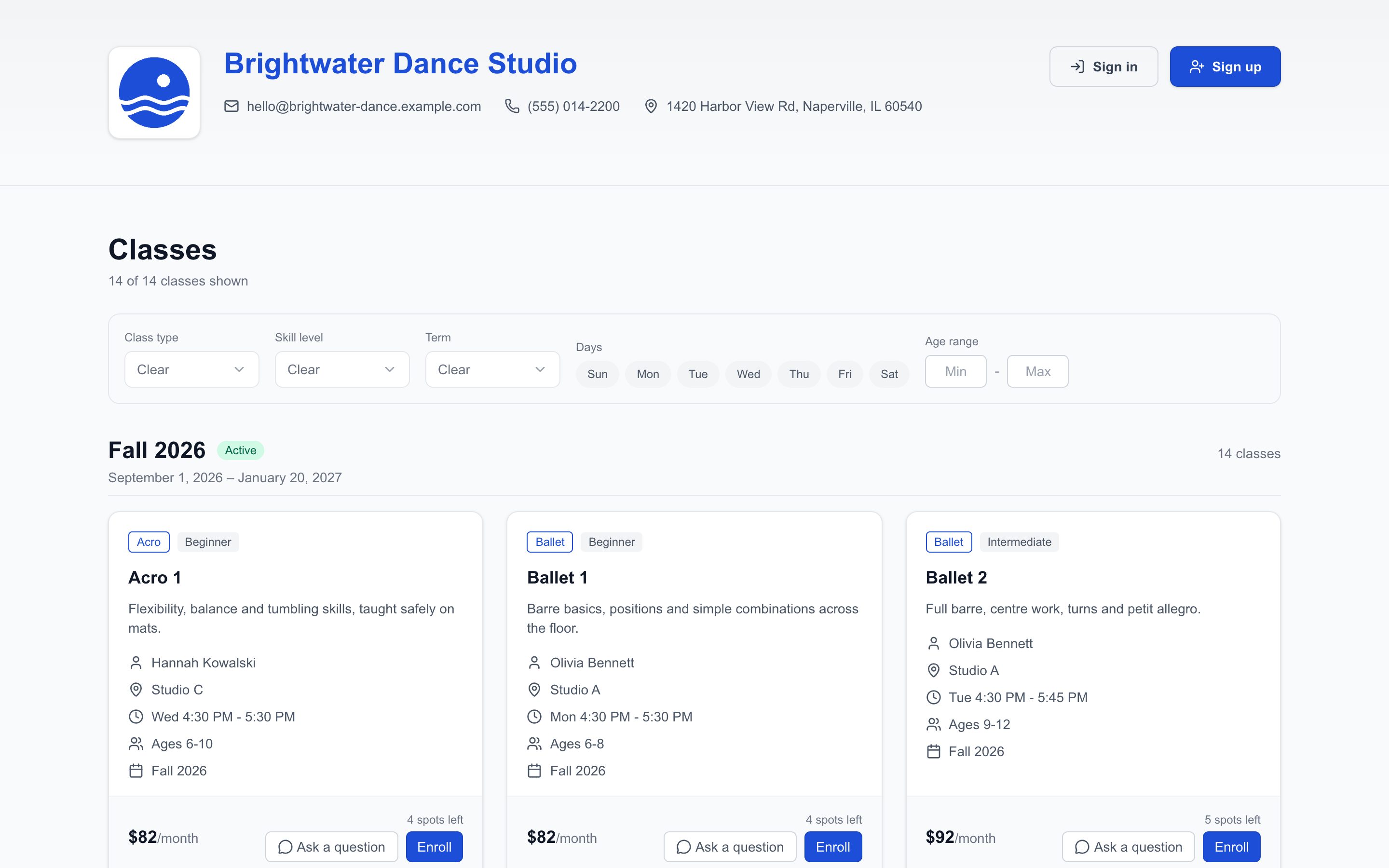
At the top, under the bar: "New here? Create an account" for new families (families who already have an account use Sign in in the bar) and, on a computer, your contact email, phone number and address in one line (each only if you've filled it in). On a phone your contact details are at the bottom of the listing instead. Your logo and name are in the bar.
The listing shows one term at a time. Under the Classes title there's a button for each term that is running now or coming up (a term whose end date has passed isn't listed), with its name and dates, and Ongoing classes for classes that aren't in a term. Terms taking enrollments right now come first, soonest first, then the others. When there are more than four terms, the first four are buttons and the rest are under More terms. The page opens on the soonest term that's taking enrollments (or, when none is, the term that's running now, then the next one coming up). A term with an Unlimited pass has one line under the buttons saying what the pass costs and covers, for example "Unlimited pass · $300 a term for every included class ($250 for a brother or sister). Ask the studio." Prices show without cents when they're whole dollars.
Families narrow the list by age first: All ages, 3–5, 6–8, 9–12, 13–18 and Adults (18+). A class shows under every age band its ages touch — a class for ages 10 to 13 shows under 9–12 and under 13–18 — and a class with no ages set shows under all of them. Then by day, Only classes with spaces, Style (the class type) and Level — a class for all levels shows under every level a family picks. On a phone the age buttons scroll across the top and the rest are under Filters. The line above the classes counts what's showing — "12 of 12 classes in Fall 2026", then "4 of 12 classes in Fall 2026" once a filter narrows it.
The term, the age and the other filters are part of the page's web address, so a link a family copies opens the same view. A link to studiflo.com/studio/sunrise-dance/classes?age=6-8 opens on ages 6 to 8.
The classes are grouped by day — Mondays, Tuesdays, and so on, starting with Monday — and sorted by start time. A class that meets on two days is under each of them. One-day classes come after the week, by date.
Each class card shows:
- the class type and its level;
- the name, which opens the class's own page;
- the day and time (or the date, for a one-day class), then the ages, the teacher and the location;
- the price, as "$65 a month", "$18 a class" or "$300 a term" — or Included when the term's Unlimited pass is included for everyone — and the drop-in price, if drop-ins are on;
- the spaces, when the class has a size limit and its term is taking enrollments: "3 spaces left" (or fewer) in amber, otherwise "Spaces available", and "Class full" when it's full. Places held by waitlist offers count as taken.
A class's own page
Every listed class has its own page at your classes address followed by the class — the name on its card opens it. It shows the class's type and level, its name, a line with its ages, days and times and term, the class description you wrote, and when (with the term's dates), where (the location and your address), the teacher and the ages. Beside it: the price, the Unlimited pass line, the spaces, Sign up, Try it free first (when the class takes free trial bookings online), Ask a question, and Copy link to share the page. Under it, Also for ages lists up to three of your other listed classes for the same ages, each with its own ages. When the class is full, its button says Class full and the page offers Ask a question and a link to those other classes.
The page follows the same rules as the listing: a class that's private, inactive, or in a Completed or Cancelled term has no page, and its link says "not found".
Which classes are listed
A class is listed when it's active and not private. Full classes stay on the list with a disabled Class full button. Classes in a Completed or Cancelled term don't appear under any term, aren't counted, and aren't given to search engines. The listing has no waitlist button: a family interested in a full class can press Ask a question.
What a family can do from a class
- Sign up — a family that isn't signed in goes to create an account with your studio, and the class opens for them once they're set up. A signed-in family goes straight to enrolling in that class.
- Enrollment closed — the term isn't accepting enrollments right now.
- Ask a question — a short form: the parent's name, email and phone, the child's name and age, and a message. Pressing Send question adds the family to your Leads, rings your notification bell, emails your contact email, and sends the family a confirmation. The form tells the family their details are deleted after 12 months without contact if they don't join.
- Try it free — on classes that take free trial bookings online and aren't full. No account is needed.
New families joining
A family that creates an account from your pages (Create account, Create an account, Sign up or the parent sign-up link) is joined to your studio when they finish setting up their account. A family that already has a StudiFlo account with another studio can join yours from the studio page, or with your join code.
When changes show
Changing your profile, a class or a term, or switching ticket sales on or off, updates the pages straight away — the class pages included. Other changes — like a new enrollment that changes the spaces left, or a show going on sale, which adds Tickets to the bar — can take up to five minutes to show.
Changing or removing your address
When you change your address in Custom URL, the pages move to the new address at once. The old address stops working; nothing forwards it. The warning under the field says so: "Links and QR codes you've shared with the old address stop working." Anyone opening an old link sees "Studio not found". If you clear the field and save, your pages go offline until you choose an address again.
The parent sign-up link on your dashboard and your join code keep working whatever your address is. Regenerating the join code stops the old code at once.
Search engines
Both pages are open to search engines, so families can find your studio and classes by searching. The class listing gives search engines your class details.
The pages and your subscription
Your public pages stay up while your trial has ended or your plan has ended, and families can still browse your classes and ask about one. But online sign-ups pause until you subscribe: the Classes page says "Online sign-ups are paused" at the top, and creating a family account with your studio, joining with your join code, enrolling, joining a waitlist and booking a free trial each say "This studio isn't taking online sign-ups right now — contact the studio." Families already at your studio aren't affected. Everything opens again as soon as you subscribe (see "Your StudiFlo subscription").
Common questions
What's my studio's web address?
It's studiflo.com/studio/ followed by the address in Settings → Profile → Custom URL. The Share your studio card on your Dashboard has the full links to copy.
Why does my dashboard say "Set your custom URL in Settings → Profile"?
You haven't chosen a web address yet, so your studio page and class listing aren't live. Choose one in Settings → Profile → Custom URL.
Can I change my address?
Yes, in Custom URL. The old address stops working straight away and doesn't forward, so update any links, flyers and QR codes you've shared.
Why isn't a class on my public listing?
It's private, it's inactive, or its term has ended. Classes in a term that's running or coming up, and year-round classes, are listed. The listing shows one term at a time, so a class in a term that's coming up is under that term's button.
Can I link to one class?
Yes. Open your class listing, press the class's name, and press Copy link on its page. You can also link to an age: add ?age=3-5, ?age=6-8, ?age=9-12, ?age=13-18 or ?age=adults to your classes address.
How do I hide a class from the public?
Switch on Private class on the class. Only you can enroll students in it.
Why does a class say Enrollment closed?
Its term isn't accepting enrollments: Accept enrollments is off, or today is outside the Registration opens and Registration closes dates.
Why does a class still show spaces left after someone enrolled?
The listing can take up to five minutes to catch up with new enrollments.
Why does my Classes page say online sign-ups are paused?
Your free trial or your plan has ended. New families can still browse and ask about a class, but they can't sign up, enroll or book a free trial online until you subscribe from Settings → Subscription.
Can families join a waitlist from the public listing?
No. A full class shows Class full; families can press Ask a question. A family with an account joins the waitlist from their own account — you can't add a student to a waitlist yourself.
Where do inquiries go?
To your Leads page, your notification bell, and an email to your studio's contact email. The family gets a confirmation email.
Can I add a description of my studio or social links?
No. The pages show your studio's name, logo, brand color and contact details, and your classes.
Why is my phone number not on my studio page?
It shows under Contact the studio once it's in Settings → Profile. The same goes for your street address, contact email and website.
Can I hide my address or phone from my studio page?
Clear it in Settings → Profile and it leaves your public pages. The address also leaves your class pages, where families see where a class meets.
Why does a box I expected not show on my studio page?
Each part shows only when there's something in it: Find a class by age needs classes with ages set, Tickets on sale a show on sale, and the term in At a glance a current or upcoming term with listed classes.
Is my page found on Google?
Both pages are open to search engines. How soon a search engine lists them is up to the search engine.
A parent's link to my page says "Studio not found." Why?
The address has changed, or you've cleared it. Send them your current link from the Share your studio card.
How does a family that already uses StudiFlo join my studio?
They sign in on your studio page and press Join, or enter your join code in their own account.
Does the QR code on my dashboard open my studio page?
No. It opens the parent sign-up link, so a new family can create an account with your studio straight away.