
Using it
The Leads page
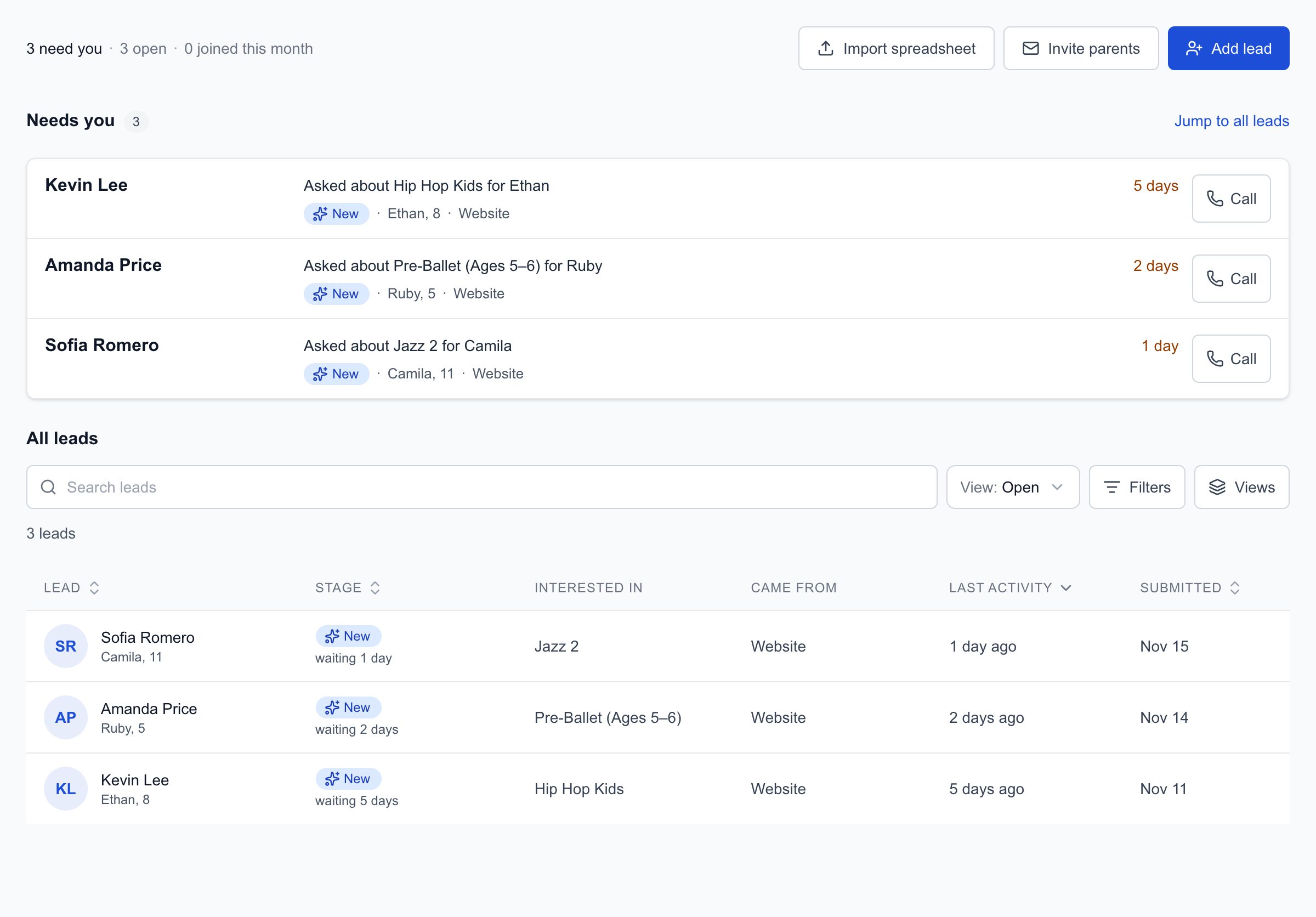
The line at the top sums things up, for example "3 need you · 14 open · 2 joined this month". Under it:
- Needs you lists the leads waiting on you, oldest first, each with one button for the next step (Call, Email, Resend, Send invitation, Rebook or Open). It shows five at a time (Show all for the rest). Today's and tomorrow's trials are listed under Coming for a trial. When nobody is waiting it says "Nobody is waiting on you."
- All leads is the full list. Search by name, phone, email or child. View chooses Open, Trials, Invited, Joined, Closed or Everyone. Filters narrows by Came from (Website, Trial page, Invitation, Added by you, Referral, Social media, Walk-in or phone, Event, Other) and by the day the lead came in (Submitted). The table shows each lead's stage, what they're interested in, where they came from and their last activity.
- Clear filters, on the line under the bar, clears the search, Came from and Submitted. The View and the sort stay.
If your studio has no public page yet, the page says "Families can't find you online yet" and offers an address to publish it at (Use this address or Choose another). Before the page goes live, a confirm lists what becomes public: your studio's name and logo, your phone, street address and website, a way to email you, a sign-in for your families and a sign-up for new ones, and your classes — how many, the ages, days, times and prices, and your current term (private classes stay hidden). Press Publish my page. Hide for 30 days puts the notice away on that device.
Each lead's stage
| Stage | Means |
|---|---|
| New | Asked or was added; nobody has reached them yet |
| Contacted | You reached them (a logged call, text, email or meeting) |
| Trial booked | A trial is booked and not marked yet |
| Trial done | Marked Present or Late at the trial |
| No-show | Marked Absent or Excused at the trial |
| Invited | An invitation was sent and not accepted yet |
| Joined | Linked to a family at your studio |
| Enrolled | That family has had a child enrolled since the lead began |
| Closed | You closed it, with a reason |
You never set a stage by hand. StudiFlo works it out from what has happened — see "How a lead moves" below.
Add a lead
- Press Add lead.
- Fill in the Parent or guardian, an Email or Phone (at least one — you need an email to send an invitation), their Children (first name and age), what they're Interested in (a class, or Not sure yet), How they found you and any Studio notes (only your studio sees these).
- Press Save, or Save and invite to send the invitation straight away.
If another lead already uses the email or phone number, StudiFlo says so and offers Open it — a family has one lead at a time.
Work a lead
Click a lead to open its panel:
- What's happening says where things stand ("Invited Oct 3 · not joined · the link works until Nov 2").
- From the family shows what they wrote on your forms.
- Children, Trial, Invitation and Studio notes hold the details; History lists what you, the family and StudiFlo did, newest first.
The contact buttons open your phone's dialer, messages or email app. When you come back, StudiFlo asks "Log your call with Jane Rivera?" — tap Talked or No answer (or Texted, Emailed), with a note if you like. Nothing is logged unless you tap. For a contact made elsewhere, use ⋯ → Log a contact…. A contact that reached the family moves a New lead to Contacted.
The panel's buttons change with the stage: Send invitation, Resend invitation, Book a trial, Rebook or Reopen. The ⋯ menu has Edit lead, Mark as new, Already joined? Link a family, Close lead…, Unlink family and Delete lead.
Close or delete a lead
- Close lead… asks why: No reply, Schedule doesn't work, Price, Too far, Enrolled elsewhere, Spam, or Other… with a note. A tap on a reason closes it, and Undo appears for a moment. Closing stops the lead's invitation link, and can also cancel an upcoming trial and tell the family. Reopen brings a closed lead back.
- Delete lead removes the lead and everything on it — children, messages, notes and history — now. To keep a record, close it instead.
Invite families to join
An invitation is an email with a link where the family creates their account (or, if they already have one, signs in) and joins your studio. Any children you entered come with it. Ways to send one:
- From a lead: Send invitation. After a trial, you can pick Suggest a class (optional) — see "After the trial".
- Invite parents (on the Leads page): Single invite for one email, or Bulk invite to paste many — one per line, as an email, "Jane Doe <email>", or "email, first name, last name" — up to 50 at a time. The results say who was invited, who is already at your studio, and what failed.
- Import spreadsheet: the same student import as the Students page. Rows for families already at your studio add the students straight away; everyone else gets one invitation, with their children's details waiting for them.
- Add Student on the Students page: if the parent's email isn't a family at your studio yet, StudiFlo offers to Send invitation with the student's details, birth date, medical note and custom fields included.
Each invitation shows on the Leads page as an Invited lead.
Share a link instead
The Dashboard's Share your studio card has links and a QR code families can use on their own:
- Parent sign-up link — a family creates an account already joined to your studio.
- Join code — a family with a StudiFlo account enters it under Join another studio. Regenerate makes a new code; the old one stops working immediately.
- Studio portal page, Public classes page and, while a class offers a free trial, the Trial booking page — these need your public page address.
Offer free trials
- Open a class's Edit Class and find Trial class.
- Set Offer a trial to Free trial.
- Optionally write a Before the first class note (up to 300 characters) — families see it on the booking page, in the confirmation and in the reminder.
- Save. Your public page must be on for families to book.
Families then book on your trial booking page (from your classes page, your studio page, Free trial in the bar across the top of your public pages, or the link on your dashboard). The booking page has the same bar as your other public pages, without Sign in: a free trial needs no account.
The booking page walks the family through three numbered steps: 1. Which class? (the class they chose, with Change to go back to your list when you offer more than one), 2. Which day? (the class's real times in the next 4 weeks, each marked open, nearly full or full) and 3. About you and your dancer (their name, email, mobile phone, and the child's name and age). Once booked, the page says You're booked with the class, the day and time, the place and its address, your Before the first class note, that the details were emailed with a link to change or cancel, Add to calendar, Book another child and See other classes. The family's own page for changing or cancelling the trial has the same look.
To turn trials off, set the switch back to Off: trials already booked stay booked until you cancel them from their leads.
Book, move or cancel a trial yourself
On a lead, press Book a trial. Pick the child (or add one), the Class — classes offered as a free trial first, then your other classes — and a time. Email Jane the details is on when the lead has an email. Press Book trial.
- A time that is full, or already has its trial children, asks Book anyway — you can go past the limit.
- On the lead's Trial card: Move to another time, Cancel trial (with checkboxes to email the family and let them pick another time), Rebook after a cancel or no-show, or Send a link to pick another time so the family chooses from the next few times by email.
- After the class starts, mark Came or Didn't come on the card — or on the class's roll, where the trial child is listed.
How it works
Where leads come from
- A question on your public page. A family presses Ask a question on a class. The lead comes in as Website, you get a notification, and the family gets a confirmation email (at most one a day per email address).
- A free trial booked online. The lead comes in from the Trial page with the trial booked.
- You: Add lead, Invite parents, the spreadsheet import, or Add Student.
A family has one lead at your studio until it joins. A new question or booking from the same email adds to the open lead (a new child, the question, their message) and never changes what you typed. It reopens a closed lead — except a question on a lead you closed as Spam, which is kept in its history while the lead stays closed. A family that has joined and writes again makes a new lead.
How a lead moves
- New until someone reaches them. A logged call with no answer keeps it New ("tried once").
- Contacted once you log a call that talked, a text, an email or a meeting.
- Trial booked while a trial is booked; then Trial done or No-show from the roll mark.
- Invited when you send an invitation and it isn't accepted yet.
- Joined when the family joins your studio — by accepting your invitation, or on their own with your sign-up link or join code (any open lead with the same email joins automatically). If they joined another way, use Already joined? Link a family.
- Enrolled once that family has a child enrolled after the lead began.
- Closed when you close it.
Who needs you
A lead is under Needs you while one of these holds, and leaves on its own when the next step happens:
- It's New — nobody has reached them.
- On a Contacted lead, the family asked again after your last contact.
- It's Invited and the family hasn't joined 3 days after the invitation was sent.
- Its invitation link stopped working — it expired, was stopped, or the email didn't send.
- It's Contacted and nothing has happened for 7 days.
- A trial needs a follow-up: the child came (send the invitation), didn't come or the trial was cancelled (rebook), or nobody has marked it yet.
Closed, Joined and Enrolled leads never need you. There is no snooze: logging a contact, resending, or closing clears it.
What you're told
- In the bell: each new question or online trial booking, a family moving or cancelling a trial, a trial child marked came or didn't come on the roll, a trial cancelled with its class, and a family joining.
- By email, to your studio's contact email (Settings → Profile): an email for each new question and each online trial booking ("New leads" switch), and the Daily leads email — one email in the morning from 8 AM, on days when a lead is waiting or a trial is coming up, listing up to 10 waiting leads. Questions newer than a day are left out of the morning email because the bell already told you. Reply to a lead email to answer the family directly.
Turn either email off in Settings → Notifications. The bell always shows.
What the family is sent
- After a question: a confirmation. If the class offers a free trial, it suggests booking one.
- After a trial is booked (online, or by you with Email … the details on): "You're booked", with the class, time, place, teacher, your note, and a link to change or cancel. The teacher is whoever teaches that class time: when a substitute has it, the email names the substitute — in full for one of your teachers, by first name and last initial ("Jordan L.") for someone from outside your studio. The family's page for changing or cancelling the trial names the teacher the same way.
- The day before the trial: a reminder from 9 AM on your studio's clock. A booking made after 9 AM on the day before doesn't get one — its confirmation is only hours old — and isn't promised one.
- When a trial changes: an email when it's moved, cancelled by you or by them, its class is cancelled, or the class's time or place changes — with other times to pick where there are some.
- An invitation: a link to join that works for 30 days. A resend sends a new link and the earlier one stops working. Closing or deleting the lead, or changing its email, also stops the link.
Replies to any of these reach your studio's contact email.
Free trial rules
- Free only. A trial is one free class on a real class time.
- A seat in the class. Each trial takes a seat and shows on that class time's roll, where the teacher sees only the child's first name and last initial. Online, a class time takes up to 2 trial children, and never more than the class has room for.
- When families can book online: times in the next 4 weeks, up to 2 hours before the class starts. The class must be active, not private, and switched to Free trial. Your studio needs its public page, an active StudiFlo subscription and setup finished. While your free trial or your plan has ended, the trial page says "This studio isn't taking online sign-ups right now — contact the studio." — the same words as every other paused online sign-up (creating an account with your sign-up link or join code too).
- Who the booking page names as the teacher. Each class shows its usual teacher. When the time a family books is covered by one of your own teachers, the "You're booked" page names that teacher. A substitute from outside your studio is never named on the public page — it keeps the usual teacher. On the lead's Trial card, you see the full name of whoever teaches that class time.
- A substitute and trial families. When you change a class time's teacher and check Email the families of [class], families with a free trial booked aren't emailed — only enrolled families and those with a drop-in or make-up booked are. Tell a trial family yourself if it matters.
- What you can do that families can't: book any class (private ones too), go past full with Book anyway, and book any time until the class ends — including further ahead than 4 weeks.
- Families manage their own trial from the link in their email: Change time (to another time of the same class) or Cancel trial. You get a notification either way.
- A cancelled class cancels its trials too; families with an email are told and offered other times. Before you confirm the cancel, StudiFlo tells you which trial families will be emailed and which have no email and need a call.
- A child already enrolled in the class doesn't need a trial: the card says so and offers Cancel trial — no email. If a child enrolls before their trial, the trial is set aside as no longer needed.
After the trial
When the child came, the lead asks you to send the invitation. In Send invitation, Suggest a class (optional) picks the class to suggest ("We'll suggest Beginner Ballet (Tuesdays and Saturdays, 4:00 – 4:45 PM) for Mia."). The email opens with "We loved having Mia at Beginner Ballet …", and once the family joins, their Home page shows "Enroll Mia in Beginner Ballet" for 60 days, or Join the waitlist when the class is full. Nothing is enrolled or charged until the family chooses.
A family that has already joined books its next steps from its own account: StudiFlo doesn't book trials on a joined family's lead, but you can send them a link to pick a time.
What families see when they join
- New to StudiFlo: the invitation link opens "Join [your studio]" with their email filled in. They set a password, check the children you added (and can add more), and press Join.
- Already have a StudiFlo account: the email says "[your studio] invited you — sign in to join". After signing in they choose which children to add and press Join.
- Your Parent sign-up link opens a sign-up page that says it's joining your studio, with your logo (or your initials) in your colour. A family already signed in joins with one press.
- From a class's sign-up button, the same page also names that class, with its days, time and price as your classes page shows them. Under the form, What happens next lists the steps after it: adding their dancer and an emergency contact, signing your waivers (only when you have an active waiver set to everyone), then signing up for that class — or, with no class picked, finishing setup.
A family is never added to your studio without their own Join.
Leads that are removed
A lead that never joined is removed 12 months after its last activity. For its last 30 days it shows "Removes Nov 1" on the list and a warning in its panel. Logging a contact or editing the lead keeps it. Joined leads are never removed, and neither is a lead with a trial coming up. Families are told this on your forms: if they don't join, their details are deleted after 12 months without contact.
Common questions
Where do leads come from?
Questions and free trial bookings on your public pages, and the families you add, invite or import. Each lead shows where it came from in Came from.
How do I move a lead to Contacted?
Log a contact that reached them: after calling from the lead, tap Talked; or use ⋯ → Log a contact…. A call with no answer keeps the lead New.
Why is a lead under Needs you?
It's new, the family asked again, an invitation has gone 3 days without a join or its link stopped working, a contacted lead has been quiet for 7 days, or a trial needs a follow-up. The row says which, and its button is the next step.
How long does an invitation link work?
30 days from when it was sent. Resend invitation sends a new link that works for another 30 days; the old one stops working.
A family says the invitation link doesn't work. What do I do?
Open their lead and press Resend invitation. Links stop when they expire, when you resend, close or delete the lead, or when you change its email.
The family joined with my sign-up link but the lead still says Invited. Why?
Leads join automatically only when the family uses the same email. Open the lead and use ⋯ → Already joined? Link a family to pick their family.
What's the difference between closing and deleting a lead?
Closing keeps the lead and its history, with a reason, and you can reopen it. Deleting removes it and everything on it for good.
Can I offer a paid trial?
No. Trials are free only.
How many trial children can come to one class time?
Families can book up to 2 per class time online, and never more than the class has room for. You can book more yourself with Book anyway.
How close to the class can families book a trial?
Up to 2 hours before it starts, for times in the next 4 weeks. You can book yourself until the class ends, and further ahead.
Do families get a reminder before their trial?
Yes — an email the day before, from 9 AM your time, unless they booked after 9 AM that day. The Trial card shows when it went or will go.
How do I record whether the child came?
Mark them on the class's roll — they're listed there — or press Came or Didn't come on the lead's Trial card once the class has started.
Can families change or cancel a trial themselves?
Yes, with the link in their confirmation email: Change time (same class) or Cancel trial. You get a notification either way.
What happens to trials when I cancel a class?
They're cancelled too. Families with an email are told, with other times to pick when there are some. Families with no email need a call — StudiFlo lists them before you confirm.
A substitute is teaching the class a trial is booked into. Is the family told?
Not by the substitute notice — that goes to enrolled families and to drop-ins and make-ups. A trial booked after you assigned the substitute names them in its "You're booked" email. For one booked earlier, let the family know yourself.
Does turning off a class's free trial cancel booked trials?
No. Upcoming trials stay booked; cancel them from their leads if you need to.
After a trial, how does the family enroll?
Send the invitation and suggest the class. Once they join, their Home page offers to enroll the child in it. Nothing is enrolled or charged until they choose.
Where do lead emails go, and can I answer from them?
To your studio's contact email. Replying to a new-question or trial email replies to the family.
What's the join code for?
A family with a StudiFlo account enters it under Join another studio to join yours. Find it on the dashboard's Share your studio card; Regenerate replaces it and the old code stops working.
Why do old leads disappear?
A lead that never joined is removed 12 months after its last activity, with a 30-day warning first. Log a contact or edit it to keep it.
Can someone join my studio without my invitation?
Yes, if you've shared your Parent sign-up link, join code or studio page — those let a family join on their own. A family can't be added without pressing Join themselves.