
Using it
The family's five tabs
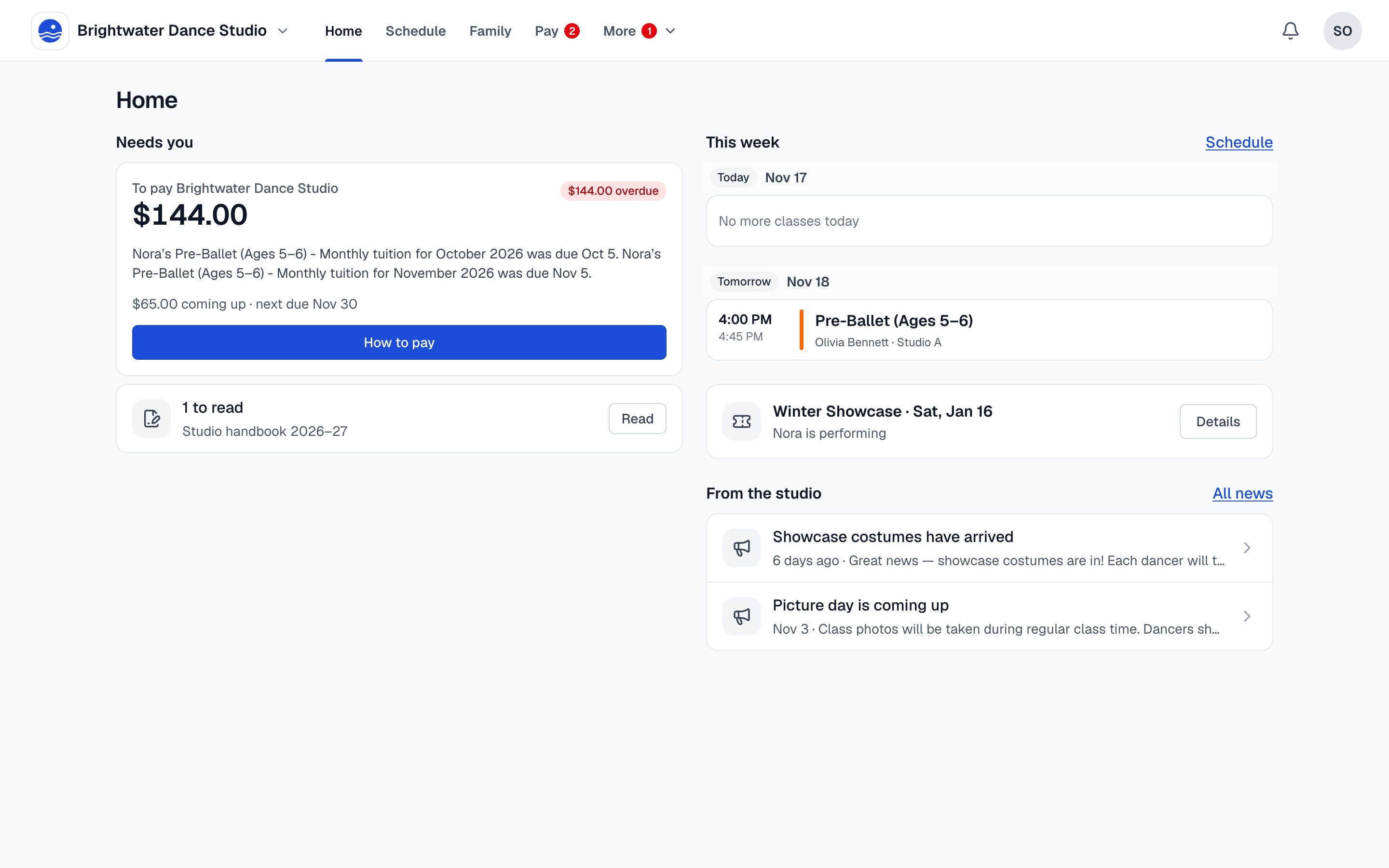
Every family screen has five tabs: Home, Schedule, Family, Pay and More. On a phone they're along the bottom; on a computer, across the top.
- Home — what needs doing now, what's coming up, and your studio's news.
- Schedule — the family's classes, as a list or a month.
- Family — the children, their classes, attendance and details.
- Pay — what the family owes and has paid, with receipts.
- More — Find a class, Forms, Studio news, Recitals (when you have a recital), Cards & auto-pay, Settings, Your studios, your studio's phone, email and address, and Sign out.
The Pay tab shows a count of overdue and declined charges; More shows a count of forms to sign or read. The bell at the top opens the family's notifications.
"Where do I pay?"
Tell them: open Pay, press Pay.
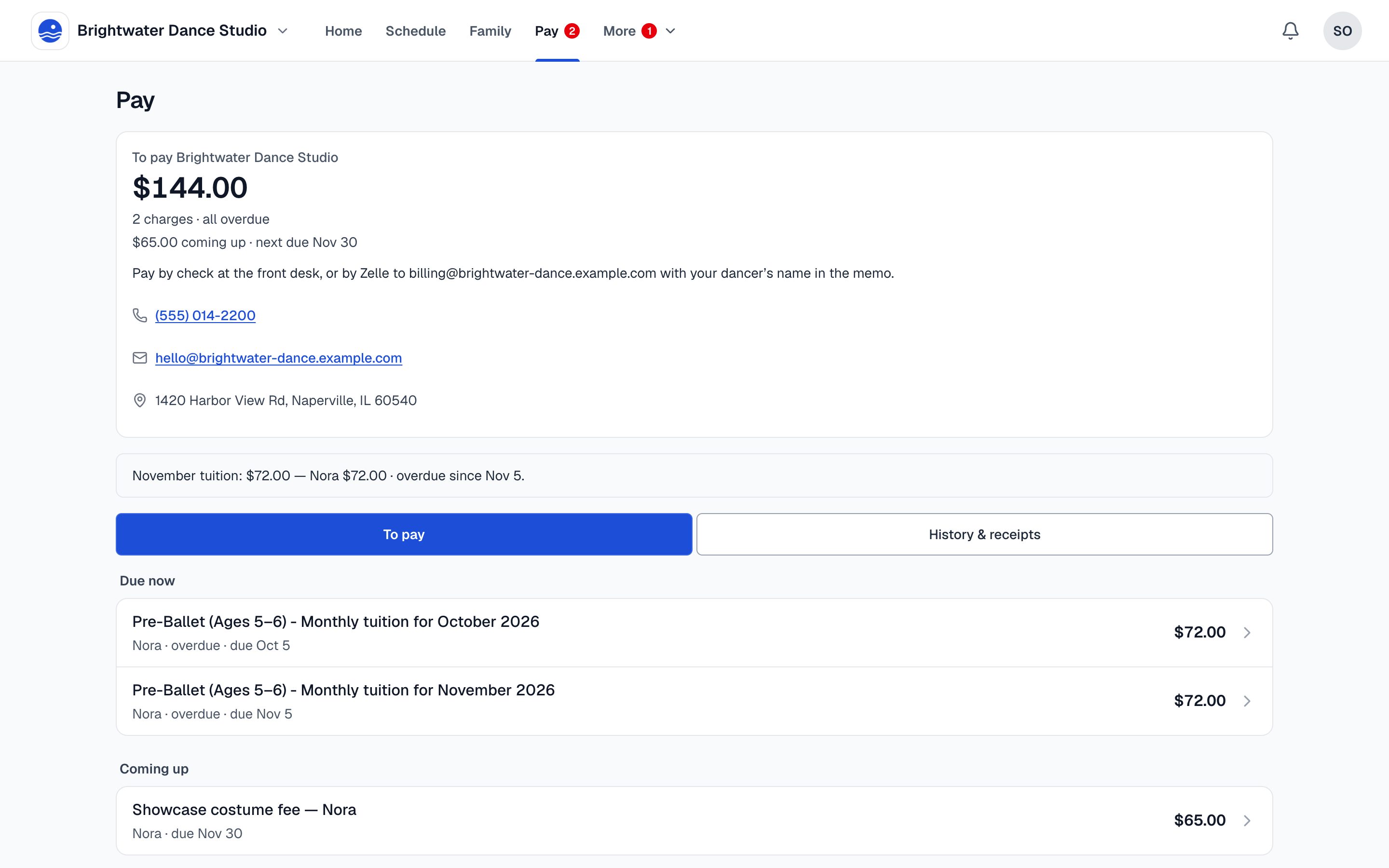
- The top of Pay shows "$X to pay" — what's due now — with a line such as "3 charges · 2 overdue · 1 declined", and a Pay $X button. Charges not due yet are one line under it, "$345.00 coming up · next due Oct 28", usually with Pay all for a family who wants to pay those early too (it pays up to 13 charges at once, the due ones first). Home shows the same total on its money card.
- To pay only some charges, they press Choose which to pay, check the ones they want (up to 13 at a time) and press Done choosing.
- The confirm shows the charges and the card: "Charged now to your Visa •••• 4242." They can press Change to use another card, then Pay $X.
- They see Paid and can press View receipt.
The list under the total is grouped: Due now, Coming up (charges not due yet), Auto-pay takes these (charges their auto-pay will pay on the due date), and a few groups for payments in progress (below). Each row shows when it's due — "due Oct 15", "overdue · due Oct 1", "declined Oct 2 — insufficient funds", "part paid · $50.00 of $90.00 left".
"Why does it say Waiting on your bank?"
Some banks ask the cardholder to approve a card payment themselves — in their banking app, or with a code. Until they do, the payment isn't finished.
- The family gets a notification and an email: "Confirm this payment with your bank".
- The charge shows Waiting on your bank on their Pay page, and Confirm with your bank is at the top of Home.
- They press Confirm with your bank (on Home it's just Confirm), and their bank's own check opens. Once they approve it, the charge is paid.
On your side the same charge shows Waiting on the bank. The family has 24 hours to confirm, and their notification and email say so: "confirm it within 24 hours, or it's cancelled and nothing is charged." After that the card payment is cancelled and the charge is owed again.
"How do I turn on auto-pay?"
Tell them: open Pay, then the auto-pay line at the bottom — or More → Cards & auto-pay.
- At the foot of Pay (and of Home) is a line such as "Auto-pay is off · turn it on" or "Auto-pay needs a card · Add a card". It opens Cards & auto-pay, which is also under More.
- If they have no card saved, they add one first: Add a card, type the card details, Save card. A card they add can become their default card.
- They switch auto-pay on for your studio. A confirm ("Turn on auto-pay for [your studio]?") shows what their card will be charged and when, then Turn on auto-pay.
Once it's on, the line reads "Auto-pay is on", or "Auto-pay takes $237.00 on Oct 15". They can turn it off at any time on the same page; nothing already paid changes.
Families are also offered auto-pay right after they pay a charge by card from Pay or Home while it's off: under the payment, "Pay automatically next time?" with Turn on auto-pay, which opens the same confirm. And if you switch on Ask every family to choose (Settings → Billing & fees → Auto-pay at sign-up), the sign-up checkout asks "How would you like to pay future charges?" — auto-pay, or "I’ll pay each charge myself" — with nothing chosen for them.
Cards
On Cards & auto-pay (from More, or the auto-pay line on Pay), families see their saved cards with "Default" on one and each card's expiry, Add a card, and Remove card. Pay and auto-pay use the default card. A saved card is shared across all the studios the family belongs to. Removing their only card turns auto-pay off.
Receipts
On Pay → History & receipts: each payment by month, newest first, and year statements to download. A payment opens its Receipt, with Download PDF and what it paid. Receipt emails link to the same receipt. Until you add your studio's address in Settings → Profile, families can see receipts but can't download a PDF.
Forms and waivers
A form to sign shows on Home ("2 forms to sign · 1 to read", with Sign) and under More → Forms. To sign, the family reads the form, checks "I have read and agree to the terms of this form…" and presses Sign (or Sign & next form). Their name is recorded as the signature — there's nothing to draw or type. A document to read has Open the document and I've read it.
Enrolling in a class
More → Find a class lists your classes that are open for enrollment, with filters for day, level and style. A class shows "{n} spots left" or "Full · {n} waiting". The class's sheet has Enroll [child], Join the waitlist for [child] or Book a drop-in. Enrolling goes through Forms (only if something needs signing), Review and pay, then Done, with a place for a promo code ("Have a promo code?"). At checkout, families can check a box to turn on auto-pay for your studio — or, if you've switched on Ask every family to choose, they choose between auto-pay and paying each charge themselves before they can pay.
When a waitlist spot opens, the family gets an offer ("Waitlist spot available"). It opens on Home with Accept for [child] or No thanks, and shows how long the spot is held — the time you set in Settings → Classes (48 hours unless you change it).
Schedule and attendance
Schedule shows the family's classes as a List or a Month, with Add to my calendar (Apple or Google calendar, or a link to copy). Opening a class lets the family say "[child] won't attend", with an optional reason — the child is marked Excused and you see the note. Once class has started, or you've taken roll, they can't change it ("To change this, contact the studio"). They can cancel a drop-in from its class.
Each class time shows who teaches it that day. When a substitute has it, the family reads "Substitute:" and the name instead of the usual teacher — in the Schedule's list, on the class's Teacher line when they open it, in This week on Home (on a computer), in the review before they book a drop-in, and in the calendar they added with Add to my calendar. One of your own teachers is named in full ("Substitute: Dana Kessler"); someone from outside your studio is named by first name and last initial ("Substitute: Jordan L."). The class itself, in Find a class, keeps its usual teacher.
The Family tab
Family lists the children. A child's page has Classes, Attendance and Info, with Edit for their name, birthday, photo, medical and allergy notes, notes for the studio, emergency contacts, and any custom fields you've shared with parents. Families can take a child out of a class themselves ("Take [child] out of [class]") — the confirm shows what stays billed and what won't — and they can add or remove a child.
Settings and notices
More → Settings has the family's details, password, Emails & alerts, light or dark look, their studios, and the legal pages. Under Emails & alerts, each kind of notice has an app switch and an email switch. New charges turns off the notice for charges you post. Declined payments, payments their bank must confirm, waitlist offers, cancelled classes, recital check-in details and receipts are always sent. Their choices apply at every studio they belong to.
A family's first sign-in
A new family sets up their account in four short steps — You, Children (at least one), Emergency contacts (at least one per child), Forms (only if you have forms for them to sign) — then Finish setup. Until they finish, they see these steps instead of the tabs above.
View as a family
You can open a read-only copy of what one family sees, to check what they're looking at while you help them.
- Open the family on Families and press View as [family] in the panel's header. You can also start from a student's panel (it opens on that child's page), or from a charge's details with See this charge as the family (it opens on Pay with that charge open).
- On a computer, the view opens in a new tab; on a phone or tablet, in the same tab.
- A banner across the top says "Viewing as [family] · [your studio] only · Read only · Ends [time]", with Refresh, What's hidden, Phone size (shows the screens at a phone's width) and Exit.
You can move around the family's tabs as they would. Exit ends the view.
How it works
When your trial or plan has ended
Families already at your studio keep everything: their schedule, Home, Pay, cards and auto-pay — charges you've posted stay due, and auto-pay still charges them on their due dates. What pauses is new sign-ups online: enrolling a child in a class, joining a waitlist or taking an offered seat, joining your studio with its join code or address, and booking a free trial each say "This studio isn't taking online sign-ups right now — contact the studio." It never says why. Booking a drop-in and buying a pass still work for a family already at your studio. Everything opens again as soon as you subscribe (see "Your StudiFlo subscription").
How much a family owes: one figure everywhere
The total on Home and Pay is the same: every charge due now — overdue or due today (a charge that's part paid counts for what's left), declined, and any charge with no due date. Charges due on a later day aren't in it: they're Coming up, listed with their due dates. Families can pay them early (Pay all, or Pay ahead when nothing is due yet), but nothing asks them to. When nothing at all is due or waiting, Pay and the Home money card say "Nothing due right now." and when the next charge is due, and Home offers See what’s coming up. If a payment is waiting on the family's bank or isn't confirmed yet, that comes first ("Nothing else due · …").
Charges with a payment in progress aren't in the total either, and are listed separately so nothing is paid twice:
- Waiting on your bank — waiting for the family to confirm with their bank.
- Being confirmed — the bank is finishing a payment; there's nothing to do.
- Not confirmed yet — the family pressed Pay but the answer didn't come back (for example, the connection dropped). It's shown only on the device they paid from, until they press Check again.
A charge your studio is settling itself shows under "The studio is settling these" — the family is told there's nothing for them to pay — and auto-pay never takes it.
What the family calls each status
| You see | The family sees |
|---|---|
| Unpaid | Due, or Overdue after the due date |
| Part paid | Part paid |
| Waiting on the bank | Waiting on your bank |
| Failed | Declined — or Cancelled if you cancelled the card payment |
| Paid | Paid |
| Refunded / Part refunded | Refunded / Part refunded |
| Waived | Waived |
| Disputed | Disputed |
Paying: whole charges, by card
- Each charge is paid in full — whatever is left on it. A family can't pay part of a charge from their screens; you can record a part payment for them.
- Up to 13 charges in one payment. More than that, and Pay reads "Pay the 13 oldest", and Pay all / Pay ahead read "Pay the next 13". With 13 or more charges already due, there's no Pay all: Pay already takes the most one payment can.
- Families pay by card only — no bank account and no digital wallets.
- A balance under $2.00 can't be paid by card; the family sees it as below the card minimum, to pay you directly.
- A declined charge says so: "Your card was declined on Oct 2 — insufficient funds. We'll try again on Thu, Oct 8, or you can pay it now." Automatic retries go ahead unless the family pays first.
On October 9, Mia's family owes October tuition ($90, due October 15), a costume ($45, overdue since October 1) and a declined $30 recital fee. Pay says $75.00 to pay — "2 charges · 1 overdue · 1 declined" — and "$90.00 coming up · next due Oct 15". Pay $75.00 pays the costume and the recital fee with their default card; October tuition stays under Coming up until it's due. Pay all · $165.00 would have paid all three.
Auto-pay: what it takes, and when
Auto-pay is the family's choice, per studio. You can't turn it on for them.
- New charges are charged to the family's default card on their due date, early in the morning. If you post with "Charge the card on file now" on, they're charged the moment you post.
- Charges already due when auto-pay was turned on aren't taken. They stay under Due now, marked "already due when auto-pay was turned on". So turning on auto-pay doesn't clear an overdue balance — the family pays that from Pay.
- Part paid charges: what's left is charged on the due date, like any new charge.
- If the card is declined, the charge stays owed and automatic retries follow.
- Turning auto-pay off changes nothing already paid; a retry already scheduled for a declined charge still goes ahead.
Leo's family turns on auto-pay on October 10. Their costume charge was due October 1 — it stays for them to pay. November tuition, posted on October 25 and due November 1, is charged to their card on the morning of November 1.
If your studio doesn't take cards
Until card payments are on for your studio (or if Stripe pauses them), families see "To pay [your studio]" with How to pay instead of a Pay button. It shows your Payment instructions from Settings → Billing & fees. If you haven't written any, they see "[your studio] hasn't added payment instructions yet. Contact the studio to pay." Auto-pay shows as not available.
Families at more than one studio
A family sees one studio at a time. Tapping the studio's name at the top, or More → Your studios, lists their studios with what each needs ("$60.00 overdue · 4 more to do", "1 to do · $345.00 coming up", "Nothing to do"), and Join another studio. Their cards and their notice choices are shared across studios; auto-pay is set per studio.
Substitutes: what a family sees and hears
- On their screens, a covered class time names its substitute as soon as you assign them, whether or not you emailed anyone. When you give the class back, it names the usual teacher again.
- By email, only when you check Email the families of [class] in Change teacher: one email per family — "A substitute teacher for your class" — listing each class of their children that changed, with View schedule. It says the day, time and place stay the same. Giving a class back with the box checked sends "Your class is back with its teacher".
- No app notification is sent about a substitute.
- Stopping those emails. There's no switch for them in the family's Emails & alerts; it lists "substitute teacher notices" among the emails they also hear about. The link at the bottom of the email stops them from your studio.
- A substitute from outside is never shown with more than their first name and last initial, and families never see a substitute's contact details.
What families can't do
- Change a charge's amount or due date.
- Pay part of a charge, or pay by anything but a card.
- Change the email they sign in with — they're told to contact you.
- Change attendance once class has started or you've taken roll.
- Enroll in a private class, or in a term that isn't accepting enrollments.
View as a family: what it is and isn't
The view shows the family's own screens, filled with their real charges, classes and forms, at your studio only.
- It's read only. Nothing can be paid, signed, sent or changed from it. A blocked button says why and points to your own way of doing it: "Only [the family] can pay here." — with a pointer to Record payment or charging the card on file from their family panel; signing points to the student's sign-offs; downloads point to Payments.
- Some things are hidden, listed under What's hidden: the family's other saved cards and their expiry, which notices they've switched on, their calendar link, photos, sign-in details, and anything kept only on their own device. Their notifications, the receipt page and the enrollment confirm page aren't part of the view.
- The card shown is from your studio's record. The family's own screen checks their card with the bank each time, so it can differ.
- A view lasts 30 minutes, then ends ("This view ended at 4:12 PM. Views last 30 minutes."). Press View as again to open a new one.
- The family isn't notified. Each view is recorded in Family view history on the family's panel.
- A family that hasn't finished setting up sees StudiFlo's set-up steps instead of the tabs; the view tells you so.
- A family that also belongs to another StudiFlo studio can't be viewed for now. Pressing View as says "The family view isn't available yet for a family at more than one studio."
- While your trial or your plan has ended, the button is greyed out: "Family view is paused while your subscription is inactive. Your own panels still work." Renew in Settings beside it opens Settings → Subscription, where Subscribe now starts your plan again.
If you don't see a View as button at all, family view isn't switched on for your studio; ask StudiFlo through Submit a ticket.
Common questions
A family says they can't enroll online. Why?
If your free trial or your plan has ended, families can't enroll, join a waitlist or join your studio online until you subscribe — they see "This studio isn't taking online sign-ups right now — contact the studio." They can still pay what they owe, and auto-pay keeps running. Subscribe from Settings → Subscription.
Where does a parent pay?
Open Pay and press Pay $X for what's due, Pay all to pay what's coming up too, or Choose which to pay to pay only some charges. Home has the same Pay $X on its money card. With nothing due, Pay offers Pay ahead instead, and Home's card offers See what’s coming up.
A family says Pay shows "Nothing due right now.", but they owe charges. Why?
Their charges aren't due yet. Pay asks a family to pay what's due — overdue, due today, declined, or with no due date — and lists the rest under Coming up with their due dates: "$345.00 coming up · next due Oct 28". They can pay early with Pay ahead, or choose single charges with Choose which to pay. Each charge moves into the total on its due date.
Why does a parent's charge say Waiting on your bank?
Their bank wants them to approve the card payment. They press Confirm with your bank on Home or Pay and follow their bank's check. They have 24 hours — their notification and email say so — and after that the payment is cancelled and the charge is owed again.
How does a parent turn on auto-pay?
On Pay, they press the auto-pay line at the bottom ("Auto-pay is off · turn it on"). That opens Cards & auto-pay, where they add a card if they need one and switch auto-pay on for your studio.
A family turned on auto-pay, but an old charge wasn't taken. Why?
Auto-pay never takes charges that were already due when it was turned on. The family pays those from Pay, or you can charge their card on file.
Can I turn on auto-pay for a family?
No. Only the family can, on their Cards & auto-pay page — or by checking it when they enroll.
Where does a parent find a receipt?
Pay → History & receipts. Each payment opens its receipt, with Download PDF. Receipt emails link there too.
Can a parent pay part of a charge?
Not from their screens — each charge is paid in full. They can choose which charges to pay. To take a part payment, record it yourself on the charge.
Can a parent pay by bank transfer or Apple Pay?
Not in StudiFlo — card only. Payments you take another way (cash, check, a bank transfer) you record yourself.
Can families see who the substitute is?
Yes. On the family's Schedule, a covered class time reads "Substitute:" and the name — in full for one of your teachers, first name and last initial for someone from outside. They get an email about it only if you checked Email the families of [class] when you assigned the substitute.
Where does a parent sign a waiver?
It's on Home under "forms to sign", and under More → Forms. They check the agreement and press Sign.
How does a parent enroll their child in a class?
More → Find a class, pick the class, press Enroll [child], then sign any forms and review and pay.
A parent stopped getting charge emails. Why?
They may have switched off New charges under Settings → Emails & alerts. That choice applies at every studio they belong to.
Can a parent change their email address?
Not themselves — their screen tells them to contact you.
Can a family take their child out of a class?
Yes, from the child's page on Family. The confirm shows what stays billed and what won't, including a month you haven't posted yet, which is still owed. Unpaid later months are let go as when you unenroll (see "Tuition").
Will the family know I viewed their account?
No. Each view is recorded in Family view history on their family panel, for your studio only.
Can I pay or sign for a family from the view?
No. The view is read only. Use Record payment or charge the card on file from their family panel.
Why does the card in the view look different from what the parent sees?
The view shows your studio's record of the card; the family's own screen checks it with the bank each time.
Why is the View as button greyed out?
Your trial or your plan has ended. Family view comes back as soon as you subscribe from Settings → Subscription.
Why won't the view open for one family?
If the family also belongs to another StudiFlo studio, their view can't be opened for now, and the message says "The family view isn't available yet for a family at more than one studio." For other families, check that your subscription is active, then press View as again.
My view ended in the middle. What happened?
Views last 30 minutes. Press View as again to open a new one.
Why can't a parent at two studios see my charges?
They're looking at the other studio. They tap the studio's name at the top, or More → Your studios, and pick yours.