
Using it
Find a family
- Search families matches the parent's name, a child's name or the parent's email.
- The balance choices at the top: All, Still owed, Overdue and Paid up.
- Filters: Auto-pay (On or Off) and Card on file (On file or None).
- Clear filters, on the line under the bar, clears the search and the filters. The balance choice and the sort stay. An empty balance choice says so: "No families in “Overdue”".
- Views has ready-made lists — Overdue families, Still owed, highest first and Still owed, no card on file (the families who owe and can't be charged automatically) — and you can save your own.
- Sort by name, by balance, or by number of students.
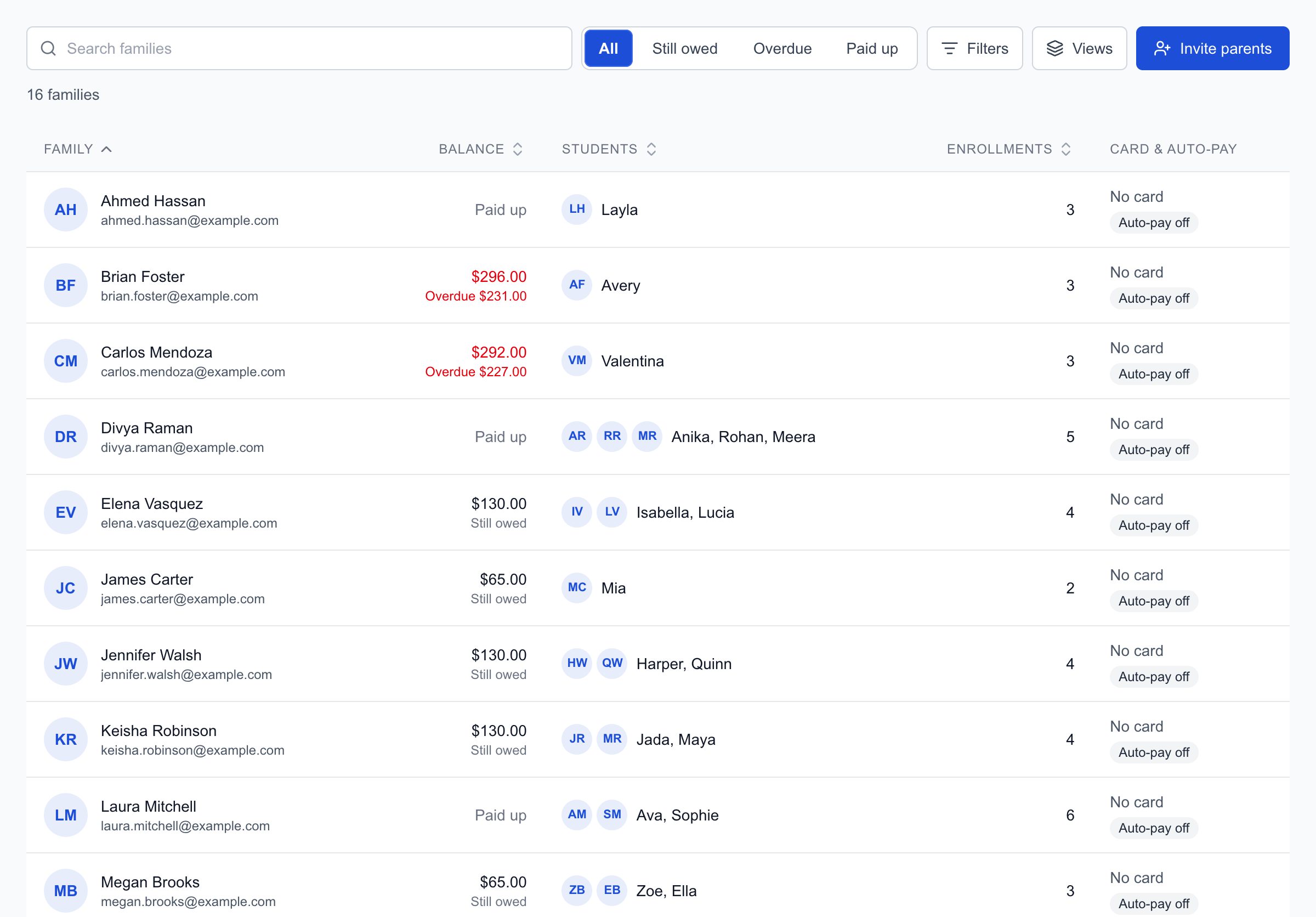
Each row shows the family (the parent's name and email), its Balance, its children, and — on wider screens — its enrollments and its card and auto-pay. Click a row to open the family.
Invite new families
- Press Invite parents.
- Single invite: type the parent's Email, and their first and last name if you like. Bulk invite: paste many addresses, one per line. Each line can be just the email, "Jane Doe" followed by the email in angle brackets, or the email, first name and last name separated by commas.
- Press Send invitation (or Send with the count).
The results list each address as invited, already at your studio, or failed. Each invited parent gets an email with a link to set up their account (or to join with the account they already have). Until they accept, they're on Leads, not here.
You can also invite a family by adding a student with a new parent email, or by importing a roster — see the Students article.
Change a family's email
- Open the family and, under Parent information, press Change email beside their email.
- Type the new address and press Send confirmation link.
The family's email doesn't change yet. Under the address you'll see "Waiting for … to confirm" and until when the link works, with Send link again and Cancel change. Once someone opens the link at the new address and confirms, the line becomes "Changed from … on …".
Open a family
Click a family to open its panel. The header shows the parent's name, how many students and active enrollments the family has, and — where the family view is on for your studio — View as the family: a read-only look at the family's own pages, exactly as they see them (see the article on what families see). A family that also belongs to another studio can't be viewed yet — pressing View as says so.
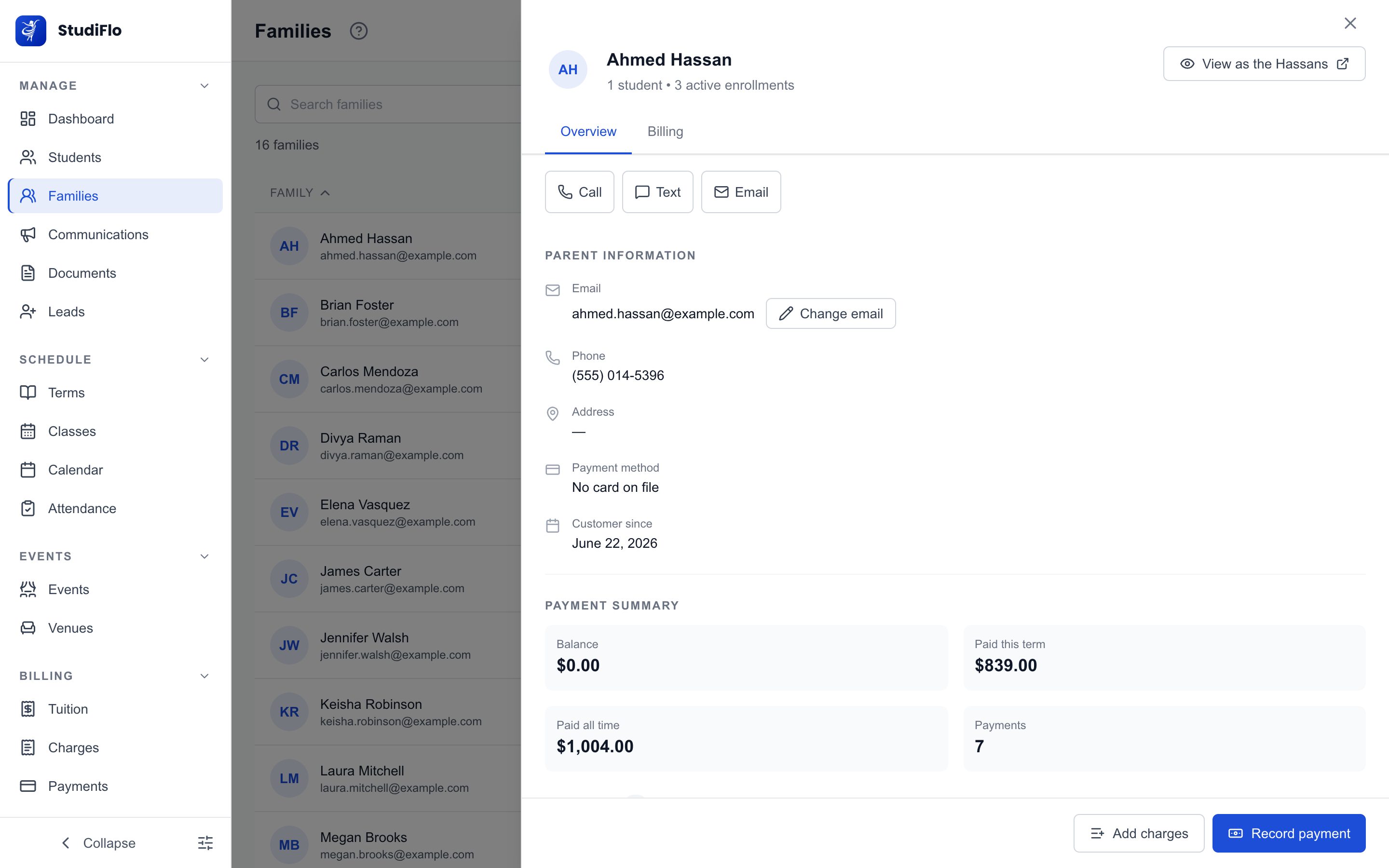
- Overview
- Parent information — email (with Change email), phone, address, Payment method (the card on file and whether auto-pay is on, or "No card on file") and Customer since.
- Payment summary — what the family still owes, what they've paid this term and in all, and how many payments they've made. Refunds are shown under the paid figures.
- Students — a card for each child with their classes. Click one to open the student.
- Family view history — who at your studio has viewed the family's pages, when the family view is on.
- Billing — every charge on the family's bill, newest first, with its status. Click one to open it.
At the bottom of the panel:
- Record payment — record money the family paid you another way (cash, check, Venmo and so on) against their charges.
- Add charges — the Add charges editor with every child in the family checked, including Add this month's tuition (see the Charges and Tuition articles).
- Charge card on file — shown only when the family has a card you can charge and something to charge. It takes what they owe as one card payment, after a confirm that shows the amount and the card.
- Waive late fees — shown only when the family owes a late fee. It waives every late fee they still owe at your studio in one go, with one reason that only your studio sees, and leaves their other charges alone. Let the family know (on by default) sends them an in-app notice for each fee.
How it works
How a family gets to your studio
A family joins only by accepting an invitation, or by signing up themselves from your studio's public page or a free trial. You can't create a parent account for someone — it's always the parent's own choice to join. Invitations come from:
- Invite parents on this page;
- Add student with an email that isn't a family here yet;
- a roster import;
- a lead on Leads.
Inviting an address that's already a family at your studio sends nothing — the result says it's already at your studio. Inviting the same address again while their invitation is still open sends a fresh email with a new link. A parent who already uses StudiFlo with another studio is invited the same way, and joins with the account they have; the screens never tell you whether an email already has an account.
An invitation link works for 30 days after it was last sent. If it lapses, resend it from the lead on Leads.
One account per family
Each family is one parent account: the email they sign in with, and their children. Their card, auto-pay setting, phone and address belong to the family, and only the family changes them — you can see them here but not edit them. The one thing you can change is their email, and only with the new address's confirmation (below). Families turn auto-pay on themselves on their Cards & auto-pay page, under More in their app.
A family can belong to more than one studio. You see only what they have at yours: your charges, your payments, and the children they've brought to your studio.
Changing a family's email
When you change a family's email, StudiFlo emails a confirmation link to the new address. Nothing changes until someone opens that link and presses Confirm new email — until then the family keeps signing in with the old address and every email still goes there. When it's confirmed, the new address becomes the one they sign in with (their password stays the same) and where their emails go, at every studio they belong to. The old address gets an email saying the email changed, so a family that didn't expect it can tell you. One kind of family can't have its email changed this way: one whose account is also used to run or work at a studio. Ask that family to contact StudiFlo instead.
- The link works for 72 hours. Send link again sends a new link and the old one stops working; so does asking for a different address.
- You can't use an address another family at your studio already has. An address that already has a StudiFlo account somewhere else is refused when the link is confirmed, and nothing changes — the family is asked to use another address.
- Each change is kept as a record: who asked, when, and the old and new address. The family's panel shows the last change your studio made.
The balance
A family's Balance is everything still owed on their charges at your studio, across all their children — after payments and refunds, and including declined cards and payments waiting on the family's bank. Overdue means at least one of those charges is past its due date. Paid up means nothing is owed.
In rare cases — a refund or a card dispute after a payment — a family's figure can read "overpaid". That's money the family may be owed back, or that your studio is out of pocket; check the family's charges and payments. StudiFlo doesn't keep a credit on account for a family.
Charging a family's card
Charge card on file takes what the family owes from the card they saved. It's offered only when the family has a card your studio can charge and at least one charge it could take. Families on auto-pay are already charged on each charge's due date; this button is for charging now — for example, a family not on auto-pay who has asked you to. A declined card leaves the charges owed. The "Payments, refunds and disputes" article has the details.
Common questions
How do I add a new family?
Press Invite parents and send them an invitation, or add a student with the parent's email and press Send invitation. The family appears on Families once they accept.
Why isn't a family I invited on the Families page?
They haven't accepted yet. Until they do, they're on Leads, where you can see the invitation and resend it.
How long does an invitation last?
The link works for 30 days after it was last sent. Resending it from Leads sends a new link that works for another 30 days.
The parent already has a StudiFlo account with another studio. Can I still invite them?
Yes — invite them the same way. They accept with the account they already have, and your studio is added to it.
Can I change a parent's email, phone or address?
You can change their email: open the family, press Change email and type the new address. A confirmation link goes to the new address, and the email changes only once it's confirmed there — the old address is told when it does. Phone and address you can't change: the family updates those from their own account settings.
Can I add a card or turn on auto-pay for a family?
No. Only the family can save a card and turn on auto-pay, from their Cards & auto-pay page (under More).
How do I take a cash or check payment?
Open the family and press Record payment. Enter the amount, how it was paid and the day it was paid; one payment can be spread over several of the family's charges, oldest first unless you choose otherwise. It can't be more than the family owes.
How do I charge everything a family owes to their card?
Open the family and press Charge card on file. It appears when the family has a card you can charge and something owed.
How do I waive all of a family's late fees?
Open the family and press Waive late fees, give a reason, and confirm. Every late fee the window lists is waived — it stays on their list as forgiven. A late fee that has a payment on it, or one in progress, is left as it is, and the message says so. A late fee added after you opened the window isn't included: open it again to waive that one. To waive just one, use Waive in that late fee's ⋯ menu on the Charges page.
How do I add a charge for all of a family's children?
Open the family and press Add charges. Every child is checked, and Add this month's tuition adds the month's tuition for the whole family as one line.
How do I see what a family sees?
Open the family and press View as the family. You see their pages read-only, as they do — nothing you do there can pay, sign or change anything. A family at more than one studio can't be viewed yet.
Can families still pay me after my trial ends?
Yes. Families already at your studio keep paying from their Pay page, auto-pay keeps charging on due dates, and you can record their payments. What pauses until you subscribe is posting new charges (including a leftover draft) and new families signing up online — see "Your StudiFlo subscription".
Why does a family show "overpaid"?
A refund or card dispute left the family's payments higher than their charges. Check the family's charges and payments on the Billing tab and the Payments page.
Can I remove a family from my studio?
Not from the Families page. To stop a child's classes and billing, unenroll or archive the child on Students.
How do I find families who owe money but can't be charged automatically?
Open Views and choose Still owed, no card on file.
Can a family have two parents?
A family is one parent account — the parent who accepted your invitation. StudiFlo doesn't have a second sign-in for another parent or guardian in the same family.