
Using it
Send an announcement
- Open Communications. The Announcements tab is open.
- Press New announcement.
- Write a Subject (up to 200 characters) and your message. You can use bold, italic, underline, bullet and numbered lists, and links.
- Under Target audience, choose who gets it:
- All families — every family at your studio.
- Specific classes — families with a student enrolled in the classes you pick.
- Student groups — families with a student in the groups you pick.
The line under it says how many families will receive it.
- Check the line that says where families' replies go ("Families' replies go to …"). Change opens your contact email in Settings.
- Press Send now. It goes straight away — there's no second confirm.
To send to particular students instead, go to Students, check the students, and choose Send announcement. The editor opens addressed to their families.
Schedule it, or save a draft
- Schedule for later: turn it on, pick a Date and Time, and press Schedule. The time is in your device's time zone. It goes out within a few minutes of that time.
- Save draft: keeps it to finish later. Click a draft in the list to open it in the editor again.
Change, call off or delete one
- A scheduled announcement can be changed until it goes out. Click it in the list to open it in the editor. Change what you like, then press Schedule to keep it scheduled (with the new date and time, if you changed them), or turn off Schedule for later and press Send now to send it straight away. The editor's Cancel schedule button saves your changes and takes it off the schedule: it becomes a draft and nothing is sent.
- To call off a scheduled announcement without opening it, open its row's menu and choose Cancel schedule, then confirm. It stays in the list as a draft you can edit, schedule or send later. Keep it scheduled leaves it as it was.
- To delete a draft, open its row's menu and choose Delete, then confirm. Only a draft can be deleted: cancel a scheduled announcement's schedule first.
- A sent announcement can't be changed or deleted. It stays in your list as the record of what families were sent.
Once a scheduled announcement has started going out, it can't be changed any more, and the editor says so.
Use templates for messages you send often
- In the editor, the Templates menu has Save as template (saves the subject and message you've written) and your saved templates. Picking one replaces what's in the editor, after you confirm.
- Manage templates (on the Announcements tab) opens Announcement templates, where you can search, Add template (a Template name, a Subject line and the message), edit and delete them.
Your announcements list
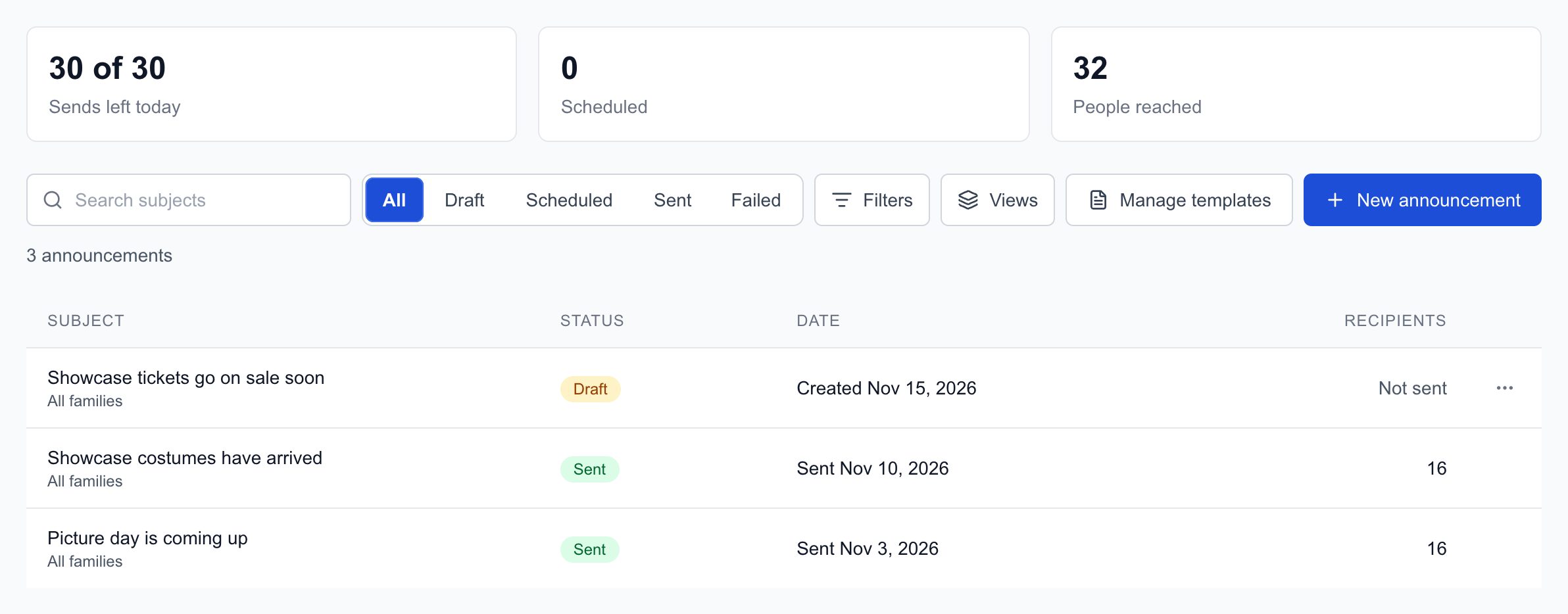
The tiles at the top show Sends left today, how many are Scheduled (click it to list them) and People reached in all. Below, the list shows each announcement's subject, status, date, audience and recipients. Search by subject, filter by Draft, Scheduled, Sent or Failed, and filter by the day it was created.
Clear filters, on the line under the bar, clears the search and the day filter; the status you chose stays. A status with nothing in it says so: "No announcements in “Failed”".
Click a draft or a scheduled announcement to open it in the editor. Click a sent (or failed) one to open its panel: Overview shows the message and who it went to; Analytics (once sent) shows its delivery rate and how many emails were delivered or bounced.
Change an automatic email
- Open Communications and choose Automatic emails.
- Pick an email under Choose an email. The emails are grouped:
- Payments: Payment receipt, Payment reminder, Payment failed, Charge notification, Refund confirmation
- Enrollment: Enrollment confirmation, Class cancelled, Waitlist offer
- Communication: Parent invitation, Waiver reminder, Document reminder
- Trial: Trial booking confirmation
- Change any of these:
- Subject line — the default is shown under the field, and it's exactly what the email says when you leave it. Your subject replaces it on every email of that kind.
- Header text — added above the email's main content.
- Custom message — on Enrollment confirmation, Class cancelled, Waitlist offer, Parent invitation, Waiver reminder and Document reminder only. It replaces the email's opening message; the facts (the class, the date, the button, the footer) are still added.
- Footer text — added below the main content.
- Button text and Button color — your studio color, a deeper shade of it, or any color code.
- The preview beside the editor shows the email on sample data, on desktop or mobile, with your unsaved changes. Available variables lists the details you can drop into your words, such as your studio's name, the student's name or the amount — click one to copy it.
- Press Save changes. An email you've changed is marked as customized.
Reset to default removes your words from that email and brings back the default ones. It can't be undone.
How it works
Who receives an announcement
StudiFlo works out the recipients when the announcement is sent (for a scheduled one, at its send time), not when you write it:
- All families: every family that has joined your studio, whether or not they have a child enrolled right now.
- Specific classes: families with a child actively enrolled in one of the classes.
- Student groups: families with a child in one of the groups — enrolled in a class or not. It's the same rule as a group waiver: a team between terms is still the team. An archived student doesn't count, unless they are still enrolled.
- Students you checked: those students' families.
A family with several children in the audience gets it once.
How families get it
Each family gets the announcement two ways: an email and a notification in their app. In the app it's under Studio news, and recent news shows on their Home page.
- A family that turned off the Studio news email in their settings doesn't get the email, but still sees it in the app. Turning off the app switch does the reverse.
- A family that stopped every StudiFlo email, or stopped your studio's announcements (or all your emails) with an unsubscribe link, is left out completely — no email and no app notification.
Who can read it later
- An announcement to all families is readable by every family at your studio in Studio news, including families who join later.
- An announcement to classes, groups or students is readable only by the families it was actually sent to. A family that leaves the class keeps what it was sent; a family that joins the class later doesn't see the class's earlier news.
The daily send limit
Your studio can send a set number of announcements a day; the Sends left today tile shows how many remain. Each announcement counts once, however many families it goes to. When the limit is reached, a banner says so and sending waits for the next day. The count starts over at midnight on your studio's clock (the Timezone in Settings → Profile). A scheduled announcement whose time comes after the limit is reached isn't sent and shows as Failed.
An announcement also shows Failed if none of its emails could be delivered.
Where replies go
Every email StudiFlo sends a family for you — announcements and automatic emails — comes from StudiFlo's notifications address, with your studio's name on it. When a family presses Reply, the reply goes to your studio's contact email, set in Settings → Profile, and the footer says "Reply to this email to reach [your studio]." If your studio has no valid contact email, the emails instead tell families to contact you directly, and the editor warns that "Families' replies won't reach you until you add a valid contact email."
StudiFlo doesn't keep a copy of replies: they land in your own mailbox.
Your words in automatic emails
Your header, footer, button color and button text are used wherever the email has them. A few details stay the email's own so families always get the facts — the amounts and charges, the class and date, the link to pay or sign.
Each email has one default Subject line, in plain words with your studio's name — "Payment received — [your studio]", "Payment reminder — $90.00 due to [your studio]", "Please sign [form] — [your studio]". It's the subject shown under the field, and the one families get. A few emails say something more exact: a payment that covered several charges counts them ("Payment of $60.00 received for 3 charges"), a late fee says "Late fee added", and a whole class cancelled says the class is cancelled rather than one date.
When you set your own subject, it's used on every email of that kind, those included. If you saved a subject that was the old default, families get today's default instead. Announcements have no subject line here: each announcement's subject is the one you write.
Your Charge notification words are also used in the single email a family gets when you post several charges at once (a tuition posting, or Add charges) — a good place for "Checks payable to …".
Some emails can't be changed: the email asking a family to confirm a payment with their bank, the emails about changing a family's email, announcements (your message is the email), and the emails sent to you — such as StudiFlo's reminders 14 days before your free trial ends, 3 days before and on the day (see "Your StudiFlo subscription").
When each automatic email goes
| Sent when | Can the family turn it off? | |
|---|---|---|
| Payment receipt | A payment is made or you record one | No, always sent |
| Payment reminder | A charge is overdue, on your reminder days (by default 3, 7 and 14 days after the due date; set in Settings → Billing & fees) | Only with the email's stop link |
| Payment failed | A card payment is declined | No, always sent |
| Charge notification | You post charges to the family | Yes — "New charges" |
| Refund confirmation | A payment is refunded | Only with the email's stop link |
| Enrollment confirmation | A child is enrolled — online, or by you with Let the family know checked | Only with the email's stop link |
| Class cancelled | You cancel a class they're in | No, always sent |
| Waitlist offer | A spot opens for them | No, always sent |
| Parent invitation | You invite a family to join | — |
| Waiver reminder | A waiver needs their signature (the automatic notice or your reminder) | Yes — "Forms waiting" |
| Document reminder | You remind them to read a document | Yes — "Forms waiting" |
| Trial booking confirmation | A free trial is booked | — |
| Substitute teacher notice | You change who teaches a class time with Change teacher and check Email the families of [class] | Only with the email's stop link |
When a family's card payment fails, you get an email of your own too, with the family, the amount and what happens next. It isn't one of these automatic emails and can't be changed; turn it off with Failed card payments in Settings → Notifications.
The substitute teacher notice isn't in the Automatic emails list, so its words can't be changed. It names each class that changed, with its day and time and who teaches it — a substitute from outside your studio by first name and last initial — and goes to families with a child enrolled in the class or a drop-in or make-up booked into that class time, never to free-trial families.
Emails to your teachers and substitutes. Change teacher also emails the people involved, using the email on their profile on Staff & locations: the substitute is told where and when and how to get in; the usual teacher is told their class is covered, or theirs again; with Every class from now on, the teacher who now has the class and the teacher who had it are each told; and a substitute is told when a class they were covering is given back, cancelled, moved or retimed. However many classes one change covers — a whole range of days — each person gets one email. These can't be reworded or turned off. Replies reach your studio's contact email. Anyone who couldn't be emailed is named on your screen ("Jordan Lee couldn't be emailed. Call or text them.").
When someone accepts an admin invite. You're emailed at your studio's contact email. The person accepting is emailed a 6-digit code at the address you invited, and that address is told the invite was accepted (with whether you still need to confirm it). These can't be reworded or turned off.
When a teacher hands off a class. A teacher who signs in to StudiFlo can hand one of today's classes to another teacher before it starts (see "Staff and locations"). The teacher taking it is emailed, and you are emailed at your studio's contact email (so is each admin who gets studio notifications) — "Amy Chen handed Tap 1 on Thursday, January 3 at 4:30 PM to Jordan Lee." — and again if they take it back. Families are not emailed about a hand-off; tell them yourself if they should know. This email can't be reworded or turned off.
See the Notifications article for everything families can switch off.
Common questions
Who gets an announcement sent to All families?
Every family that has joined your studio, including families with no child enrolled right now — except families who unsubscribed from email or stopped your announcements.
Do families get announcements by email or in the app?
Both. Each family can turn off either one in their settings (Studio news). A family that stopped every StudiFlo email gets neither.
Can I cancel or edit a scheduled announcement?
Yes, until it goes out. Click it to open it in the editor, change it and press Schedule again. To call it off, choose Cancel schedule in its row's menu (or in the editor): it goes back to being a draft and nothing is sent. Once it has started sending, it can't be changed.
Can I delete an announcement?
You can delete a draft: choose Delete in its row's menu. A scheduled announcement has to be turned back into a draft first (Cancel schedule). A sent announcement stays in your list as the record of what was sent.
What time zone is a scheduled time in?
Your device's time zone when you schedule it. It goes out within a few minutes of that time.
Why didn't an announcement go out?
If the list shows Failed, either your daily send limit was used up when its time came, or none of its emails could be delivered. Check Sends left today, then send it again as a new announcement.
Why did a family not get my announcement?
They may have unsubscribed from StudiFlo email, stopped your announcements with a link, or not been in the audience when it was sent (for classes, a child must be actively enrolled; for groups, a child must be in the group). A family that only turned off the Studio news email still sees it in the app.
A family joined the class after I sent news to it. Can they see it?
No. Announcements to classes, groups or students are kept for the families they were sent to. Send it again if the new family should have it. Announcements to all families are readable by every family, including new ones.
Where do replies to my announcements go?
To your studio's contact email in Settings → Profile. The editor shows the address under the audience.
Do families get an email when a class has a substitute?
Only if you check Email the families of [class] when you assign the substitute with Change teacher. Each family gets one email listing the classes that changed. Their schedule shows the substitute either way, and they can stop these emails with the link at the bottom of one.
Can I change the subject line of a receipt?
Yes. Open Payment receipt in Automatic emails and change its Subject line. Every receipt then uses your subject, including a receipt for a payment that covered several charges. Clear the field (or Reset to default) to go back to "Payment received — [your studio]".
Can I see who opened my announcement?
The Analytics tab shows how many emails were delivered and how many bounced, and the delivery rate. It doesn't count opens, because many mail apps make open counts unreliable.
How many announcements can I send a day?
The Sends left today tile shows your limit and what's left. Each announcement counts once, whatever its audience size. The count starts over at midnight, your studio's time.
Can I send an announcement to just a few students' families?
Yes. On Students, check the students and choose Send announcement.
How do I add "checks payable to" to the charge emails?
Open Automatic emails → Charge notification and add it in Header text or Footer text. It appears in every charge email, including the single email for a tuition posting.
Can I change the email families get when they must confirm a payment with their bank?
No. That email can't be customized, so the steps stay clear.
How do I undo my changes to an automatic email?
Open it and press Reset to default. Your words are removed and the default ones come back.