
Using it
Upload a document
- Open Documents. The Documents tab is open.
- Press Upload document.
- Drop a file on the box or click it to choose one: a PDF, Word or Excel file, a text or CSV file, or an image (JPG, PNG, GIF or WebP), up to 5 MB.
- Give it a Title (families see this name on their Forms page) and, if you like, a Description.
- Under Share with, choose who sees it:
- All families — every family at your studio.
- Specific classes — families with a student enrolled in the classes you pick.
- Specific students — the families of the students you pick.
- Turn on Require acknowledgement if families must confirm they've read it.
- Press Upload document.
Find a document
The list shows each document's title, who it is shared with, how many families have acknowledged it ("4 of 7 acknowledged", or "Not required"), and the day it was added. You can:
- search by title or description,
- filter by acknowledgement: Any, Waiting on families, Complete or Not required,
- filter by Shared with, and sort by newest, oldest or title.
Clear filters, on the line under the bar, clears the search and Shared with; the acknowledgement choice and the sort stay. An acknowledgement choice with nothing in it says so: "No documents in “Complete”".
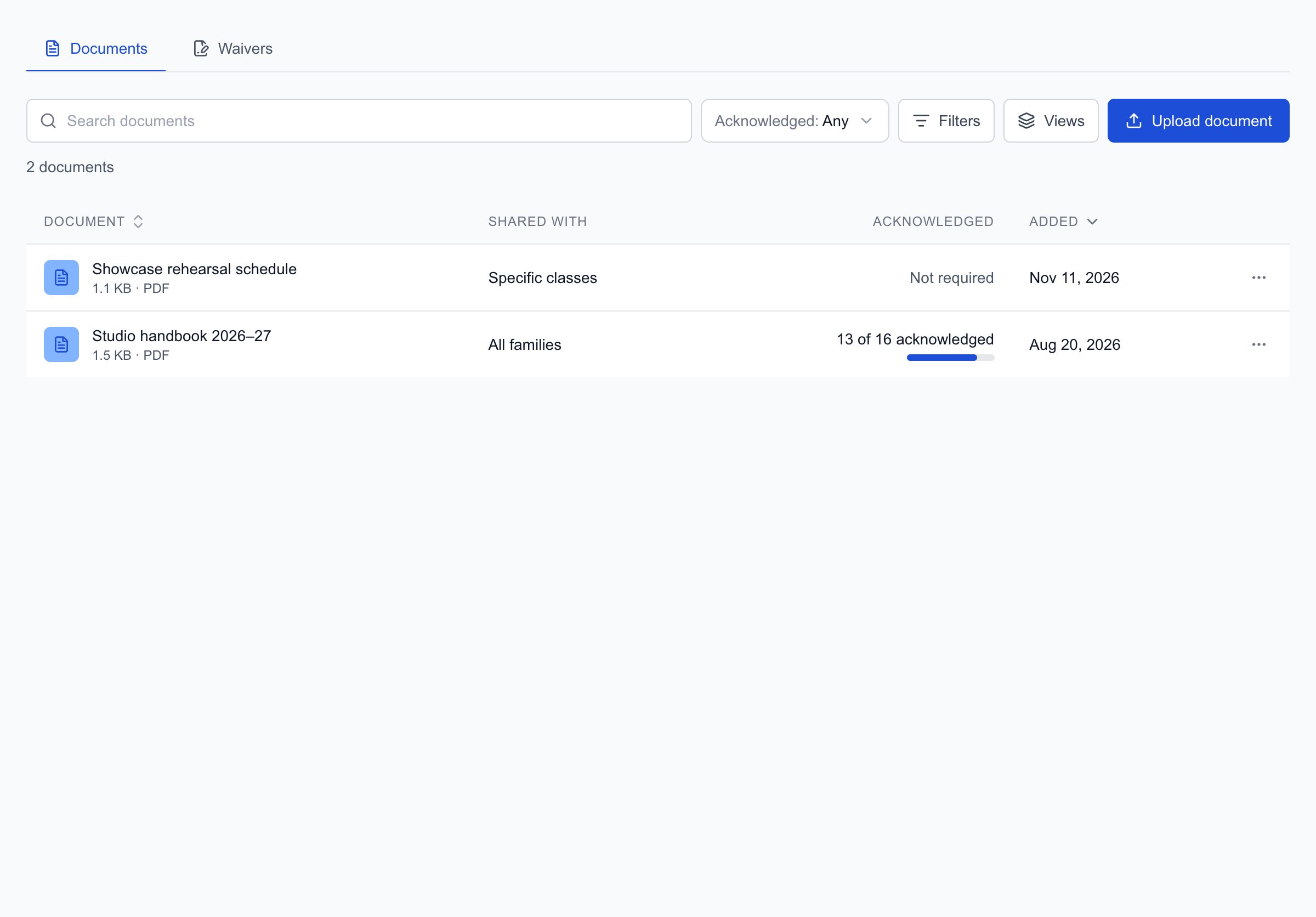
Each row has Download and Delete in its menu.
See who has read it, and remind them
Click a document to open its panel.
- Overview shows the file type and size, who it's shared with, when it was uploaded, and its description.
- Acknowledgements (for a document that requires one) lists every family it is for, with an acknowledgement progress bar. Filter by All, Not acknowledged or Acknowledged. A family that has read it shows the date and time they confirmed; one that hasn't shows Not acknowledged.
- Press Send reminder to N parents to email every family that hasn't acknowledged it yet.
Change or remove a document
- Edit document (in the panel) changes the title, description, who it's shared with and whether it requires acknowledgement. To change the file itself, upload a new document and delete the old one.
- Download document opens the file.
- Delete removes it. Families no longer see it, and the record of who read it is deleted too. This can't be undone.
How it works
Who sees a document
StudiFlo decides who sees a document each time a family opens their Forms page, from your students as they are then:
- All families: every family at your studio sees it.
- Specific classes: a family sees it while one of their children is actively enrolled in one of the classes. A family that joins the class later sees it too; a family that leaves stops seeing it.
- Specific students: the families of those students see it.
Families find documents on their Forms page. A document that asks to be acknowledged waits under To read until they confirm; one that doesn't is listed under From the studio. Read documents move to Signed and saved.
Uploading a document doesn't send families an email or a notification. They see it the next time they open Forms — or, for a document that requires acknowledgement, when you send a reminder.
Who is asked to acknowledge, and who is counted
For a document that requires acknowledgement, the families asked are:
- All families: families with a child actively enrolled at your studio right now.
- Specific classes: families with a child actively enrolled in one of the classes.
- Specific students: the families of those students.
The list's "4 of 7 acknowledged", the panel's Acknowledgements tab and its reminder all use exactly this group. Only these families' acknowledgements are counted: a family that acknowledged while the document was for them, and isn't in the group now, isn't counted. Each family acknowledges once, for the whole family.
Because the group is worked out from your students as they are now, the count moves on its own: a family whose child joins one of the classes is added to "of 7", and one whose child leaves drops out.
Reminders
Send reminder emails each family in the group above who hasn't acknowledged yet. The email names the document and links straight to it on the family's Forms page. A reply reaches your studio's contact email (Settings → Profile).
A family doesn't get the reminder email if they have unsubscribed from all StudiFlo email, turned off the Forms waiting email in their own settings, or stopped document reminders from your studio with the link in an earlier email. The document still waits on their Forms page.
You can change the reminder's header, message, footer and button in Communications → Automatic emails → Document reminder.
Documents and waivers
A document is a file. Even when it requires acknowledgement, it never holds up an enrollment. A waiver is text families sign, and some waivers must be signed before a child can enroll. Use a waiver for anything that needs a signature.
Common questions
What kinds of files can I upload?
PDF, Word (DOC, DOCX), Excel (XLS, XLSX), text (TXT), CSV and images (JPG, PNG, GIF, WebP), up to 5 MB each.
Do families get an email when I upload a document?
No. They see it on their Forms page the next time they open it. For a document that requires acknowledgement, press Send reminder to email the families who haven't read it.
How do families acknowledge a document?
On their Forms page they open the document and confirm they've read it. Their row on your Acknowledgements tab then shows the date and time.
Who counts toward "acknowledged"?
The families the document is for right now: for All families, families with a child actively enrolled at your studio; for Specific classes, families with a child actively enrolled in one of the classes; for Specific students, those students' families. The list's "4 of 7 acknowledged", the panel's Acknowledgements tab and the reminder all count the same families.
Why did the "of" number change?
The group is worked out from your students as they are now. When a child joins or leaves one of the classes, or a family has no child enrolled any more (for All families), the families counted change with them.
A family joined the class after I shared the document. Do they see it?
Yes. A document shared with specific classes is shown to every family with a child enrolled in those classes at the time they look.
Can I replace the file in a document?
Not in place. Upload the new file as a new document, then delete the old one. Acknowledgements don't carry over, so families confirm the new one.
What happens when I delete a document?
Families stop seeing it, and the record of who acknowledged it is deleted. It can't be undone.
Why didn't a family get my reminder?
They may have unsubscribed from StudiFlo email, turned off the Forms waiting email, or stopped document reminders from your studio. They can still read and acknowledge it on their Forms page.
Can a document stop a family from enrolling?
No. Only a waiver can. If you need a signature before enrolling, create a waiver on the Waivers tab.
Can I see which families haven't read it?
Yes. Open the document, choose Acknowledgements, and filter by Not acknowledged.
Can I make a document that families don't need to acknowledge?
Yes — leave Require acknowledgement off. Families see it under From the studio on their Forms page, and it shows "Not required" on your list.
Can I see who changed or deleted a document?
Yes. Adding or changing a document, deleting one and sending its reminders are recorded in Recent activity on Staff & locations → People, with who did it — you, or an admin by name. A deleted document's line keeps its name.