
Using it
Recital or event?
Open Events. Add recital sets up a full recital: shows, routines from your classes, check-in times, dressing rooms and show day. Add event sets up performances to sell tickets to, with no routines or dancers. You can't change one into the other later.
The list holds both, marked Recital or Event. Upcoming (the default), Past and All choose the dates; Status and Kind filter it. An event or recital is past once all its shows have started.
Clear filters, on the line under the bar, clears the search, Status and Kind; Upcoming, Past or All stays. With nothing in it, Past says "No events in “Past”". The Orders tab works the same way: Clear filters leaves the order status you chose.
Create a recital
Press Add recital and fill in:
- Name.
- Term (optional) — used to suggest classes when you add routines.
- Venue and Venue address — what families are told. Pick a saved hall, Somewhere else… (type a name), or Not decided yet. Picking a saved hall copies its name and address only; for reserved seats, use Places on sale… on each show.
- Description.
- Quick-change gap (default 3) — StudiFlo warns when a dancer has fewer routines than this between their numbers. 0 turns the warning off.
- Email families automatically (default 7) — check-in details go out this many days before the first show, once the recital is published. 0 turns it off.
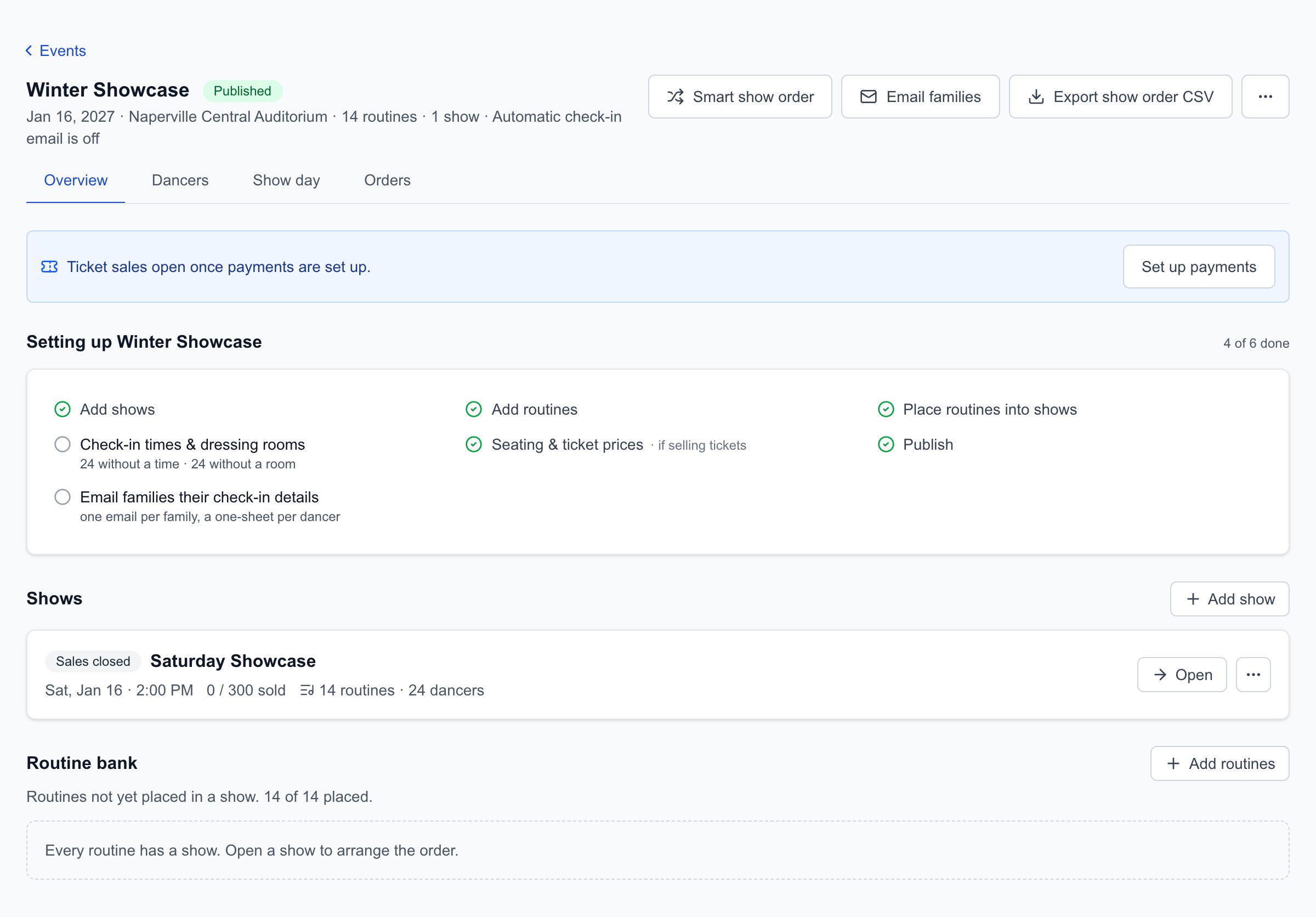
Press Add recital. The recital opens with a Setting up checklist that checks itself off as you go: Add shows, Add routines, Place routines into shows, Check-in times & dressing rooms, Seating & ticket prices (only if you're selling tickets), Publish, and Email families their check-in details. Click a step to do it.
Create an event
Press Add event and fill in the Name, Date & time, Doors open (optional), Places on sale (or leave it blank to set up later), the venue and a description. Press Add event: the event and its first performance are made together. Add another date adds more performances.
An event has two tabs, Overview and Orders. Press Ticket types on a performance's row to set its prices.
Add shows
Press Add show and fill in the Show name (for example "Show A — Saturday 1:00 PM"), the Curtain time and Doors open. A recital show also has Min routines and Max routines (used by Smart show order) and Notes for families, shown on each dancer's one-sheet. Refunds by the buyer sets the show's ticket refund rule (see the Selling tickets article).
Each show's menu has Ticket types…, Places on sale…, Guest list, Show-day pack, Edit…, Cancel show & refund buyers… and Delete show…. Its row shows the date, venue, tickets sold, routines and dancers, and a status: On sale, Sales closed, Not selling, Sales ended, Cancelled or Refunds unfinished.
Deleting a show sends its routines back to the routine bank. You can't delete a show once tickets are sold, check-ins are recorded, or families have been emailed passes for it — move its routines to another show instead, or cancel it.
Add routines
Press Add routines:
- From classes — check classes; each class becomes one routine with its enrolled dancers. Classes already added say Already added.
- Custom routine — type a Routine name, then add dancers from the routine's details.
New routines wait in the Routine bank until you place them in a show. Click a routine to fill in its details: Music, Length (m:ss), Artist, starting and ending positions, Costume, tights & shoes, Costume photos (up to 6, shown backstage on show day), sound and lighting cues, Props and Backstage notes.
The routine's dancers don't follow class changes by themselves. Press Sync from class to add students who joined the class since and remove those who left; dancers you added by hand stay. Add a dancer adds anyone else.
Build the show order
Open a show (Open on its row). Drag routines from the bank into Show order, or press Add next to each one, and drag or use the arrows to reorder. The X sends a routine back to the bank.
The top line shows the estimated running time and any quick changes. A quick change is a dancer with fewer routines between two of their numbers than your quick-change gap, for example "Emma J. — to #5, 1 between". A note also warns when one family's dancers are split across shows.
Smart show order
Smart show order places every routine for you. List the shows (with their curtain time and, if you want, min and max routines; leave them blank to balance evenly). Under Dancer can't be in a show, add any dancer who can't make a show. Press Generate preview, check the result (family splits, quick changes, unplaced routines), use Move… or Shuffle again, and press Accept and apply.
It always respects locked routines, dancers who can't be in a show, and the min and max you set. Within those, it keeps each family in one show first, then balances the shows, then spaces out each dancer's numbers. It handles up to 12 shows.
Accepting replaces the current show orders: routines you'd already placed by hand are moved to match the preview. To keep a routine where it is, set its Smart show order lock to that show first. Changing a curtain time in the dialog changes the real show's time when you accept.
Check-in times and dressing rooms
The Dancers tab lists every dancer in a show (choose the show at the top), with their family, routines, Check-in slot and Dressing room.
- Check-in slots — arrival windows for the show (a name, location, from and until). Families see their dancer's slot on the one-sheet.
- Dressing rooms — shared across shows, each with a color and an optional size. The size is a reminder only; StudiFlo doesn't stop you putting more dancers in a room.
- Set them one at a time in the table, or press Assign in bulk… to give a slot or room to the dancers you checked, an age range, everyone in a routine, or a pasted list of names.
Publish
Press Publish (you need at least one show). Until you do, families see nothing and nothing sells.
- A recital: families with a dancer in it can see the full lineup and their dancers' one-sheets in their app. The first time you publish, each family gets a notification that the lineup is out.
- An event: buyers can find it on your ticket page (once ticket sales are open). Families don't see events in their app.
Email families their check-in details
Press Email families. Each family gets one email — "(recital name): your check-in details" — with a one-sheet for each of their dancers: check-in slot, dressing room, routines, and a link to the dancer's pass (a QR code for drop-off and pick-up).
- The window warns if some dancers have no check-in time or dressing room — those lines go out blank.
- After the first send, Only families not yet emailed is checked.
- Include a link to buy audience tickets adds your ticket page to this email. It's off unless you check it, and offered only while ticket sales are open.
- Press Preview to see the email, then Send email.
If Email families automatically is on, the email goes out by itself that many days before the first show, to every dancer not yet emailed — including dancers added after you sent it yourself. The recital page's top line says when.
Moved dancers or changed slots, rooms or the order after emailing? The recital page reminds you, with Re-send.
Unpublish, archive and delete
- Unpublish takes the lineup and passes away from families until you publish again. An unpublished event comes off your ticket page, and no more tickets can be bought until you publish it again; buyers keep the tickets they already have. You can't unpublish once families have been emailed their passes or check-ins are recorded — keep it published (you can still edit) or archive it.
- Archive makes it read-only. Ticket sales stop at once and every staff device link stops working, including the door. Buyers keep their tickets, and refunds and payouts carry on. A recital stays visible to families as a past season. You can't archive while a show is running. Restore (published) or Restore to draft brings it back.
- Delete is offered for drafts and archived ones only, and is refused once any ticket has been sold or check-ins are recorded. Archive those instead.
There's no way to copy a recital to start next season's.
Orders
The Orders tab lists every ticket order for the recital or event — online, Cash at the door and Comp — with the buyer, show (performance, for an event), tickets, total and status, and a summary line of sales, refunds, cash and comps. Filter by show (performance), channel or Bank dispute, and Export CSV. Record a sale records a box office sale. Click an order to refund, void or re-send it — see the Selling tickets article.
How it works
What families see
- Draft: nothing.
- Published recital: every show's lineup (routine names and order) and, for each of their dancers, a one-sheet with the check-in slot, dressing room, routines, the costume details you typed, the show's notes for families, and the dancer's pass.
- Archived recital: the same, read-only, as a past season.
- Events: never shown in the family's app. Families buy tickets from your ticket page like anyone else.
Costume photos are for backstage only; families see the costume text.
When the check-in email goes out by itself
With Email families automatically set to 7 and the first show on Saturday, December 12, the email goes out on Saturday, December 5 to every family not yet emailed — once the recital is published. If you publish later than that, it goes out on the next daily send. Each later day, any dancer added since gets their email too. A family's email always covers all of that family's shows in the recital.
Quick changes and the running time
StudiFlo counts the routines between each of a dancer's appearances. With a quick-change gap of 3, a dancer in #2 and #5 has two routines between (#3 and #4) — that's flagged; #2 and #6 is fine. The running time adds up the routine lengths plus 45 seconds between routines.
Dancers who can't be in a show
The Dancer can't be in a show list in Smart show order is followed by Smart show order only. If you place routines by hand, StudiFlo doesn't stop you putting that dancer's routine in that show.
Changing things after families are emailed or tickets are sold
You can keep editing a published recital. After families are emailed, re-send when you change slots, rooms or the order. If you change a show's time, StudiFlo doesn't tell ticket buyers — let them know yourself. You can't set a show's places below the tickets already sold.
Common questions
What's the difference between a recital and an event?
A recital has routines, dancers, check-in, dressing rooms and show day. An event is performances and tickets only — for a gala, a fundraiser or a benefit night. Choose when you create it; it can't be changed later.
Why can't families see the recital?
It isn't published yet. Press Publish. Families see recitals only — never events.
Does publishing email families?
No. The first publish sends families a notification in their app that the lineup is out. The check-in email is separate: press Email families, or let it go out automatically before the first show.
A student joined a class after I added the routine. Are they in it?
Not until you open the routine and press Sync from class, or add them with Add a dancer.
Can I put the same dancer in two shows?
Yes — a dancer is in whichever shows their routines are in. Smart show order tries to keep each family in one show, and the show page warns when families are split across shows.
Will Smart show order undo my manual order?
Yes, when you accept it. Lock the routines you want to keep in place first (Smart show order lock in the routine's details), and check the preview before Accept and apply.
Can families see costume photos?
No. Costume photos are shown backstage on show day. Families see the costume text you write.
How do I resend the check-in email after changing a dressing room?
Press Email families (or Re-send on the reminder) and uncheck Only families not yet emailed so everyone gets the update.
Why can't I unpublish?
Families have already been emailed their passes, or check-ins have been recorded. Unpublishing would break their passes. Keep it published, or archive it.
Why can't I delete a recital?
It's published, tickets have been sold, or check-ins are recorded. Archive it instead — it stays read-only.
Can I copy last year's recital?
No. Create a new recital and add routines from your classes again.
Why does a show say Sales closed?
Your studio's ticket sales aren't open — payments aren't set up, or ticket sales are switched off. Point at the status for the reason.
Why does a show say Not selling?
The recital or event isn't published, or the show has no places on sale or no ticket type yet.
Can I cancel a show?
Yes, until it starts — Cancel show & refund buyers… refunds every buyer and emails them. Once a show has started or been paid out, refund orders one by one instead.
How many dancers fit in a dressing room?
As many as you assign. The size you enter is a reminder; StudiFlo doesn't enforce it.
Is there a record of who published or cancelled an event?
Yes, in Recent activity on Staff & locations → People, with who did it — you, or an admin by name: publishing an event or taking it back to draft, deleting it, cancelling or deleting one of its shows, changing a show once it has sold or given out a ticket, and sending check-in emails. Setting up a new event isn't recorded.