
Using it
Saving your changes
- A switch or a single drop-down saves the moment you change it, and a message confirms it ("Proration on").
- Typed fields collect in a bar at the bottom of the screen: "Unsaved changes", with Discard and Save changes. After saving it says "Saved".
- If you try to leave a tab with unsaved changes, StudiFlo asks first ("Unsaved changes" — Leave or Stay).
Profile: your studio's details
Studio information
- Studio name (required, up to 100 characters). It's shown to families and on your public pages. Changing it also changes the name families see on card payment pages. Only you, or an admin with co-owner access, can change it; for any other admin the box can't be edited and says "Only the studio’s owner or an admin with co-owner access can change it."
- Contact email (required). It's the reply address on every email your studio sends, and the address families see for your studio. The line under it says "Families' replies go to" that address. It doesn't change the email you sign in with. Only you, or an admin with co-owner access, can change it; when an admin changes it, the old address is emailed and your bell says who changed it.
- Phone number and Address (optional). Both show on your public class listing. The address is printed on receipts; until you add one, families see their receipts in the app but can't download a PDF.
- Your website (optional) — your studio's own website, like www.yourstudio.com. Your public pages show "Back to" your website at the top, so families who came from it can go back. Type the address as it shows in your browser; only a web address is accepted.
Branding
- Studio logo — PNG, JPEG, GIF or WebP, up to 2MB. The logo uploads as soon as you pick it, without pressing Save; Remove logo takes it away straight away too.
- Brand color — pick a preset, click the swatch to choose any color, or type a hex code. It colors the buttons and accents on the pages families see. If button words would be hard to read on your color, a warning says so.
Web address and timezone
- Custom URL — your public page's address (see "Your public page and class listing"). StudiFlo checks it's free as you type. Changing it warns: "Links and QR codes you've shared with the old address stop working."
- Timezone — every date and time in your dashboard is shown in it, and days like "due today" and "overdue" follow it.
Change password — at the bottom of the tab: type a New password (at least 8 characters) twice and press Update password. This changes the password you sign in with.
Subscription: your StudiFlo plan
Your trial, subscribing, and managing your plan. See "Your StudiFlo subscription".
Billing & fees: how families are billed
The sections, top to bottom:
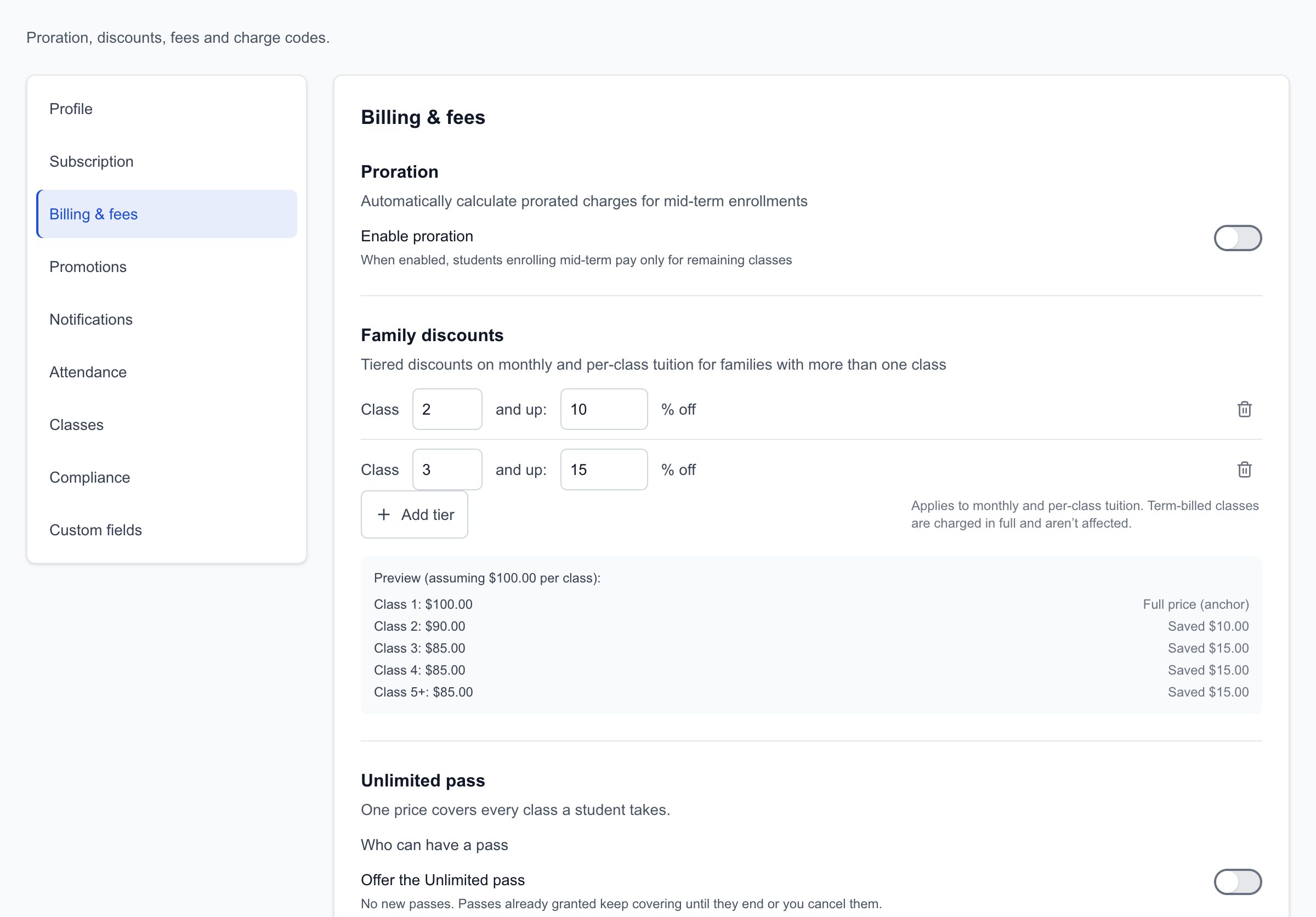
- Proration — Enable proration bills a student who joins partway through for the part they attend. Turning it off asks you to confirm; charges already posted don't change. (Worked examples: "Tuition".)
- Family discounts — tiers of a percentage off for a family's second, third and later classes, up to 10 tiers. (See "Tuition".)
- Unlimited pass — Offer the Unlimited pass, Included for all students, per-term or per-month billing, a Price of at least $10.00 and an optional Sibling price. (See "Tuition".)
- Due dates — Default due date (days after posting): when a charge is due if you leave its due date blank (below).
- Monthly tuition run — Turn on the monthly tuition run and the Tuition run day (1 to 28). It reminds you each month that tuition is ready to post; it never posts or charges anything itself. (See "Tuition".)
- Auto-pay at sign-up — Ask every family to choose. Off (the default), a family paying by card as they enroll online can check auto-pay if they want it. On, they choose one of two: auto-pay for your studio, or "I’ll pay each charge myself" — nothing is chosen for them, and they can't finish until they pick. Either way it is the family's own choice, and they can change it later on their Cards & auto-pay page. (See "What families see".)
- Charge codes — labels for your charges (below).
- Late fee automation — automatic late fees (below).
- Ticket sales — Sell tickets online, and while that's on, I'll pay the booking fee (below).
- Payment reminders — automatic reminder emails after the due date (below).
- Payment instructions — how families pay you when card payments aren't available (below).
If one part of a save fails, the message says which ("2 of 3 sections saved — fix the late fee and save again"), and the part that wasn't saved is marked.
Set up late fees
- In Billing & fees → Late fee automation, switch on Enable late fees. The first time, it starts at a fixed $25.00 after 7 days; change those to your own.
- Choose Late fee type: Fixed amount ($) or Percentage (%), and enter the amount or percentage (a percentage can't be over 100%).
- Set the Grace period (days) — 1 to 90 days after the due date.
- For a percentage, you can set a Maximum late fee (cap). Leave it blank for no cap.
- Choose One late fee per family: Per due date (charges due the same day share one fee) or Per month (charges due in the same month share one fee).
- Press Save changes. The Example box shows the fee on a $500 charge and when it's added — with a 7-day grace period, "Added 8 days after the due date — the day after the 7-day grace period ends."
Set up payment reminders
- In Billing & fees → Payment reminders, switch on Enable payment reminders. The schedule starts at days 3, 7 and 14 after the due date.
- Remove a day with its ×, or add one from Add reminder day (any day from 1 to 90). You can have up to 5 reminder days.
- Press Save changes. The timeline under the days shows when reminders go out.
Charge codes
Charge codes label your charges — "Costume", "Registration fee" — so you can sort and report on them. Press Add charge code, enter a Name and a Code (2 to 20 letters, numbers and hyphens, turned to capitals, such as REG-FEE), pick a color if you like, and press Create.
Search charge codes finds a code by name or code; a search that finds nothing says so, and Clear filters on the line under the search clears it.
Codes marked System are StudiFlo's own (for tuition, late fees and so on). You can change their name and color, but not their code, and they can't be deleted. A code that's on any charge can't be deleted either.
Ticket sales
Sell tickets online opens your public ticket page for your published shows. It's on unless you turn it off, and tickets open once card payments are on for your studio. Turning it off closes the page; tickets already sold stay valid.
I'll pay the booking fee: off (the default), buyers pay the booking fee on top and you receive the full ticket price; on, buyers pay only the ticket price and the fee comes out of your payout. (See "Selling tickets".)
Set your default due date
In Billing & fees → Due dates, type the Default due date (days after posting) — any whole number of days from 1 to 90 — and press Save changes. It starts at 7. Every place you post a charge without picking a date uses it, and the due-date hints in the charge editors point here.
Payment instructions
Up to 1,000 characters telling families how to pay you without a card — "Venmo @yourstudio (memo: family name), or a check at the front desk". While your studio takes card payments, families don't see them. If card payments become unavailable, families see these instructions on their Pay page and in their charge and reminder emails, instead of a Pay button.
Only you, or an admin with co-owner access, can change them — they are where families are told to send their money. Any other admin can read them; the box is greyed out, with "Only the studio’s owner or an admin with co-owner access can change these." When an admin with co-owner access changes or clears them, you are told in your bell and by email, and the change is recorded in Recent activity with their name (the record says the instructions changed, not what they said).
Promotions
Your promo codes. See "Discounts and promo codes".
Notifications
One switch for each email StudiFlo can send you — failed card payments, new leads, the daily leads email, absence alerts, dispute outcomes and the tuition run's ready-to-review email. Every switch starts on, and each saves when you flip it. See "Notifications".
Attendance
- Take attendance turns roll call on for your studio (dashboard, the Attendance page, the calendar, each class and teachers' roll-call links).
- While it's on: Make-ups (on to start: book a student who missed a class into another class on another day — see "Attendance, make-ups and drop-ins"), Absence alerts ("Tell me when a student misses" after 2 to 10 classes in a row, 3 to start), Show medical notes on teacher links, and Teacher roll-call links with Manage. See "Attendance, make-ups and drop-ins" and "Staff and locations".
Classes
- Waitlist offers — Time to accept an offered place: how long a family has to accept a place in a full class before it's offered to the next family waiting. Choose from 12 to 72 hours; it starts at 48. It saves when you pick it. Offers sent from then on use the new time — an offer already sent keeps its deadline. See "Classes".
Compliance
StudiFlo's Terms of Service, Privacy Policy and Cookie Policy — press View to read each. Your own waivers and forms are on Documents, not here.
Custom fields: extra fields on student profiles
- Press Add field.
- Enter a Field name ("Shoe size") and pick a Field type: Text, Number, Date, Select (Dropdown) (add its options) or Checkbox. The type can't be changed later.
- Switch on Required field if it must be filled in whenever a student is added or edited.
- Choose Parent access: Hidden (only your studio sees it), View only (parents see it on their child's form, only you change it) or Can edit (parents fill it in when they add or edit a child).
- Press Add field.
Drag fields to set the order they appear in student forms. The row menu has Edit field, Deactivate field / Activate field, and Delete field.
How it works
Your timezone decides the day
Due dates, "overdue", the monthly tuition run day, late fees and reminders all count days on your studio's clock, in the timezone on Profile. The list offers the US time zones, Toronto, Vancouver, and a few cities in Europe, Asia and Australia.
Changing your timezone doesn't move payments you recorded by hand: a cash payment you entered for October 31 stays on October 31, in October's reports. Card payments keep the moment they were taken, shown in the new timezone.
Late fees, worked out
A late fee is added once a charge is still owed past its due date plus your grace period. It's added as its own charge, linked to the late charge, and the family is told.
- One fee per family per due date — or per month. Under One late fee per family, Per due date (the default) means all of a family's charges due on the same day share one late fee, however many there are. Per month means all of a family's charges due in the same month share one: a family with tuition due November 1 and a competition fee due November 10, both late, gets one late fee, not two. Either way the fee is linked to the charge owing the most, a due date (or month) that already has a late fee never gets another, and a late fee never gets a late fee of its own. Changing the setting affects late fees from then on: a fee added per month still covers its whole month if you switch back to per due date.
- When it's added: the day after the grace period ends. With a 7-day grace period, a charge due October 1 that's still owed gets its late fee on October 9.
- A percentage is of what's still owed on that day's charges together, not of the original charges, and the cap applies once. Per month, it's worked out when the month's first charge is late, on the month's charges late by then.
- Nothing on a tiny balance. If less than $2.00 is still owed on the charge, no late fee is added — the family is still reminded.
- Declined cards: a charge whose card was declined gets a late fee only after its automatic retries are over.
- When the fee is due: the late fee is due on your default due date — 7 days after it's added unless you've changed it — like any charge you post without a date. Families on auto-pay are charged for it on that day when every charge it was added for would have been charged automatically; everyone else pays it from their Pay page.
Late fee: 10%, capped at $25. Grace period: 7 days. Leo's $120 October tuition was due October 1, and his family paid $40 of it.
- On October 9, $80 is still owed: 10% × $80 = $8.00 late fee, due October 16 (with the default due date of 7 days).
- Had nothing been paid: 10% × $120 = $12.00. On a $300 charge, 10% would be $30.00 — capped at $25.00.
A fixed late fee is the same amount whatever is owed.
Payment reminders
On each reminder day, every family with a charge that many days past its due date and still owed gets a reminder email. The days count from each charge's due date on your studio's clock.
Say your reminder days are 3, 7 and 14. A charge due October 1 and still unpaid gets reminders on October 4, October 8 and October 15. Once it's paid, the reminders stop.
Due dates when you don't pick one
A charge posted without a due date is due your default number of days after the day it's posted: 7 unless you change Default due date (days after posting) in Billing & fees → Due dates. Changing it affects charges posted from then on; charges already posted keep their due dates. To give one posting a different date, pick it on the posting.
Your default is 10 days. You post a costume charge on October 6 without a date: it's due October 16.
Automatic retries
When a family's card is declined, StudiFlo tries it again automatically, up to 3 times, after 1, 3 and 7 days. This is the same for every studio and has no switch in Billing & fees. (See "Charges".)
Custom fields
Custom fields appear on your studio's student forms and the student panel, and in student import and export. A field set to View only or Can edit also shows on the family's form for their child; a required Can edit field must be filled in by the family when they add or edit a child.
- Deactivating a field hides it from every form and keeps what's been entered. Activate it to bring it back with its answers.
- Deleting a field deletes everything entered in it, for every student, and can't be undone.
Who can change settings
The owner and every admin can open Settings and change what is here, with four exceptions:
- Studio name and Contact email (Profile) are yours, or an admin's with co-owner access. They are what families read on every email and receipt.
- Payment instructions (Billing & fees) are yours, or an admin's with co-owner access. They tell families where to send their money.
- Subscription is yours alone. An admin sees "The studio’s owner manages the StudiFlo plan" there, with who to ask.
- Notifications is each person's own: your switches are yours, and an admin's are theirs. An admin you haven't given studio notifications sees "The owner hasn’t turned on studio notifications for you." instead of switches.
A change to the settings is recorded in Recent activity on Staff & locations with who made it. A teacher's account has no Settings: it opens only their own classes. What an admin can do, and the switches you can give one, are in "Staff and locations".
Common questions
How do I change my studio's logo or color?
Settings → Profile → Branding. The logo saves as soon as you pick it; the color needs Save changes.
My logo won't upload. Why?
It must be a PNG, JPEG, GIF or WebP file of 2MB or less.
Is the contact email the same as my sign-in email?
No. The contact email is where families' replies go and what they see for your studio. Changing it doesn't change your sign-in email. To change your password, use Change password at the bottom of Profile.
Where do families' replies to studio emails go?
To the Contact email on Profile. The line under the field shows the address.
How do I change my default due date?
In Settings → Billing & fees → Due dates, change Default due date (days after posting) (1 to 90 days) and press Save changes. Charges posted without a date from then on use it.
Can I turn off automatic retries for declined cards?
No. Every studio's declined cards are retried up to 3 times, after 1, 3 and 7 days.
When exactly is a late fee added?
The day after the grace period ends. With a 7-day grace period, a charge due October 1 gets its fee on October 9, if it's still owed.
Is a percentage late fee worked out on the full charge?
No — on what's still owed when the fee is added, up to your cap.
Why didn't a family get a late fee?
The charge was paid in time, it already has a late fee, less than $2.00 is still owed, its card is still being retried, or late fees were off on that day.
How many payment reminders can I send?
Up to 5 reminder days, any day from 1 to 90 days after the due date.
When do families see my payment instructions?
Only if card payments aren't available for your studio. Then families see them on their Pay page and in their charge and reminder emails, instead of a Pay button.
Can I delete a charge code?
Not a System code, and not a code that's on any charge. Other codes can be deleted from their row.
What happens if I change my timezone?
Dates and times in your dashboard show in the new timezone, and days like "overdue" follow it. Payments you recorded by hand keep the day you typed.
Can parents fill in a custom field?
Yes, when its Parent access is Can edit. View only shows it to them without letting them change it; Hidden keeps it to your studio.
I deactivated a custom field. Is the data gone?
No. Deactivating hides the field and keeps its answers. Only Delete field removes the data.
Ticket sales are on, but I don't sell tickets. Does it matter?
Nothing is sold unless you publish a show with tickets. Switch off Sell tickets online if you'd rather close your ticket page.
How long do families have to accept a waitlist offer?
48 hours unless you change it. Go to Settings → Classes and pick a time from 12 to 72 hours. The family's notice and email name the deadline.
Where are my waivers?
On Documents. Compliance holds only StudiFlo's own terms and policies.
Can an admin change my settings?
Yes, all of them except your StudiFlo plan (yours alone) and the studio's name, contact email and payment instructions, which need co-owner access. Each change is recorded in Recent activity on Staff & locations with the admin's name.