
Using it
Create your studio account
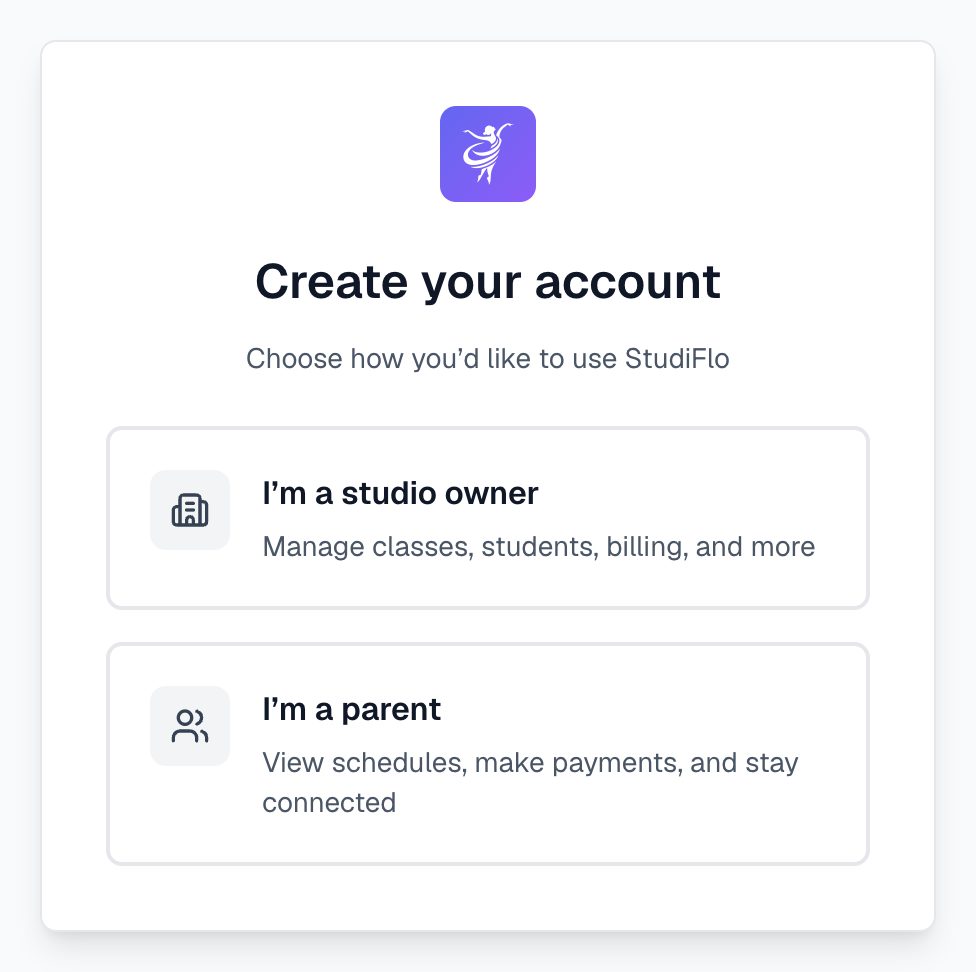
- Go to the sign-up page and choose I'm a studio owner ("Manage classes, students, billing, and more").
- Enter your First name, Last name, Email address and a Password of at least 8 characters, twice. Press Create Studio Account.
- StudiFlo emails you a link ("Confirm your StudiFlo account"). The page says "We sent you a link". Open the email and press Verify email — it works on any device.
- Back on the sign-up tab, the page moves on by itself once your email is confirmed, or press I've verified my email. You go to setup.
No email? Check your spam folder, then press Resend verification email (you can resend once a minute).
Set up your studio: four steps
The setup page ("Set up your studio") has four steps. Each one is saved when you press Next, so you can stop and come back to the next unfinished step. Finished steps get a check and you can click back to them.
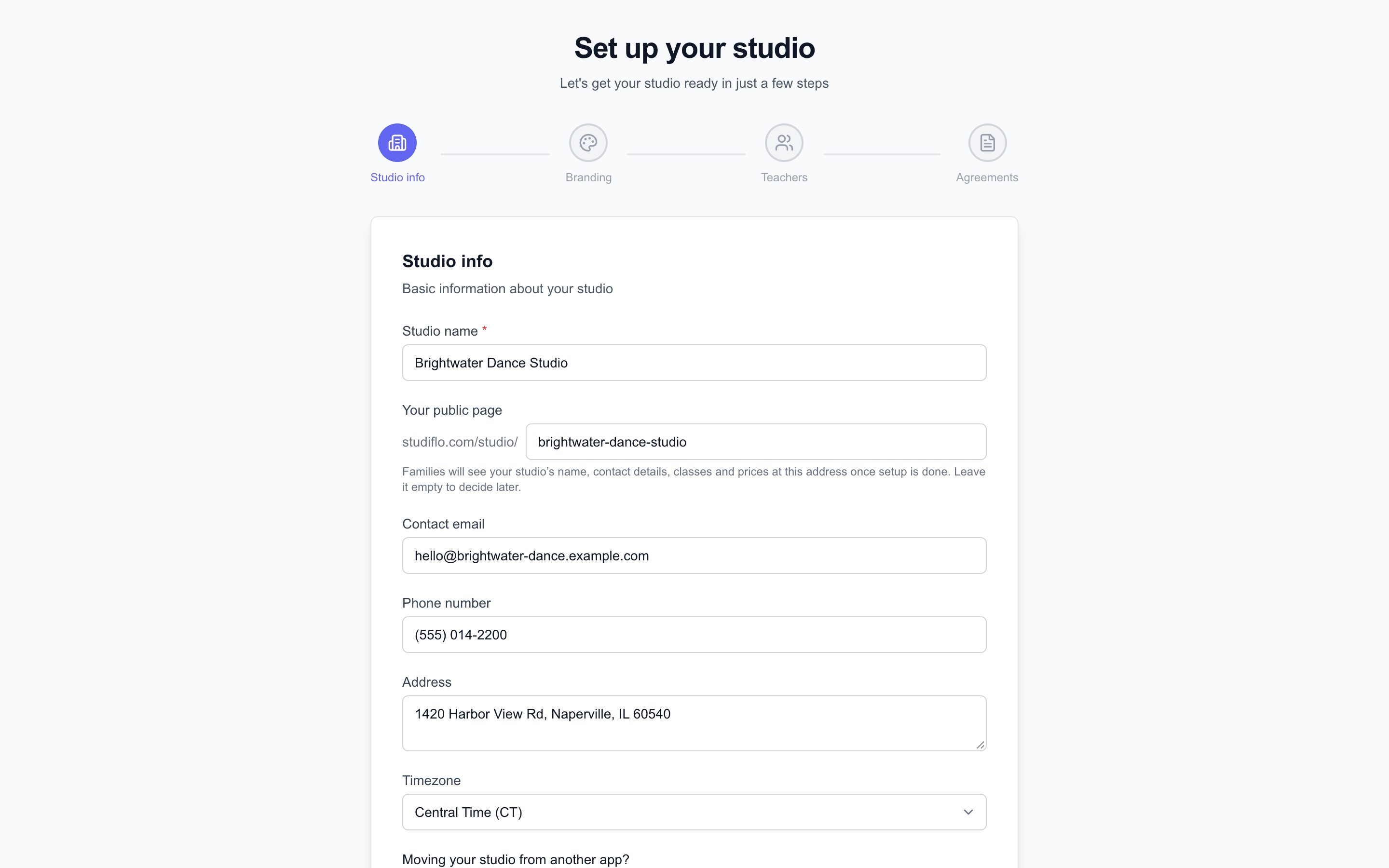
- Studio info — Studio name (required), Your public page (your web address — optional, see "Your public page and class listing"), Contact email (your sign-in email is used if you leave it blank), Phone number, Address and Timezone.
- Branding — a Studio logo and a Brand color for the pages families see. Both are optional; press Next to skip.
- Teachers — optional. Add the people who teach with Add your first teacher (first and last name required; email, bio, certifications and hourly rate optional), or press Skip for now and add them later under Staff & locations. A class doesn't need a teacher.
- Agreements — scroll to the bottom of both the Terms of Service and the Privacy Policy; the checkbox "I have read and agree to the Terms of Service and Privacy Policy" turns on once you have. Check it and press Complete setup.
You land on your Dashboard: "Welcome to StudiFlo! Your studio is ready." The first time, a short welcome video opens.
What to do next
Setup creates your studio, any teachers you added and your free trial. Everything else you add from the sidebar:
- Payouts — connect your Stripe account so families can pay by card and the money reaches your bank. (See "Payouts and processing fees".)
- Terms — add your first term, such as "Fall 2026", with its dates and any registration fee.
- Classes — add your classes: day and time, teacher, location, ages and price.
- Staff & locations — add your locations, and more teachers.
- Settings → Billing & fees — proration, family discounts, late fees and reminders.
- Your public page — choose your web address if you didn't in setup, and share it from the Share your studio card on your Dashboard, so families can sign up.
Sign in, and reset your password
Sign in with your email and password on the sign-in page ("Sign in to your account"). If setup isn't finished, you go back to it; otherwise to your Dashboard.
Forgot your password? Press Forgot your password?, enter your email and press Send reset link. The email ("Reset your StudiFlo password") opens Set new password: type a new password of at least 8 characters twice and press Update password. If the link has expired, press Request a new reset link.
To change your password while signed in, use Change password at the bottom of Settings → Profile.
Find your way around: the sidebar
The sidebar groups your pages:
- Manage: Dashboard, Students, Families, Communications, Documents, Leads
- Schedule: Terms, Classes, Calendar, Attendance
- Events: Events (your recitals and shows), Venues
- Billing: Tuition, Charges, Payments, Payouts
- Studio: Reports (money, enrollment, leads, tickets and attendance), Staff & locations, Settings
- Support: Help (help articles, with a search, and help videos), Contact (send a ticket to StudiFlo)
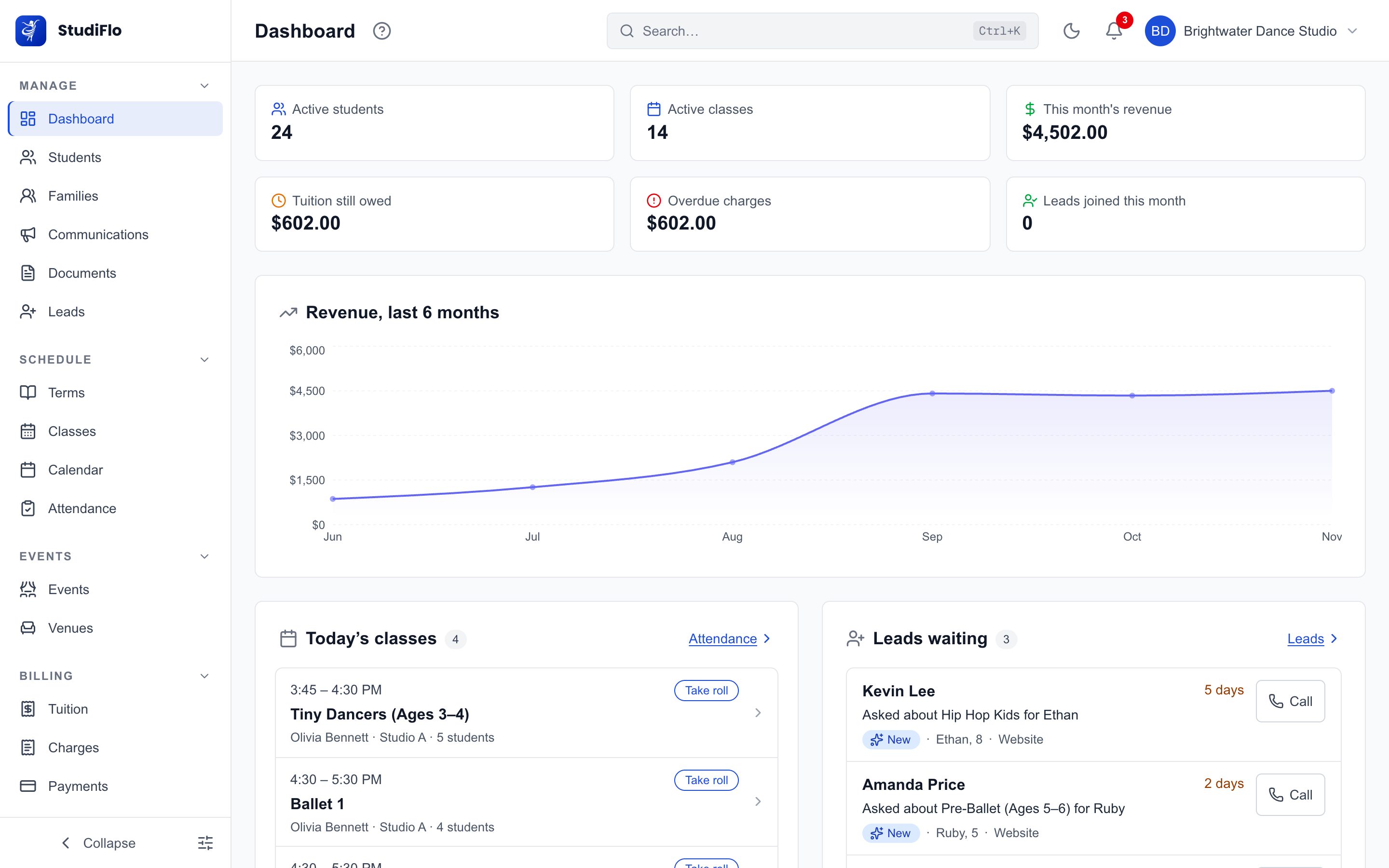
Click a section's heading to fold it away. Collapse at the bottom shrinks the sidebar to icons — hover an icon to see its name — and Expand sidebar brings it back. On a tablet the sidebar starts as icons.
Hide pages you don't use
Don't run recitals, or never sell tickets? Take the pages you don't need off the sidebar menu — Events and Venues, say.
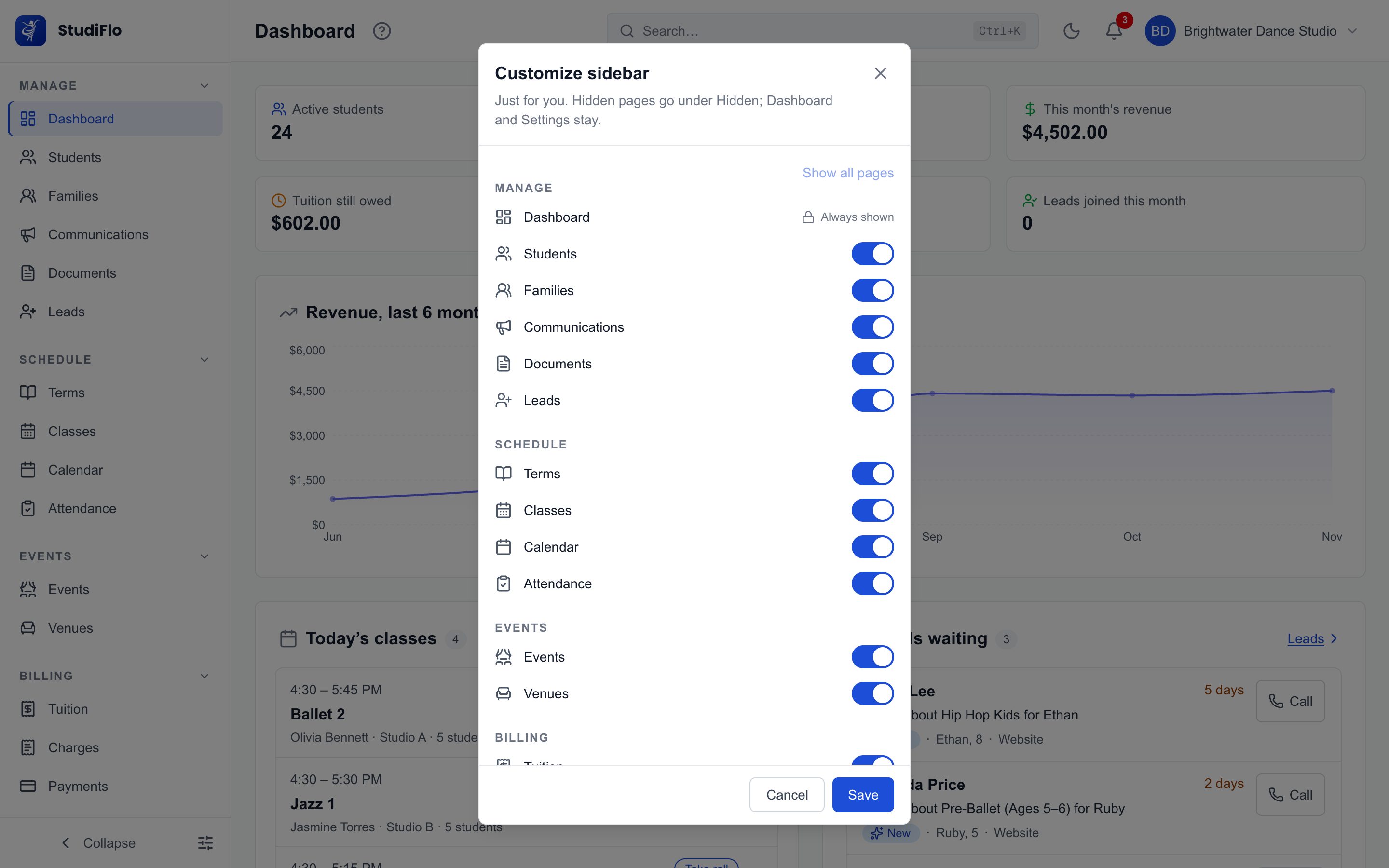
- Press Customize sidebar — at the bottom of the sidebar, in the phone's More sheet, or in your account menu.
- Switch off Show for any page you don't use. Dashboard and Settings are always shown.
- Press Save.
Hidden pages move under Hidden at the bottom of the sidebar, still one click away, and links to them keep working. Show all pages brings everything back. You can hide and show pages, but not reorder them.
On a phone
A bar along the bottom holds Dashboard, three of your pages — at first Students, Classes and Tuition — and More. More lists every page by section, your hidden pages, and Customize sidebar. If you hide one of the bar's pages, the next one in line takes its place (Attendance, then Charges, Calendar, Families, Payments, Terms).
The top bar
- The page's name, and the ? help button beside it, on every page: it opens the help panel — the page's video (when it has one), Ask Flo (the help chat: ask how anything in StudiFlo works and Flo answers from the help articles, with links to them) and the page's help articles. "Help, Ask Flo, videos and support" explains it.
- Search — press it, or Ctrl+K (⌘K on a Mac), and type at least two letters of a name. Results come grouped as Students, Parents, Leads, Terms, Classes and Charges.
- Light and dark — the sun or moon switches the dashboard's look. It starts dark.
- The bell — your notifications: Mark all as read, and View all notifications for the full list.
- Your account menu — your initials or photo: Studio profile (opens Settings → Profile), Customize sidebar, Submit a ticket and Sign out.
How it works
Your free trial starts when setup is done
Pressing Complete setup starts your free trial: 3 months of every feature, no card needed. StudiFlo emails you 14 days before it ends, 3 days before and on the day, and the dashboard shows a banner for the last 14 days, each with a Subscribe button. If the trial ends without a subscription, your families keep paying and auto-pay keeps running, but posting new charges, adding and changing things, and new families signing up online pause until you subscribe. See "Your StudiFlo subscription".
Who logs in
The owner's account runs the studio: settings, money, families and everything else. You can invite an admin — an office manager, a business partner — to an account of their own that does almost everything yours does, except the bank account, your StudiFlo plan and viewing the app as a family (see "Staff and locations"; admins have their own guide, "Admin accounts — what you can do"). You can invite your teachers to an account of their own, which opens only their own classes — their schedule, their rosters and the roll — never money or families' details; or give them a roll-call link instead, which needs no sign-in (see "Staff and locations"). A teacher's own pages have a ? that opens a guide written for them ("Teaching — your classes, roll and schedule"). Families have their own accounts and see only their own screens (see "What families see, and viewing as a family").
What setup doesn't do
Setup doesn't create terms, classes or locations, and doesn't connect your payouts. Families can't pay you by card until you've connected Stripe on Payouts.
Your sidebar is yours
The pages you hide are saved for your account and follow you to other computers and phones the next time you open StudiFlo there. A folded section and a collapsed sidebar are remembered on that device only. No page is hidden by StudiFlo: every page shows until you hide it.
Signing out and staying signed in
Sign out always signs that browser out, even if the connection is slow or down, and forgets the filters remembered on your list pages — so a shared front-desk computer is never left signed in.
If your session runs out while you're working, StudiFlo takes you to the sign-in page: "Your session has expired. Please sign in again." After signing in, you start on your Dashboard.
A browser is signed in to one StudiFlo account at a time, in every tab. If you sign in to a different account in another tab — a family's account you test with, or a second studio — the tabs you left open can't keep going as your studio. When you come back to one, it says "This browser switched accounts" and offers one button, Continue, which opens the account that's now signed in. To use both at once, sign in to the second one in a private window or another browser.
Common questions
What if I didn't get the verification email?
Check your spam or junk folder, then press Resend verification email on the "We sent you a link" page. You can resend once a minute. If you opened a new tab, enter the email you signed up with.
It says "An account with this email already exists." What now?
That email already has a StudiFlo account. If you never confirmed it, press Resend verification email. If you did, sign in instead — use Forgot your password? if you need to.
Do I have to add a teacher during setup?
No. Press Skip for now on the Teachers step. You can create classes without a teacher and add teachers any time under Staff & locations. Adding a teacher sends them nothing; you can invite them to sign in later from Staff & locations. If you stop setup after skipping, you come back to the Teachers step and can skip it again.
Can I skip Branding?
Yes. Press Next without a logo or color, and add them later in Settings → Profile.
The Complete setup checkbox is greyed out. Why?
Scroll each of the two documents — the Terms of Service and the Privacy Policy — all the way to the bottom. The checkbox turns on once you have.
Can I change what I entered in setup?
Yes. Everything is in Settings (your details, branding, web address and timezone) and Staff & locations (teachers).
What if my timezone isn't in the setup list?
Setup offers the US time zones. Settings → Profile offers a few more, including Toronto, Vancouver and some cities in Europe, Asia and Australia.
Where are my recitals?
Recitals are under Events in the sidebar.
Why has a page disappeared from my sidebar?
You (or someone signed in as you) hid it. Look under Hidden at the bottom of the sidebar, or open Customize sidebar and press Show all pages.
Can I get rid of pages I never use, like Events?
Yes — hide them. Press Customize sidebar, switch off Show for each page you don't use, and press Save. They move under Hidden at the bottom of the sidebar, and Show all pages brings them back. Dashboard and Settings are always shown.
Can I reorder the sidebar?
No. You can hide and show pages; the order stays the same.
Why is my sidebar different on my phone?
Hidden pages follow your account, but your phone shows four pages in its bottom bar and the rest under More.
How do I switch between light and dark?
Press the sun or moon in the top bar.
How do I search for a family?
Press Search (or Ctrl+K / ⌘K) and type at least two letters of the parent's or student's name. Families appear under Parents.
I was signed out and landed on my dashboard. Why?
Your session ran out. After you sign back in, StudiFlo starts you on your Dashboard; open the page you were on from the sidebar.
Why did a page say "This browser switched accounts"?
Another tab in the same browser signed in to a different StudiFlo account, and a browser holds one account at a time. Press Continue to go to that account, or sign out there and sign back in as your studio. If you signed in as a family to see what they see, you don't need their account: View as on a family shows their screens from your studio (see "What families see, and viewing as a family"), and the message says so when it's available to you. To keep a family's own account open next to your studio, use a private window for it.
Can I give my front-desk staff their own account?
Yes: invite them as an admin from Staff & locations (see "Staff and locations"). An admin's account does almost everything yours does, money included — there is no limited front-desk account yet — but never the bank account or your StudiFlo plan. Teachers get an account that opens only their own classes.
How do I sign out?
Open your account menu (your initials or photo, top right) and choose Sign out.