
Using it
Accept your invite
Your studio emails you an invite. Its link works for 14 days.
- Open the link. The page names the studio and lists what your account lets you do.
- Choose how to accept:
- Set a password — if you've never used StudiFlo with that email address. Type a password of at least 8 characters, twice, and press Accept and create my account.
- I already have an account — if you already sign in to StudiFlo, as a parent for example. Sign in on that page (with your password, or Email me a code), then press Accept as followed by your email address.
- You land on Today, signed in.
Opening the link doesn't use it up; pressing the button does. If the page says the invite has expired, ask the studio to send a new one. If you're signed in to the wrong account, press Not you? Sign out and use a different account.
Sign in
Go to the StudiFlo sign-in page and enter your email address and password. No password to hand? Press Email me a code instead, enter your email address and press Email me a code: a 6-digit code arrives by email and works once, for 10 minutes. Type it in and press Sign in. If no code arrives, check spam, or use Forgot your password?.
A code is handy on a phone: it works in whichever browser or home-screen app you asked from.
Today
Today is your home. It lists your classes for today, in order, and until 6 AM it still shows last night's. Each class shows its name, time, room and how many students are on the roll, and one button:
- Take roll — nobody is marked yet. Once you've started, the button reads Continue roll, and a line beside it says where the roll stands ("9 of 12 marked"); once everyone is marked it reads View roll and the line says "Roll taken".
- Open roll — a class of yours that another teacher is covering. The row says who ("Jordan Lee is covering this class"); you can still open the roll.
- A class you are covering for someone says so: "Covering for Amy Chen".
- A cancelled class says Cancelled and has no button.
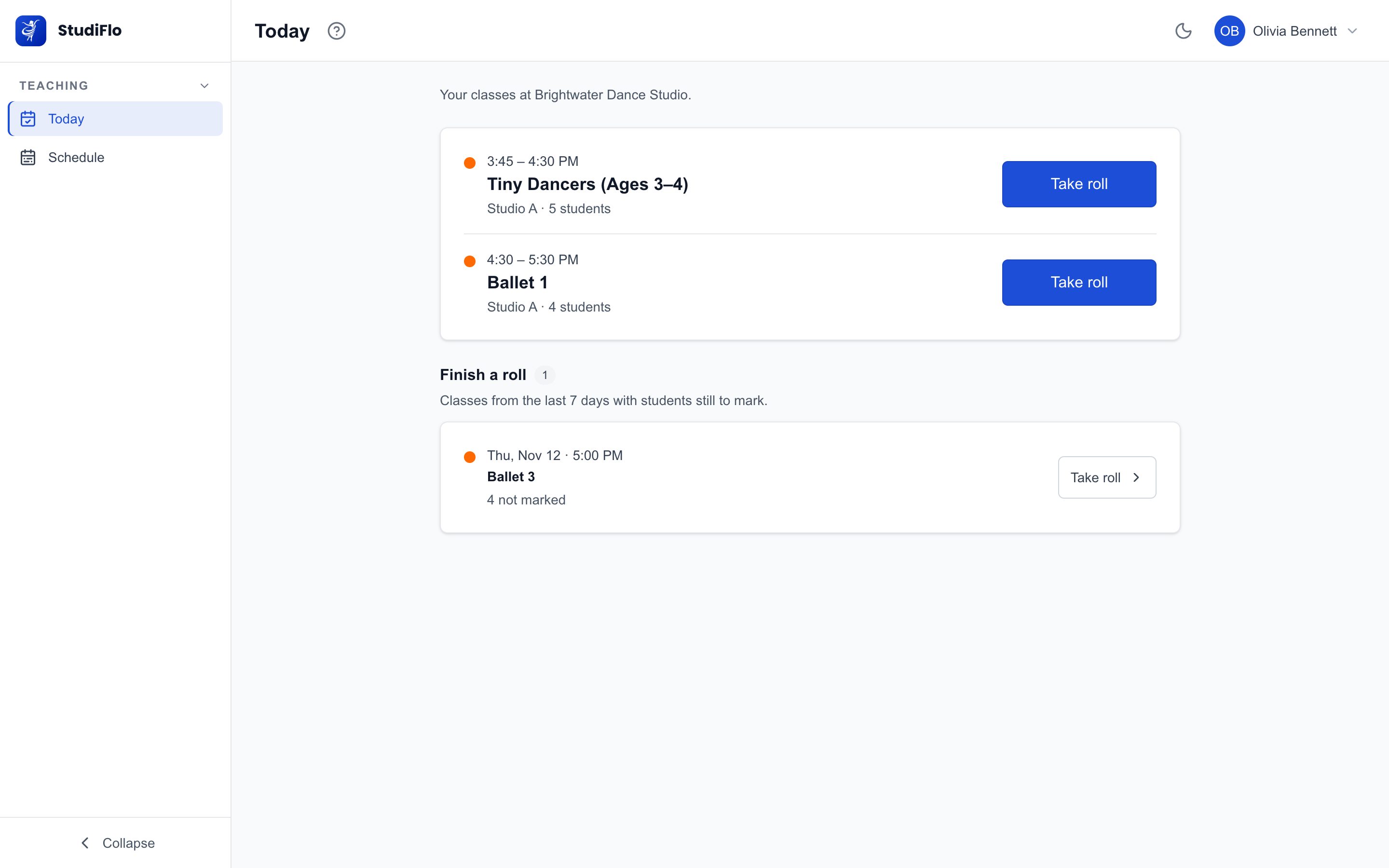
With no classes today the page says "No classes today." and shows your next one — "Next class: Thursday 4:30 PM · Tap 1".
Take roll
- On Today, press Take roll on the class. The roll opens full screen.
- Tap Absent or Late for anyone who isn't there on time.
- Press Mark the rest present (or Mark all present when nobody is marked yet). Undo is offered straight after.
- Press Done to go back to Today.
Every tap saves on its own — there's no Save button. Marks are kept on your phone first and sent as soon as there's a connection, so the roll works in a studio with patchy Wi-Fi; the roll tells you when marks are waiting to send.
On a student's row, a Medical tag opens their medical and allergies note, and a row says when the family has told the studio their child won't attend. The row's ⋯ menu has Who to call, and Add note once the student is marked.
Who to call
On a roll, open a student's ⋯ and press Who to call. You see their emergency contacts as the family entered them — name, relationship and phone — with a button to call. It's looked up when you press it, one student at a time, and nothing is kept on your phone. It's there on the day of the class.
Finish a roll
Forgot a roll, or left someone unmarked? Under your classes, Finish a roll lists your classes from the last 7 days that still have students to mark. Press one to open that day's roll.
On an earlier day you can mark a student nobody has marked, and change or clear a mark you made yourself. A mark someone else made — the studio, or another teacher — is theirs: ask the studio to change it.
Schedule
Schedule shows your own week: your classes, classes you're covering, and days the studio is closed. On a phone it's a list that opens on today; on a wider screen it's a week grid. Use the arrows to move between last week and two weeks ahead.
Tap a class to open it:
- today's class, or one from the last 7 days, opens its roll;
- a class in the next 14 days opens its Class list — who is in the class, with photos and, if your studio allows it, medical notes — to read, not to mark;
- a class further ahead shows only its time: "The class list opens two weeks before the class."
Each class shows where its roll stands. A class of yours that someone else is covering says Open roll until they start, then what they've marked ("9 of 12 marked", "Roll taken").
Hand a class to another teacher
Can't make one of today's classes? On Today, press Can't make it? Hand this class to another teacher under the class, pick who will teach it, and press Hand it to with their name. The class moves to their Today, and they and the studio's owner are emailed. Families are not emailed — the studio decides whether to tell them.
Changed your mind? Until the class starts, Today shows Take it back from with their name. Press it and the class is yours again; the owner is emailed again.
You can hand off only your own class, only today, and only before it starts. For any other day, ask the studio. A class can be handed off and taken back only a few times in a day; past that the page says so — ask the studio to change its teacher.
Your account
Open the menu at the top right and choose Account. There you can change Your name (how the studio sees you), change your Password, and Sign out. Use your own name. A name isn't accepted if it has a role word in it (such as "Owner", "Admin" or "Teacher"), a symbol like · or |, or brackets, or if it is the owner's name, the studio's name or the name of someone else on the staff.
If you're also a parent at the studio
One account does both. After you sign in you land on your teaching side. To switch, open the menu at the top right: it lists your studio's name with "(teacher)", and My family. Pick one. Account lists the same choices under Switch to.
How it works
What you can see
You see your own classes: the ones you teach, and the ones you're covering. For those you see the students' names, photos and class notes, and you take attendance. Two more things depend on switches your studio sets for you: students' medical and allergy notes, and each student's emergency contact. If Medical tags or Who to call aren't on your roll, your studio has turned that switch off — ask them.
You don't see other teachers' classes, charges, balances, cards, payments, reports, families' email addresses or home addresses, or anyone's pay. When a family has told the studio their child won't attend, you see that they did, not the reason they wrote. You can't open a student's profile or change the studio's settings.
Which days you can open
| When | What you can do |
|---|---|
| Today, and last night until 6 AM | Take the roll. Any mark can be changed. |
| The last 7 days | Mark students nobody marked; change or clear your own marks. |
| The next 14 days | Read the class list. No marks. |
| Earlier or later than that | Nothing opens. Ask the studio. |
Times are the studio's clock, not your phone's. A mark you made on a roll-call link — before you had an account, or since: the link keeps working after you accept — doesn't count as made by your account, so on an earlier day it's the studio's to change. To be able to fix your own marks later, take roll signed in.
Emergency contacts open only on the day of the class — when you might need to call — and never for a cancelled class.
Handing off, in detail
You can hand a class to any active teacher at your studio — not to a substitute from outside; the studio arranges those. The other teacher sees the class on their Today if they have an account; either way they're emailed. The class shows on the studio's calendar as covered, and the hours go to whoever teaches it.
You can take a class back only while it is exactly as your hand-off left it: still with the person you gave it to, not started, and not changed by anyone since. If the studio has since changed its teacher, moved or cancelled it — even if it ended up looking the same — Take it back is gone and the page says "You can't take this class back: you didn't hand it off, or it has been changed since. Ask the studio."
Two more cases have no take-back. A cover the studio arranged for you isn't yours to undo. And if you were covering a class for another teacher and handed it to that teacher, you gave it back: it's their own class again.
If someone couldn't be emailed (no address on file), the page names them: let them know yourself.
If the studio's plan has lapsed
If the studio's StudiFlo subscription has lapsed, Today says "The studio's StudiFlo plan has lapsed" and who to ask to renew it. Taking roll still works — you're never locked out of a roll mid-class. Handing off a class is paused until the studio renews.
If your access is paused or removed
You can sign in to your classes while the studio lists you as an active teacher. If the studio makes your staff profile inactive, or stops listing you as someone who teaches classes, you see "Your access is paused" after signing in; it comes back when they undo that. If the studio removes your access, you see "You no longer have access". Either way, ask the studio. If you're also a parent there, your family side keeps working.
Invited as an admin, not a teacher? Your invite's page says "You're invited to be an admin at …", and accepting works differently: a 6-digit code is emailed to the invited address, an accept from another address waits for the owner to confirm ("Waiting for the owner to confirm"), and a family account can't be an admin. The "Admin accounts — what you can do" article is the guide for you.
Your roll-call link still works
If the studio gave you a roll-call link before your account, it keeps working until the studio turns it off or it goes unused for 60 days. The account adds your schedule, photos, class lists ahead and who to call. Marks you make on the link aren't your account's (see "Which days you can open"), so signed in is the better way to take roll. When the studio asks you to cover a class, no link is sent while your account works: the email says the class is on your Today page.
Common questions
How do I sign in without a password?
On the sign-in page press Email me a code instead, enter your email address and press Email me a code. Type the 6-digit code from the email within 10 minutes. You can set a new password any time under Account.
My invite link says it has expired. What do I do?
Ask the studio to send a new one. An invite works for 14 days, and when the studio sends a new one the older email's link stops working — use the latest email.
I forgot to take roll yesterday. Can I still do it?
Yes. On Today, look under Finish a roll — it lists your classes from the last 7 days that still have students to mark. After that, ask the studio.
Why can't I change a mark on an earlier day?
On an earlier day you can change only marks you made signed in with your account. A mark made by the studio or another teacher is theirs to change, and so is any mark made on a roll-call link — your own link included. Ask the studio.
Can I see who's in my class before the day?
Yes, up to 14 days ahead. Open Schedule and tap the class to see its Class list. You can't mark anything until the day.
Can I take roll before class starts?
You can open today's roll and mark it any time today. You can't mark a class on a future day.
Where are a student's medical notes?
On the roll, a student with a note has a Medical tag; tap it. If you never see the tag on students you know have a note, your studio has turned medical notes off for your account — ask them.
How do I reach a student's family in an emergency?
On today's roll, open the student's ⋯ and press Who to call. If it isn't in the menu, your studio has turned emergency contacts off for your account — ask them.
I can't make my class today. What do I do?
On Today, press Can't make it? Hand this class to another teacher under the class and pick who will teach it. It works until the class starts. They and the studio's owner are emailed; families aren't.
I handed off a class by mistake. Can I undo it?
Yes, until it starts, as long as nobody has changed the class since: on Today press Take it back from with their name. If the button isn't there, ask the studio.
Why don't I see a class I'm supposed to teach?
Your pages show classes the studio has put under your name, and classes you're covering. If one is missing, the studio has another teacher on it — ask them to change the class's teacher.
Can I see what a family owes, or their phone number?
No. Your account shows your classes, their students, and — if your studio allows — medical notes and each student's emergency contact. Money and families' contact details stay with the studio.
It says the studio's plan has lapsed. Can I still take roll?
Yes. Taking roll keeps working. The message tells you who to ask to renew the plan.
It says my access is paused, or that I no longer have access. Why?
The studio made your staff profile inactive, or removed your access. Ask the studio. Paused access comes back when they undo that.
I'm a parent at the studio too. How do I get to my family's pages?
Open the menu at the top right and choose My family. To come back, open the menu on the family side and choose your studio's name. It's one account for both.
How do I change my name or password?
Open the menu at the top right and choose Account.
Marks didn't save on my phone. Why?
Marks wait on your phone when there's no connection and send when it's back. If you signed out first, or they waited more than a week, StudiFlo tells you which marks were lost so you can take them again.