
Using it
The page has three tabs: People (the one it opens on), Locations and Hours.
Add a person
- Open Staff & locations and press Add a person.
- Fill in First name and Last name (both required). The rest is optional: Email, Phone, Bio ("A few lines on their experience and the styles they teach."), Certifications (type one and press Enter or Add certification) and Hourly rate.
- Two questions: do they teach (Teaches classes, on for one of your teachers) and should they get an account (Give them an account — "We email them an invite to take attendance for their own classes."). An account needs their email; only someone who teaches classes can have one. With an account they'll see medical and allergy notes and each student's emergency contact for their own classes; you can turn either off on their Access tab before they accept.
- Press Add person. With Give them an account on, the invite goes right away — "Amy Chen added. Invite sent to" their address. If it couldn't be sent, they're still added and you're told why; invite them later from their Access tab.
The teachers you added while setting up your studio are already here. So is anyone you brought in from outside to cover a class — see "Substitutes from outside" below.
Find people
People is one list of everyone at your studio: your teachers, your outside substitutes and you. Each row shows the person's name and email, their Access (Owner, Admin, Teacher, Roll-call link only, Invited, Waiting to confirm or No access), their Account (Active, "Invited 3 days ago", Invite expired, Account paused, Removed or No account), what they teach under Teaches ("4 classes", Doesn't teach or Outside substitute) and, on a wide screen, their Last roll call and their Rate. Someone inactive has an Inactive badge.
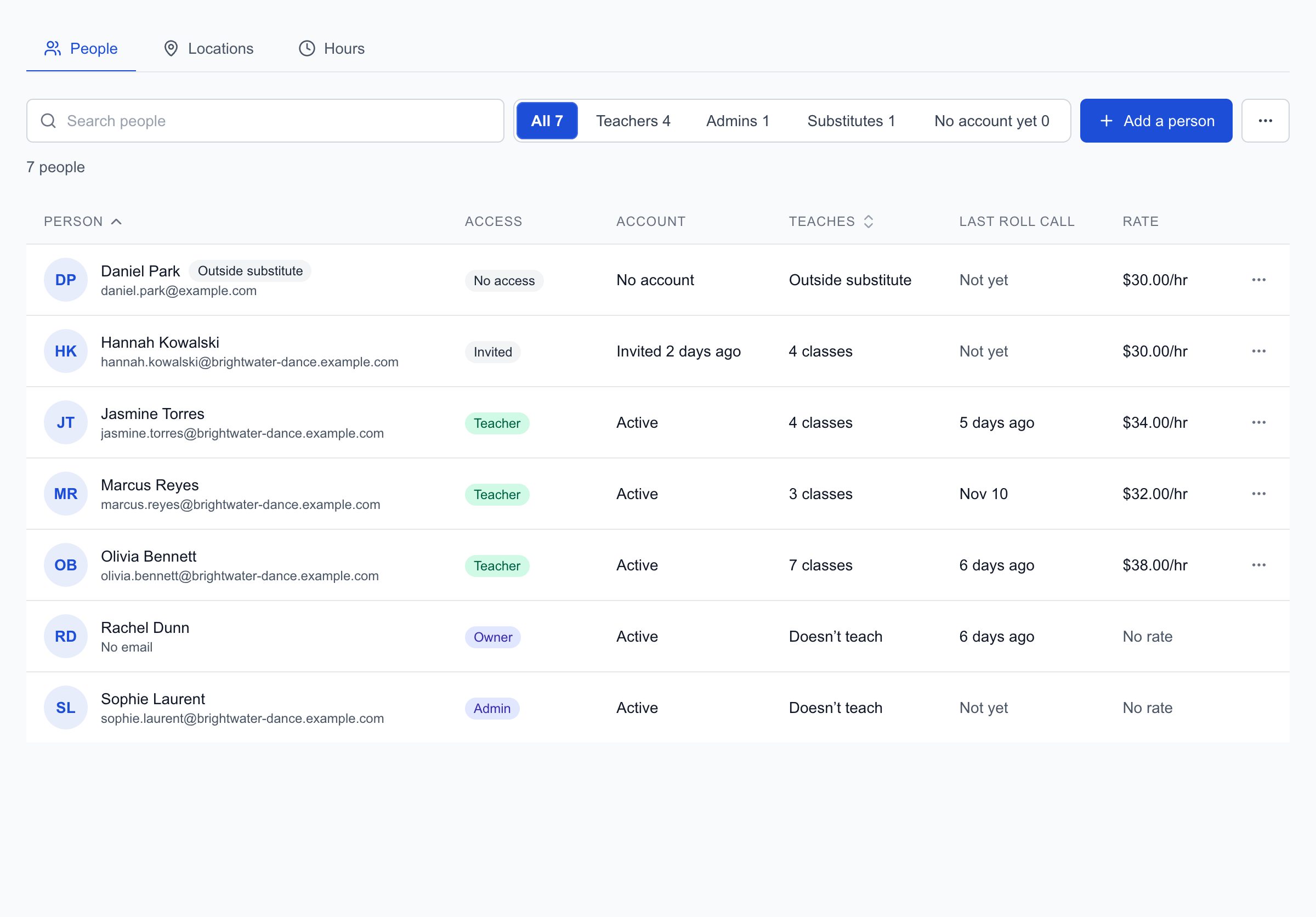
Choose All, Teachers, Admins, Substitutes or No account yet beside the search box — No account yet lists the active teachers you could invite. Use Search people to find someone by name or email. Clear filters, on the line under the bar, clears the search; your choice of list stays.
Some rows carry a flag to act on:
- Access removed — still on 4 classes: you removed their access and their classes still have their name. Open them: their Access tab lists those classes, each with Change teacher.
- Invite expired: send it again from their Access tab.
- Account paused: they have an account, but they're inactive (or Teaches classes is off), so they can't sign in. Their Access tab says which.
- Couldn't accept the invite: they pressed their invite's button while signed in to an account that can't be used here. Their Access tab says what to do.
- Just joined: they accepted their invite in the last few days.
Open a person to see their contact details, hourly rate, assigned classes and certifications, and their roll-call link. The Classes tab lists the classes they teach, with a term filter, Access says whether they can sign in and what they can see, and Hours lists their hours. Use the row menu (or the panel's Edit person, Deactivate and Delete) to edit, deactivate or activate, or delete them. Your own row has no Deactivate or Delete.
Someone who only covers classes has an Outside substitute badge beside their name, on the list and on their panel.
Give your teachers an account
A teacher with an account takes attendance for their own classes from their phone, and sees their schedule and class rosters. To invite several at once, press Invite teachers on People (under More actions when the row is short of room; on a phone, a line above the list — "2 teachers have no account yet." — has its own Invite teachers button):
- The sheet lists every active teacher with no account and no invite waiting. Outside substitutes aren't listed — they get a link for each class they cover, not an account.
- At the top, under What they can see and do, choose once for everyone: medical and allergy notes, and each student's emergency contact, for their own classes (both on to start). Someone whose access you removed before starts with the switches they had: a switch that was off for them stays off, the sheet says so ("Someone whose access was removed before keeps any switch that was off for them."), and their row then reads "Invite sent to Amy. Amy starts with the switches Amy had before."
- Each person has a checkbox and an email box. A blank box is someone with no email on file: type it, and it's saved to their profile. If you change an address that was already there, the invite goes to the new one and their profile keeps the old — the row says so. Uncheck anyone you don't want to invite yet.
- Press the send button (Send 2 invites, say). Each row then says what happened — "Invite sent to Amy." — or why it couldn't be sent ("Someone else at your studio already uses that email address."), and the sheet takes you to the first row that wasn't sent. Fix the marked rows and press it again; only they go.
To invite one person, open them, go to the Access tab and press Invite to sign in. Someone who already takes roll from a roll-call link keeps it: signing in adds their schedule, photos and emergency contacts, and the link works until you turn it off. Marks they make on the link and marks they make signed in are kept apart: both say their name on the roll, but on an earlier day, signed in, they can change only the marks they made signed in — a mark they made on the link is yours to change. Inviting someone again after removing their access says, before you send, which switches they start with ("Amy starts with the switches Amy had before: medical and allergy notes off, emergency contacts on.").
The invite email's link works for 14 days, and one reminder goes on day 4 if they haven't accepted. Opening the link doesn't use it up; pressing its button does. On that page they either set a password (a new account for that address) or sign in with the account they already have — a parent account at your studio works — and accept. Someone signed in to the wrong account there can press Not you? Sign out and use a different account.
When they accept, you're emailed, and People marks them Just joined for a few days with when and from which address they accepted ("Accepted 2 hours ago with …"). An address other than the one you invited is highlighted, so you can check it's the person you meant.
To stop invites being misused, your studio can send up to 100 invite emails a day, and any one address can be sent 3 a day. Past either, the row (or Send again) says so; try again tomorrow.
Later, a teacher signs in at the usual sign-in page with their password, or with Email me a code instead: a 6-digit code is emailed to them and works for 10 minutes. If no code arrives, they can use Forgot your password?.
Your teachers have their own guide — the "Teaching — your classes, roll and schedule" article. The ? on their pages opens it, and you can read it from Browse all help to see what they're told about accepting, signing in, taking roll and handing off a class.
A teacher who is already a parent at your studio can be invited to the family side too: on that invitation's page they sign in with their teacher account and join.
A person's Access
Open the person and choose Access:
- Role — Owner, Admin, Teacher, or Not invited yet (None for an outside substitute). An admin's Access tab is described under "An admin's extra access".
- What they can see and do — always on for a teacher (shown with a check mark): their own schedule and class rosters (names, photos, class notes), and taking attendance for their own classes. Two switches you can turn off for one person: medical and allergy notes, and each student's emergency contact (name, relationship, phone) — both for their own classes. A switch saves as soon as you press it, and you can change them while an invite is still waiting.
- A sentence saying what they can and can't see ("Amy can take attendance for their own classes and see medical notes and emergency contacts for their students. Amy cannot see money or other family details."). Before they accept it starts "Once Amy accepts, …"; while their account is paused, "While paused, Amy can’t open anything. Once their access is back, …".
- Also turn off Amy's roll-call link — shown while a link of theirs still works beside the account: their roll-call link, or a temporary link for classes they cover (the button then reads Also turn off Amy's temporary link, or Also turn off Amy's links for both). A link follows your studio's link settings, not these switches: it shows medical notes when your studio's setting for links is on, and it never shows emergency contacts. So a switch you turn off hides nothing while a link works. Press the button to turn off every link it names; the switches are then the only way in, and classes they cover are on their Today page. A temporary link is named only while their account works — someone who hasn't accepted yet still needs it.
- Invite sent — where it went, when, and until when the link works, with Send again (a new link; the one in the earlier email stops working) and Cancel invite. Wrong address? Cancel the invite and send a new one.
- Their account — when and with which address they accepted ("Accepted 2 hours ago with …"), which can differ from the one you invited (a teacher who accepted with their parent account, say).
- After you remove someone's access while classes still have their name: "Still teaching 4 classes — choose who takes them", with each class and Change teacher.
Admins
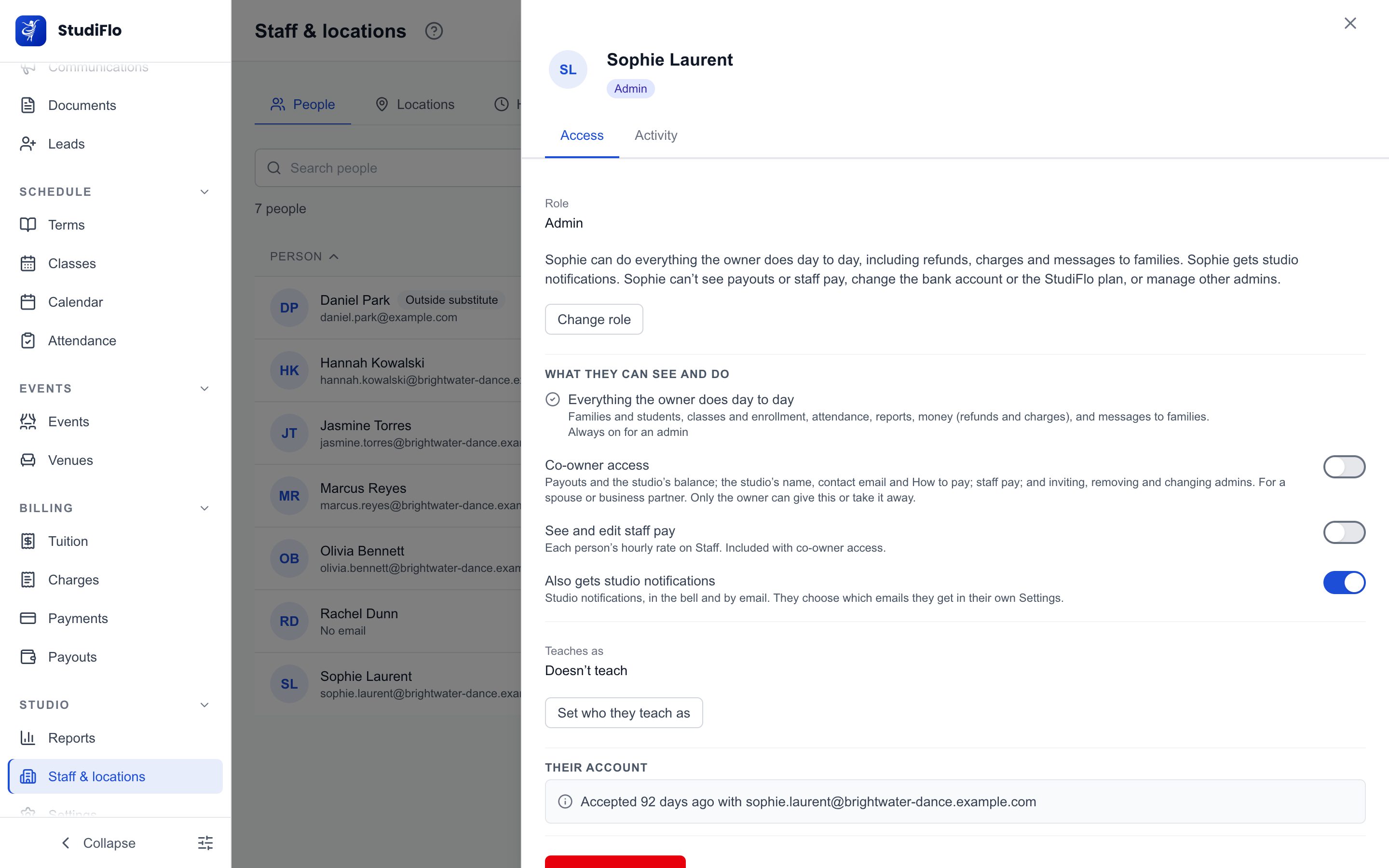
An admin has an account of their own and can do almost everything you can: refund and post charges, message families, edit classes and see reports. They can't change the bank account, your StudiFlo plan, or view the app as a family. Every admin can handle money and message families — you can't switch those off — so give it to someone you'd trust with your own password. The extra access below only adds more. Admins have their own guide, the "Admin accounts — what you can do" article.
Invite an admin
- On People, press Invite an admin (under More actions when the row is short of room). What every admin can do is said at the top of the sheet, before you fill anything in.
- Enter Their name — how they show in your studio's history, like "Sam Lee · Admin" — and their Email address.
- If they also teach, turn on Also teaches classes and pick their name in your staff list under Teaches as, or choose "Someone new — add them from this name". Only people who teach classes and have no account can be picked.
- Under Extra access, choose the switches (below). All three start off, and you can change them later. While Co-owner access is on, the sheet says again above Send invite what it gives: "Sam will have co-owner access: payouts, the studio’s name, contact email and How to pay, staff pay, and adding or removing admins."
- Press Send invite. They show as Invited on People until they accept.
An address that is already a family account at your studio can't be invited as an admin: the sheet says "That address is a family account at your studio. An admin needs a different email address." under Email address.
The invite works like a teacher's: its link is good for 14 days, one reminder goes on day 4, and Send again or Cancel invite are on their Access tab. The email tells them what an admin can do, what their extra access adds, and what stays with you. Sending an admin's invite again to a different address is yours alone.
An admin's extra access
Three switches, on an admin's Access tab under What they can see and do (on the invite sheet they're under Extra access). Each saves as you press it and applies from the admin's next click.
- Co-owner access — for a spouse or business partner, so nobody shares your password. It adds Payouts (the balance, the payouts and their breakdown, the export, what Stripe still needs), the ticket payout figures in Reports, changing the studio's name, contact email and How to pay, staff pay, and inviting, removing and changing other admins. Only you can give it or take it away, and an admin with it shows on People as "Admin · Co-owner". It never includes the bank account, your StudiFlo plan, or giving co-owner access to someone else. Taking it away also cancels any admin invites that person sent that nobody accepted yet; the switch says so while it is on, and you're told which went.
- See and edit staff pay — each person's hourly rate on this page. Without it an admin sees no rates, their own included. Co-owner access includes it.
- Also gets studio notifications — the notifications you get, in their bell and by email at the address they sign in with. Co-owner access does not turn this on; it is its own switch. They can then choose which emails they want in their own Settings. (See "Notifications and automatic emails".)
When an admin with co-owner access turns See and edit staff pay or Also gets studio notifications on for another admin, you're told in your bell and by email.
Teaches as on the same tab ties an admin to a person in your list, so they get My classes, Today and Schedule for that person's classes and can press I'll teach it on a class. Press Set who they teach as (or Change), pick the person, and Save; Doesn't teach unties them.
When an admin accepts
- With the address you invited — a new password, or that address's own account — they must enter a 6-digit code emailed to that address, so only whoever reads that mailbox gets in. They can sign in at once. You're emailed, your bell rings, and the address you invited is emailed that an admin account was set up.
- With a different address — nothing opens for them. Their row says Waiting for you to confirm, with the whole address that accepted, and you're emailed. (An admin who can't confirm it reads Waiting for the owner to confirm.) Open their Access tab:
- Confirm lets them in as an admin. The dialog names the address that accepted and the one you invited, and says whoever uses that address can refund, post charges and message families right away — only confirm if they've told you that address is theirs. Focus goes back to their role once it's done.
- Decline and send a new link gives that account nothing and emails a fresh link to the address you invited; the earlier link stops working.
- If nobody confirms or declines, a request to join lapses by itself 14 days after it was accepted: the invite shows on People again (its link no longer works; Send again sends a new one) and you're told. The person can also take it back themselves with Cancel my request on the page they see while they wait.
- A family account can't accept. One account can't be both an admin and a family account, at your studio or any other. Their row shows Couldn't accept the invite; invite a different email address.
Change someone's role
On a teacher's or an admin's Access tab, press Change role. The dialog says what changes before you confirm.
- Teacher to admin — they keep their account, their history and their classes, and gain everything an admin can do. Extra access starts off: no co-owner access, no staff pay, no studio notifications. A teacher who is also a parent can't be made an admin: the dialog opens saying so, with Invite a different email address as an admin as its button.
- Admin to teacher — they lose money, families and settings and keep only their own classes. Any extra access ends, and co-owner access does not come back if you make them an admin again. Any admin invites they sent that nobody accepted yet are cancelled, and the dialog says so first. They must be tied to a person who is active and teaches classes first (Teaches as), because a teacher signs in as that person: until they are, the dialog opens saying so, with Set who they teach as as its button.
- A name that reads like a role, or like yours, the studio's or another staff member's, can't be given an account: Change role (and inviting a teacher) says so, and asks you to change the name to their own first.
Change role works once someone has joined. For an invite nobody has accepted, cancel it and send a new one.
Remove an admin
Remove access on their Access tab works as it does for a teacher (below), with two differences. The dialog lists the invites that admin sent that nobody has accepted yet, with a box — Also cancel the invite … sent that nobody has accepted yet — its link will stop working — checked to start: leave it checked and those invites are cancelled with the access; uncheck it to keep them. People who already accepted keep their access; remove any of them separately. And everything the admin did stays in your studio's history under their name; People keeps listing them as Removed, so you can still read their Activity.
Who can manage whom
| Teachers | Admins without co-owner access | Admins with co-owner access | Give or take co-owner access | |
|---|---|---|---|---|
| You (the owner) | yes | yes | yes | yes |
| Admin with co-owner access | yes | yes | no | no |
| Admin | yes | no | no | no |
Managing means inviting, sending an invite again, cancelling it, changing extra access, confirming or declining a request to join, and removing access. Changing a role needs you or an admin with co-owner access. Nobody can change their own access. An admin sees only the name, role and status of people they can't manage — no addresses and no extra access.
Recent activity
Recent activity on People lists what was done at your studio, newest first: who, with their role when they did it ("Sam Lee · Admin"; you show as "· Owner"), what they did, the thing it touched — a line about a child in a class names both, "Mia · Tap 1" — any amount, and the family — press the family's name to open it. Use Who to pick one person (or StudiFlo (automatic) for what StudiFlo did by itself), Show to pick one kind — Money, Tickets, Enrollment, Messages, Prices and codes, Deletions, Exports, People, Settings or Imports — and Search to find a family by name or a class, student or person a line names ("Who refunded the Garcias?": search Garcia, show Money). Load more reads older lines. A narrowed list looks about a year back at a time: "Nothing in the last year." with Load older means keep going, not that there is nothing. Each person's panel has an Activity tab with theirs alone, and it stays readable after you remove their access ("former staff" follows their name).
It records charges posted, edited, waived and cancelled, payments recorded and voided, refunds, card charges, tuition posted, passes, tickets sold at the door and refunded, enrolling and unenrolling, messages sent to families (never their words), promo codes, charge codes and prices, anything deleted (with its name, so the line still reads after the thing is gone), every export downloaded, people added and invited, changes to someone's access, settings, and imports. Charges StudiFlo posts by itself from your import when a family joins show as "StudiFlo (automatic)", with which part of it after the time ("from an import"); automatic card charges and retries aren't listed here (each charge's own history has them). It does not record attendance marks — the roll itself says who marked each one.
An admin sees My activity instead: their own. An admin with co-owner access can also open the Activity tab of a teacher or of an admin without co-owner access — never yours or another co-owner's.
What you're told about your admins
When you do something yourself, nobody is emailed about it. When an admin changes who can sign in, you're told by email and in your bell, with their name, and so is any admin with co-owner access who gets studio notifications — never the admin who did it:
- an admin invited someone to join (a teacher, or — with co-owner access — an admin);
- an admin with co-owner access let in an admin who asked to join;
- an admin changed someone's role;
- an admin removed someone's access.
The invite, confirm and role emails say what to do if you weren't expecting it. You're also told every time an admin invite is accepted, and when an admin changes your studio's contact email the old address is emailed and your bell says who changed it.
Teach classes yourself ("I also teach")
If you teach classes too, tell StudiFlo which person in your list is you. Open your own row on People, choose the Access tab, and under I also teach:
- Pick your own staff profile in Which staff profile is you? and press Use this staff profile — or, if you aren't in the list yet, check your name under Or add one from your name and press Add and use.
- Your classes now show under My classes on your Dashboard, and you can open the Today and Schedule pages your teachers use. Your classes already count as your own row in Hours.
The staff profile you pick must be active and teach classes — the list shows only those. You can't pick someone who has their own account (they show as "signs in with their own account") — pick your own staff profile instead. If you create a staff profile under a name that's already in your list, StudiFlo asks first — "Amy Chen is already in your list. Is that you?" — with Use Amy Chen and Create another anyway.
Your own staff profile can't be invited to an account of its own; its Access tab says why. To give it to someone else, first press I don't teach in the I also teach section.
If your own staff profile is later made inactive, or its Teaches classes is switched off, it stays tied to you but My classes is empty, and both the dashboard and I also teach say why ("Your staff profile, Amy Chen, is inactive, so My classes is empty. Make it active again, or press “I don’t teach” under “I also teach”."). The save that causes it warns you.
To stop, press I don't teach: your classes keep you as their teacher, and your hours stay.
When a teacher hands off a class
A teacher with an account who can't make one of today's classes can hand it to another teacher at your studio — someone in your list who teaches classes, never a substitute from outside. It works only for their own class, today, before it starts. The other teacher is emailed, and so are you (at your studio's contact email) and each admin who gets studio notifications: "Amy Chen handed Tap 1 on Thursday, January 3 at 4:30 PM to Jordan Lee." Families are not emailed — if they should know, tell them yourself. The class then shows on your calendar as covered, like any substitute, and the hours go to whoever teaches it. Until it starts, the teacher who handed it off can take it back (you're emailed again) — but only while the class is exactly as their hand-off left it. Once you change its teacher, move it or cancel it, their take-back is gone, and a cover you arranged yourself with Change teacher is never theirs to undo. A teacher who was covering a class and hands it to its usual teacher has given it back; there is nothing to take back. To stop a class bouncing between people, it can be handed off and taken back only a few times in a day, after which the teacher is told to ask you. If you teach and are tied to your own staff profile, you can hand off your own class the same way from Today.
Remove someone's access
On their Access tab, press Remove access. Before you confirm, the dialog says everything that will happen:
- they can't open the studio anymore — they're locked out the next time they click anything, on every device (nothing signs them out of StudiFlo itself); they aren't emailed about it;
- their roll-call link and any temporary cover links that still work stop working;
- classes they were due to cover go back to their usual teachers;
- the classes they teach keep their name until you choose who takes them — each has Change teacher beside it, or decide later (People then flags them);
- a family account on the same email address keeps working;
- their attendance marks and history stay, credited to them by name — the roll goes on saying "Marked by Amy Chen" for marks they made signed in, and "Marked by Amy Chen (roll-call link)" for marks made on their link.
After you confirm, you're told what happened. The teachers whose class came back are emailed then, and anyone who couldn't be emailed is named so you can tell them yourself. A removed teacher who opens their old invite email sees "This invite is no longer active" and "Ask the studio to send you a new invite if you still need one." For an invite nobody has accepted yet, the button cancels the invite instead. You can invite them again later; the owner's own access can't be removed.
Removing access is for someone who has left. For a teacher who is only away for a while, deactivate them instead: they can't sign in until you activate them again.
Substitutes from outside
When you give a class to Someone from outside with Change teacher (see the "Calendar" article), that person is added to your People with Teaches classes off and an Outside substitute badge. They can be picked again to cover a class, and their hours are counted like anyone's. They aren't offered as a class's teacher, they aren't in the class filters or the calendar's teacher filter, and they aren't in the Teacher roll-call links list — a substitute gets a temporary link to the classes they cover instead.
Teaches classes is a switch on Add a person and Edit person ("Turn off for someone who only substitutes: they can cover a class, but can’t be a class’s regular teacher."). Turn it on for a substitute who becomes one of your teachers. You can't turn it off for someone who is still the teacher of an active class — you're told how many ("Amy teaches 2 classes. Give those classes another teacher first.").
Turning Teaches classes off for someone who has a roll-call link turns that link off, because they leave the Teacher roll-call links list. The form warns you before you save — "Maria’s roll-call link will stop working. For upcoming classes they cover, you can email them a temporary link: open one of those classes on Calendar, choose “Change teacher”, then “Send a new link”. If a class of theirs has already started, take its roll yourself." — and tells you after. If they still have classes coming up that they cover, you're told how many: open one on Calendar, choose Change teacher, then Send a new link to email them a link for those classes. The new link reaches classes that haven't started yet. A class that's already under way when you turn the switch off gets no link, so take that roll yourself from Attendance. Turning the switch back on doesn't bring the old link back; create a new one.
See how many hours each person taught
For payroll or a timecard, open Staff & locations and press Hours. Choose the Period beside the search box: This week, Last week, This month or Last month — or Custom dates… for any other pay period (every two weeks, the 1st to the 15th), up to a year. Custom dates open with From and To set to the dates you were looking at; change them there, or later under Filters.
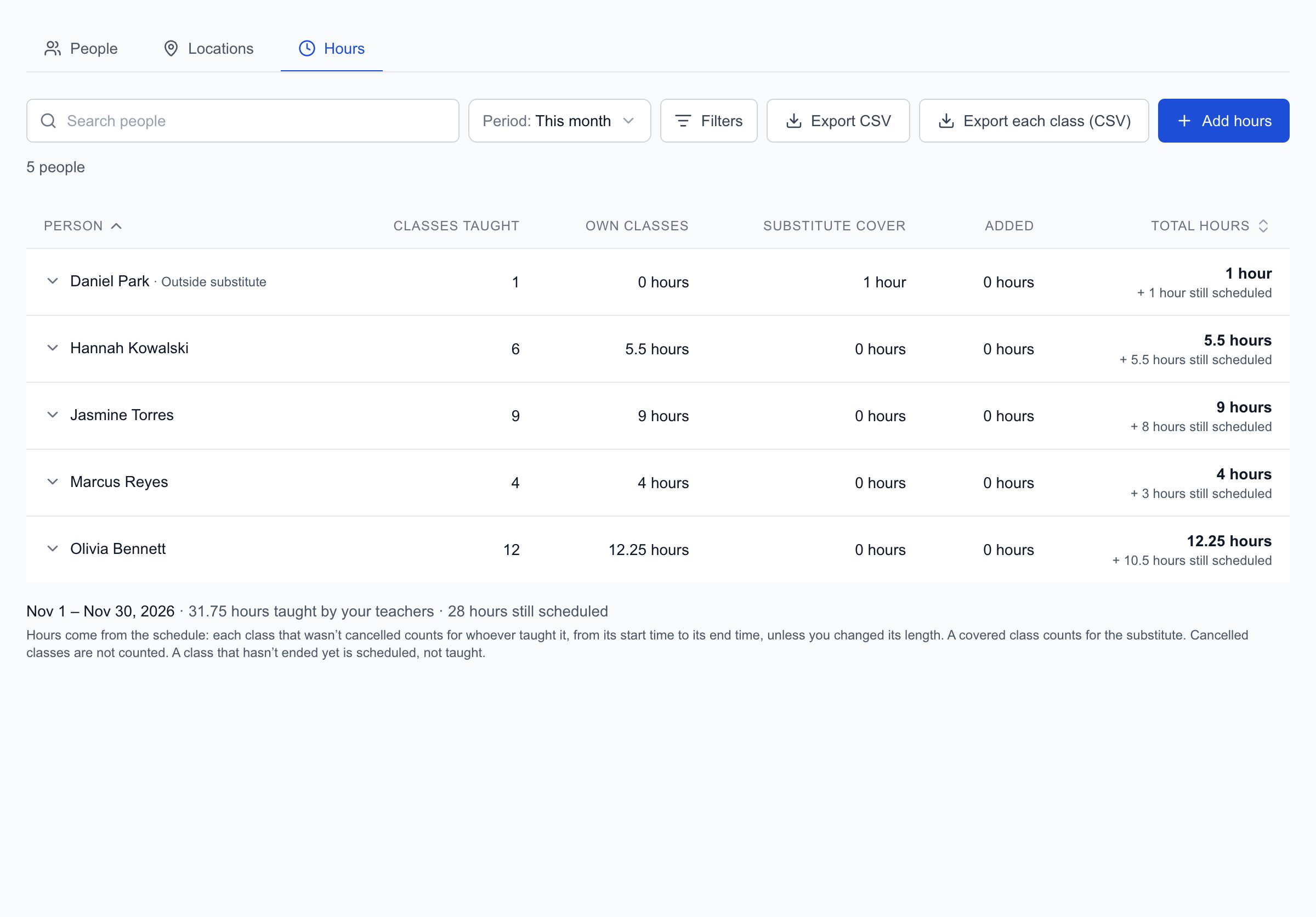
Each person has a row:
| Column | What it counts |
|---|---|
| Classes taught | The classes they taught in the period that have ended — their own and the ones they covered |
| Own classes | Hours for their own classes |
| Substitute cover | Hours for classes they covered for someone else |
| Added | Hours you added yourself that aren't a class |
| Total hours | The three added together, with what is still scheduled in the period under it ("+ 2 hours still scheduled") |
Every active person who teaches classes has a row, even with no hours. Someone inactive, or a substitute from outside, has a row only when they have hours in the period. Someone who has left and was added back to credit a past class reads Inactive. Classes with nobody set to teach them are listed together as No teacher. Under the list are the period's dates and the totals — "82 hours taught by your teachers + 45 hours with no teacher", the second part only when some classes have no teacher — and what is still scheduled. Use Search people to find someone, and press Person or Total hours to sort.
Press a person's row to unfold it — one row for each class and for any added hours, by day, with its time and hours — so you can check a payroll sheet class by class. Each can carry tags:
- Substitute for Amy Chen — they covered this class for its usual teacher.
- Scheduled — the class hasn't ended yet, so it isn't counted as taught.
- No roll taken — the class ended and nobody took its roll. It still counts; it's there so you can check the class really met. It shows only when attendance is on and the class had students on its roll.
- No end time — the class has no end time, so it counts 0 hours until you change its length.
- Teacher not confirmed — StudiFlo didn't record who taught this class, so it counts for its usual teacher (see "Older classes" below).
- Length changed — you changed this class's length.
- Added — hours you added that aren't a class.
- Changed Nov 4 (or Removed Nov 4) — it changed after the period had ended, on that day.
A person's panel has the same rows on its Hours tab, with its own Period, their totals split into own classes, substitute cover and added, and Add hours.
Correct the hours
Each class's ⋯ menu, once the class has started:
- Change length — type the Hours and Minutes the class really ran and press Save length. The class is tagged Length changed. Use the scheduled length puts it back.
- Check who taught — pick who really taught the class from Who taught it: anyone on your Staff page (inactive people too), Nobody — the class had no teacher, or Someone who has left…, where you type their name and they're added to Staff as inactive so the class can count for them. Press Save. Saving without changing the person confirms the teacher and takes off Teacher not confirmed.
To add time that isn't a class — a meeting, set-up, a private lesson — press Add hours, choose the Person and Date, type the Hours and Minutes and, if you like, a Note saying what it was for. It's tagged Added. To take it off, open its ⋯ menu and choose Remove. The person and day of added hours can't be edited: remove it and add the right one.
A class that hasn't started yet isn't corrected here: use Change teacher on the class (see the "Calendar" article).
Check before you pay
Above the list, a yellow box ("3 things to check before you pay") names anything in the period worth a look:
- classes with no teacher set — they count under No teacher;
- classes with no end time — they count 0 hours until you change their length;
- classes whose teacher isn't confirmed — "279 classes up to Nov 12 are from before StudiFlo tracked substitutes, so each counts for its usual teacher. If a substitute taught one, fix it with “Check who taught”. Otherwise, there’s nothing to do." — with two buttons: Confirm usual teachers, which confirms them all at once, and Check who taught, which opens the first of them;
- classes cancelled after they took place (their roll was taken) — they aren't counted;
- classes cancelled after the period ended — "Tap 1 on Oct 29 was cancelled after Oct 31 — it is no longer counted. If you paid before then, check it.";
- classes or added hours that changed after the period ended — "4 classes or added hours in this period changed after Oct 31 (tagged “Changed” or “Removed”). If you paid before then, check them."
Nothing in the box stops the count.
Confirm usual teachers asks before it does anything — "Mark 279 classes up to Nov 12 as taught by their usual teacher? You can still change any one of them with “Check who taught”." — and Confirm takes the Teacher not confirmed tag off the classes that were on your screen when you pressed the button — the ones the question counted. It changes nobody's hours. A class that turns up in the period afterwards (one you restore, say) keeps its tag until you look at it and confirm again. To confirm one person's classes only, unfold their row (or open their Hours tab) and press the button above their classes — "Confirm Maria's 41 classes". Classes under No teacher can't be confirmed this way; use Check who taught on each.
Export the hours
Press Export CSV for a spreadsheet of the period: one row for each person (classes taught, own class hours, substitute cover hours, added hours, total hours, what is still scheduled), then every class and added hours behind it, with what kind it is, whether its teacher is not confirmed, whether its length was changed, whether its roll was taken, and the day it changed if that was after the period ended. Hours are decimal numbers, so a spreadsheet can add them. No pay rate or amount is in it.
Press Export each class (CSV) — when the row is short of room, both exports are under the More actions button — for the classes alone: one heading row, then one row for each class or added hours in the period, by day. Each row has the date, the person, the class (or the note on added hours), the start and end times, the scheduled minutes and the worked minutes (0 for a class that hasn't been taught yet, so adding up the column never counts classes still to come), the kind (Own class, Substitute or Added), who was covered, whether it is Taught, Scheduled or Removed, and a "Yes" under Teacher not confirmed, Length changed, No roll taken or No end time where that applies. Changed late holds the day a row changed after the period ended. Lengths are whole minutes. Use this one to filter or sort in a spreadsheet, or to bring the lines into a payroll tool; use Export CSV when you want each person's totals too.
Give a teacher a roll-call link
When attendance is on (Settings → Attendance), each teacher can take roll from a private link — no sign-in:
- Open the teacher and find Roll-call link, or open Teacher roll-call links from Settings → Attendance → Manage.
- Press Create link. The link is shown once: Copy link or Share… it to the teacher. Open it on their phone or the studio tablet and add it to the home screen.
- If a link is lost, press New link — the old one stops working straight away. Turn off link stops it on every phone it was opened on.
The link opens the classes that teacher teaches, for today — including a class they're covering for someone else, and their own class that a substitute is covering. It shows students' names and today's marks, never payments, prices or families' contact details. Medical notes show only if you switch on Show medical notes on teacher links in Attendance settings. Marks made from a link are credited to that teacher ("Marked by Maria Santos (roll-call link)"). Marks a teacher makes signed in with an account say their name too ("Marked by Maria Santos"), to you and to another teacher who opens the same roll; your own marks read "by you" to you, and your name to a teacher. A link that isn't used for 60 days lapses; make a new one.
Only people who teach classes are in the Teacher roll-call links list, and only they can have a roll-call link: turning Teaches classes off for a teacher turns their link off. A substitute from outside is sent a temporary link when you give them a class (see the "Attendance, make-ups and drop-ins" article).
Add a location
- Open the Locations tab and press Add location.
- Enter a Location name (required — "Such as Main studio or Studio B."), and if you like an Address, a Phone and Amenities (type each and press Enter or a comma, such as Parking or Wi-Fi).
- Save.
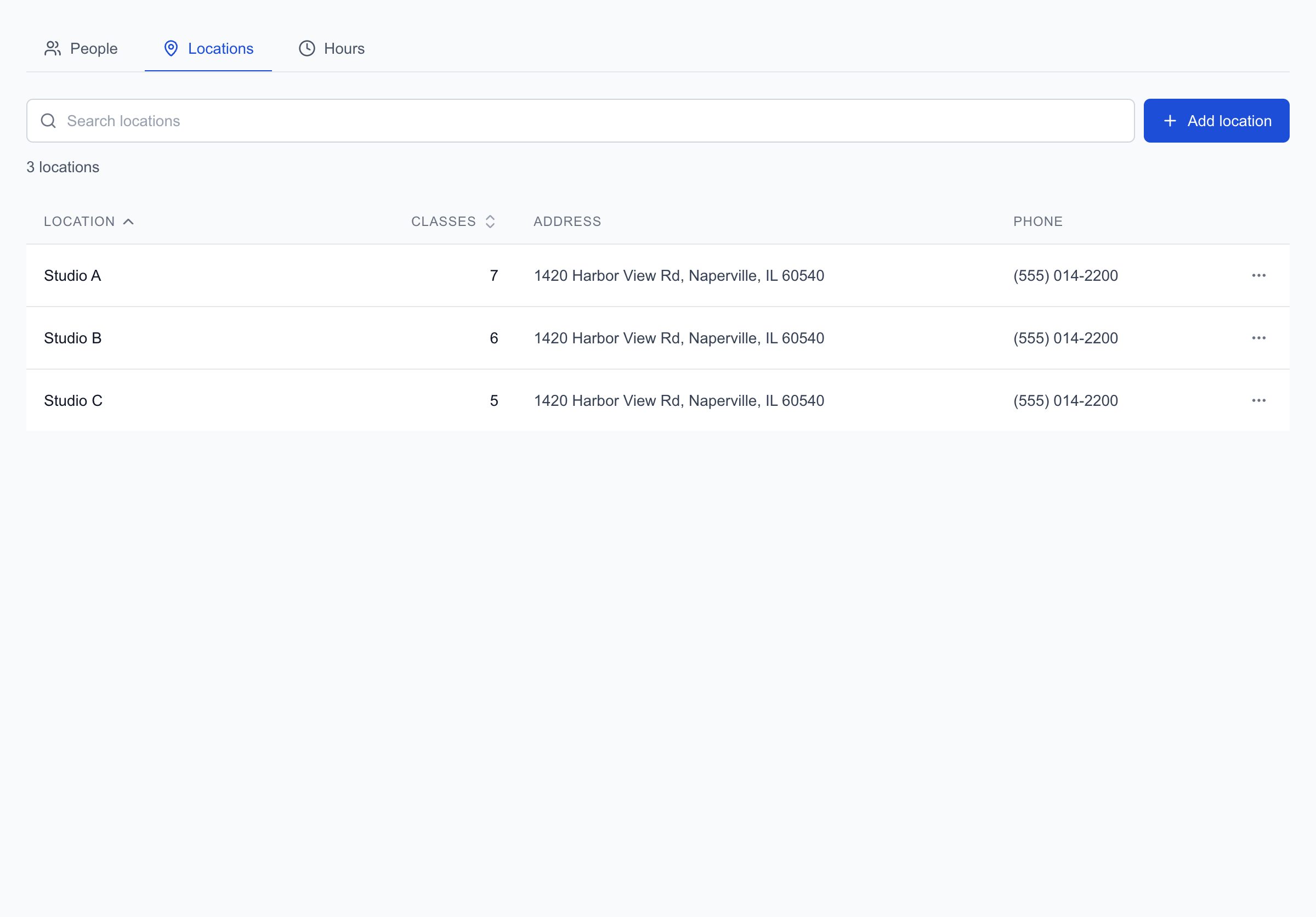
The list shows each location's classes count, address and phone. Use Search locations to find one, and the row menu to Edit or Delete.
How it works
People, staff profiles and accounts
A person on this page is your teacher's staff profile. Adding one sends them nothing unless you choose Give them an account or invite them later. A teacher's account opens only their own classes: their schedule, their rosters and the roll, under the switches on their Access tab. It never shows charges, balances, cards, payments, reports, families' email or address, or anyone's pay. Their roll-call link, if they have one, keeps working after they accept.
An account works while the person is active and teaches classes. Make them inactive, or turn Teaches classes off, and they can't sign in; undo it and they can again. The confirm says so before you save, and you're told after.
A teacher with an account gets no link for a class they cover — it's on their Today. So if you turn Teaches classes off while they still cover classes that are coming up, they keep those classes but have no way to take roll, and you're told: "Amy still covers 2 upcoming classes and can no longer sign in to take roll." Open one of those classes on Calendar, choose Change teacher, then Send a new link to email them a link. Making them inactive instead gives the classes they were covering back to their teachers.
Apart from the invite, the email in a person's staff profile is used for one thing: telling them about cover. When you use Change teacher, the person asked to cover a class is emailed where and when, and the usual teacher is emailed that their class is covered, or theirs again. Anyone who couldn't be emailed — no email on file, or the email didn't send — is named on your screen so you can call or text them.
The hourly rate is kept for your own reference. StudiFlo doesn't run payroll or put rates in reports.
How hours are counted
Hours come from your schedule, not a time clock. Each class that wasn't cancelled counts for whoever taught it, from its start time to its end time — a 4:00–5:30 class is 1.5 hours — unless you changed its length. Cancelled classes aren't counted. A class that hasn't ended yet counts as scheduled, not taught. A week runs Sunday to Saturday, as your calendars do.
A covered class counts for the substitute, not the usual teacher. Each dated class keeps its own teacher, so a substitute's class is the substitute's row, tagged "Substitute for" the usual teacher, and it isn't in the usual teacher's hours.
Amy teaches Ballet 2 on Thursdays, 4:30–5:30. On Thursday, November 19, Jordan covers it. In November's hours that class is 1 hour under Jordan's Substitute cover, tagged "Substitute for Amy Chen". Amy's Own classes has the other three Thursdays: 3 hours.
When a class gets a new teacher, the classes already taught stay with whoever taught them. Only the classes that haven't started move to the new teacher.
Older classes: "Teacher not confirmed" and "Check who taught"
StudiFlo records who teaches each class. Classes from before it began doing so had no teacher of their own on record, so each counts for its usual teacher, as before, and is tagged Teacher not confirmed. Your totals for those weeks are what they were — and if no substitute taught any of them, there's nothing to do. If a substitute did teach one, it counts for the usual teacher until you fix it with Check who taught on that class. To clear the tag, press Confirm usual teachers in the yellow box (or a person's own Confirm button) for the classes that are right as they stand, or Check who taught on a single class. Confirming never moves hours or marks a class as changed.
Why a class says "Changed"
Once a period has ended, anything that changes its hours afterwards is flagged, so a timecard you already paid from doesn't change quietly. A class is tagged Changed with the day when its teacher or its length was changed after the period's last day, and added hours are tagged when you added them to the period after it had ended. Added hours you remove after the period ended stay on the list, crossed out, at 0 hours and tagged Removed with the day. A change made while its period is still running isn't flagged.
Where teachers and locations show up
- Classes: the class form's Teacher and Location fields, the class list and the class panel.
- Calendar: the teacher and location filters, and each class's teacher — its substitute, when it has one.
- Your public class listing: each class card shows the teacher's full name and the location's name. A location's address and phone aren't shown publicly — the listing shows your studio's own address from Settings → Profile.
- Families' schedules show the class's teacher and location. A covered class shows its substitute — by first name and last initial when they're from outside your studio.
Deactivating a teacher
Deactivate a teacher who has left, or is away, instead of deleting them. When you confirm "Deactivate [name]?":
- their roll-call link stops working, and so does a substitute's temporary link;
- if they have an account, it is paused: nothing opens for them until you activate them again, and then it works as before. The same happens if you turn Teaches classes off for someone with an account;
- classes they were going to cover go back to those classes' usual teachers — you're told how many ("Jordan is inactive. 2 classes they were covering went back to their teachers.") — and each of those teachers is emailed that the class is theirs again. A teacher who couldn't be emailed is named on your screen ("Amy Chen couldn't be emailed. Call or text them.");
- the classes they teach keep them as the teacher;
- they no longer appear in the class form's teacher list, the calendar's teacher filter or Change teacher;
- their hours stay.
You can activate them again at any time, and then create a new roll-call link.
Deleting a teacher or a location
Deleting can't be undone. The confirm says who can be deleted: "You can delete someone who hasn't taught yet. Anyone who has taught, taken roll, covered a class or has hours on record is made inactive instead."
- A teacher can be deleted only while they have no history: once they have taught a class, taken roll on their link, had one of their classes covered, or have added hours, Delete is refused — "This person has taught a class, taken roll, had a class covered, or has hours on record, so they can't be deleted. Make them inactive instead — their hours stay." A class counts as taught once it has started with them as its teacher. Someone with no history — added by mistake, say — is deleted: their classes are left with no teacher, classes they were going to cover go back to the usual teachers (who are emailed), and their roll-call link is removed.
- A teacher with an account, or with an invite to one still waiting, can't be deleted: "This person has an account or an invite to one. Remove their access first (Staff → People → their Access tab), then delete them." Once their access is removed, the usual rule above applies.
- A location can always be deleted, even one that classes use: classes at that location are left with no location set.
Nothing asks you to choose a replacement — open each affected class and pick a new teacher or location yourself.
The classes count
The Classes count on the list and the teacher's Classes tab count every class ever assigned to that teacher, including inactive ones; the tab's list shows only active classes. So the count can be higher than the rows you see. The same goes for a location's count.
Your subscription
Adding teachers and locations needs an active trial or subscription. Your existing ones stay listed and editable while it's paused (see "Your StudiFlo subscription").
Common questions
Can StudiFlo tell me how many hours a teacher worked?
Yes — Staff & locations → Hours shows each person's hours taught this week, last week, this month, last month or between any two dates, from your schedule. Press a row to see each class behind the number. It counts classes, not time clocked in, and each class counts for whoever taught it.
A substitute covered a class. Whose hours is it?
The substitute's. The class shows in their Substitute cover hours, tagged "Substitute for" the usual teacher, and it isn't in the usual teacher's hours.
The wrong person is down for a class that already happened. How do I fix it?
Open Staff & locations → Hours, unfold the person's row, open the class's ⋯ menu and choose Check who taught. Pick who really taught it and press Save. The hours move to that person. When that's someone other than the class's teacher, the hours count as Substitute cover for them, the same as a substitute set with Change teacher before the class.
What does "Teacher not confirmed" mean on a class?
That class is from before StudiFlo tracked substitutes, so it counts for its usual teacher, as it always did. If that's right, there's nothing to do — or press Confirm usual teachers to clear the tag from all of them. If a substitute taught it, use Check who taught on that class.
Why does last month show "Changed"?
A class's teacher or length was changed, or hours were added to that month, after it had ended. The tag gives the day. If you had already paid from that month's hours, check it.
Can I add hours that aren't a class?
Yes. On Hours, press Add hours, pick the person and the day, type the hours and minutes and a note. It counts in their Added hours.
A class ran long. Can I change its hours?
Yes, once it has started: open the class's ⋯ menu and choose Change length. Use the scheduled length undoes it.
Can I get the hours as one row per class?
Yes. On Hours, press Export each class (CSV). It has one heading row and one row for each class or added hours, in minutes, with who was covered and a column for each thing to check (teacher not confirmed, length changed, no roll taken, changed late).
I turned Teaches classes off and their roll-call link stopped. Why?
A roll-call link belongs to one of your teachers. Someone with Teaches classes off is an outside substitute, who gets a temporary link to each class they cover instead. If they still cover a class that's coming up, open it on Calendar, choose Change teacher, then Send a new link. That link is for classes that haven't started; if one of their classes is already under way, take its roll yourself from Attendance.
What is the Outside substitute badge?
It marks an active person whose Teaches classes switch is off — someone from outside your studio you brought in to cover a class. (Someone inactive with the switch off has left; they read Inactive, without the badge.) They can cover classes and their hours are counted, but they aren't offered as a class's teacher. Turn Teaches classes on in Edit to make them one of your teachers.
Do my teachers get an account?
If you invite them. Press Invite teachers on People, or open a teacher and press Invite to sign in on their Access tab. With an account they take attendance for their own classes from their phone. A roll-call link (open the person and press Create link) still works without an account.
I added a teacher's email. Did StudiFlo email them?
Only if you turned on Give them an account when you added them, or invited them since. Otherwise adding or editing a person sends nothing; their email is used when you change who teaches a class.
Why doesn't a teacher's invite work?
Open them and look at their Access tab. If it says Invite expired, press Send again. A link stops working when you send a new one, so ask them to use the latest email. If they accepted already, they sign in at the sign-in page, with their password or with Email me a code instead.
A teacher left. How do I stop them signing in?
Remove their access, then deactivate them. Open them, go to the Access tab and press Remove access — they're locked out the next time they click anything — and give their classes another teacher with Change teacher. Then press Deactivate. For a teacher who is only away for a while, just deactivate them: they can't sign in until you activate them again.
I teach some classes myself. Can I see just mine?
Yes. Open your own row on People → Access tab and use I also teach to pick (or create) your own staff profile. Your classes then show under My classes on the Dashboard, and you can open the Today and Schedule pages for your own classes.
A teacher handed off their class. Do I need to do anything?
No — the class is already covered by the teacher they chose, and you were emailed. Families weren't told; let them know if it matters. To change it again, use Change teacher on the class as usual.
Can a teacher see medical notes?
Yes, for their own classes, unless you turn See medical and allergy notes for their own classes off on their Access tab. If a link of theirs still works, also press Also turn off Amy's roll-call link — a link follows your studio's link settings, not their switches: it shows medical notes when your setting for links is on, and never emergency contacts.
A teacher has left. Should I delete or deactivate them?
Remove their access, then deactivate them. Their hours stay, their roll-call link stops working, and they drop out of the teacher list for new classes. Someone who has taught can't be deleted at all.
Why can't I delete this teacher?
They have taught a class, taken roll on their link, had a class covered, or have hours on record, and deleting them would erase who taught or marked those classes. Make them inactive instead — their hours stay.
I deleted a teacher. What happened to their classes?
Only someone with no classes taught and no hours can be deleted. Their classes are still there, with no teacher set. Open each one and pick a new teacher.
I deleted a location. What happened to its classes?
They're still there, with no location set. Open each class and pick a location.
Why can't I pick a teacher for a class?
Only active people who teach classes appear in the class form. Activate them from the row menu on Staff & locations. Someone with an Outside substitute badge needs Teaches classes turned on first.
Why does a teacher's class count not match the classes I see?
The count includes every class assigned to them, inactive ones too; the list shows only active classes.
Can families see my location's address?
No. The public class listing shows the location's name and your studio's address from Settings → Profile.
What's the hourly rate for?
Your own reference. StudiFlo doesn't use it for payroll or reports.
A teacher lost their roll-call link. What do I do?
Open the teacher and press New link. The old link stops working and you can share the new one.
Why did a teacher's roll-call link stop working?
It was turned off, a new link was made, the teacher was deactivated, or it wasn't used for 60 days. Create a new link.
Can I give my office manager or front desk their own account?
Yes — invite them as an admin (Invite an admin on People). An admin can do almost everything you can, money included — you can't switch that off, but you choose what extra access they get. They can't change the bank account or your StudiFlo plan, or view the app as a family.
What is co-owner access?
A switch on an admin's Access tab, for a spouse or business partner. It adds Payouts, the studio's name, contact email and How to pay, staff pay and managing other admins. Only you can give it or take it away, and it never includes the bank account or your StudiFlo plan. When an admin with it changes How to pay, you're told.
An admin's row says Waiting for you to confirm. What do I do?
They accepted from an email address other than the one you invited, so they have no access yet. If you know that address is theirs, open their Access tab and press Confirm. If not, press Decline and send a new link: that account gets nothing and a fresh link goes to the address you invited. Left alone, it lapses after 14 days and you're told; they can also cancel it themselves.
How do I see what an admin did?
Open Staff & locations → People and press Recent activity for the whole studio — pick them under Who, or Search a family's name — or open the admin and choose Activity for theirs. A charge's and a payment's own history also names who did each thing.
Can an admin invite or remove people?
Any admin can invite and remove teachers. Inviting, changing and removing admins needs co-owner access, and an admin with co-owner access can't touch another co-owner or you. You're emailed whenever an admin does any of it.
Can I make a teacher an admin?
Yes: Change role on their Access tab. They keep their account and their classes. A teacher who also uses their email address for a family account can't be an admin with it — invite a different email address for them instead.
I removed an admin. What happens to the people they invited?
People who accepted keep their access. Invites nobody had accepted are cancelled unless you unchecked the box in the dialog. Everything the admin did stays in your history under their name.
Can a teacher see payments or families' phone numbers?
No. A roll-call link shows students' names and today's marks for the classes the teacher teaches — never payments, prices or contact details. Medical notes show only if you turn them on.
Can I use one location for several rooms?
Yes, or add each room as its own location ("Studio A", "Studio B") so you can filter the calendar by room.