
Using it
Your notifications
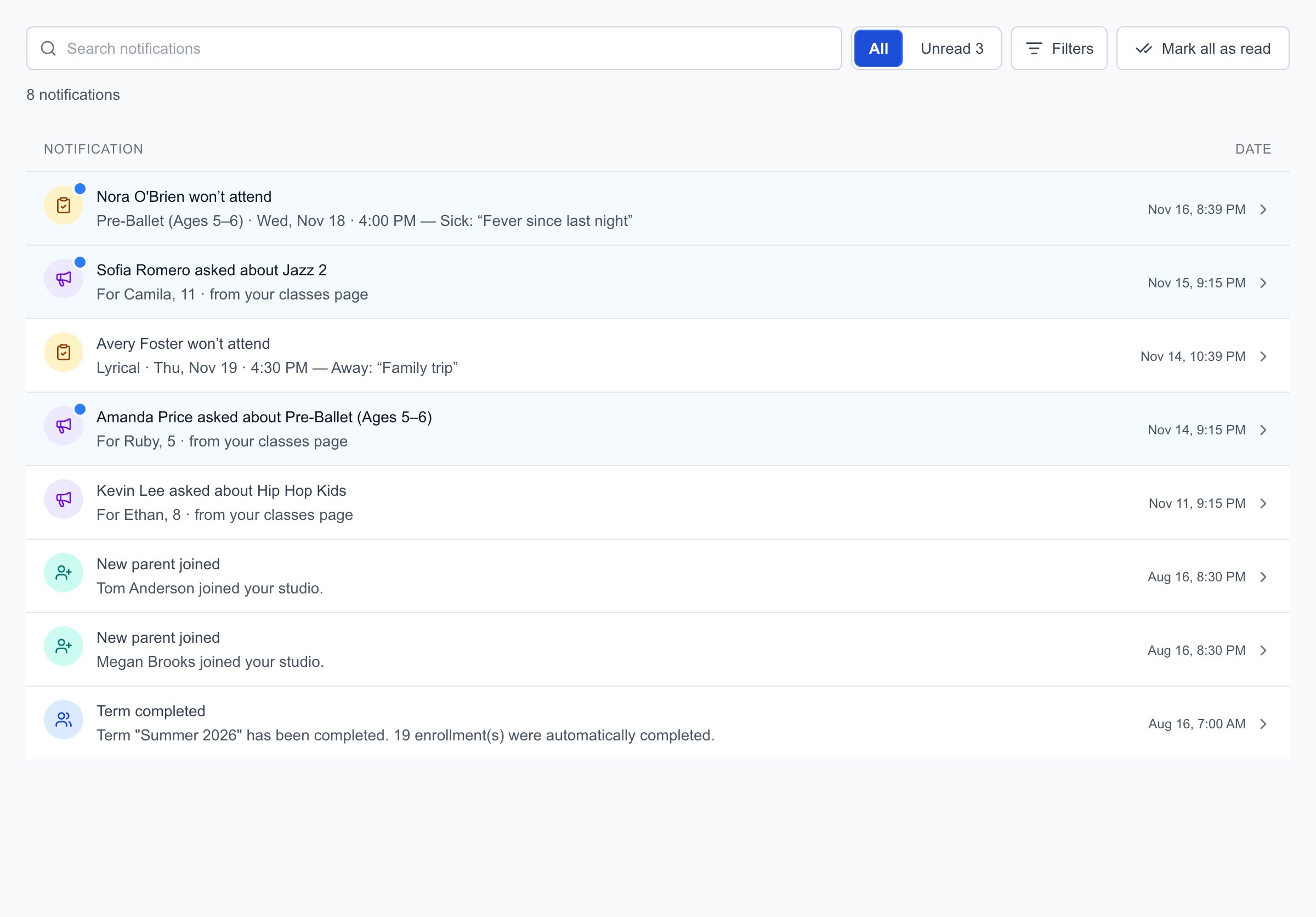
The bell at the top of every studio page shows how many notifications you haven't read. Click it to see the latest ones, mark one or all as read, or press View all notifications.
The Notifications page lists everything, newest first:
- Search notifications finds words in a notification's title or message.
- All or Unread (with its count) chooses what to show.
- Filters → Type narrows the list to Payments, Failed payments, Disputes, Enrollments, Families, Leads, Attendance, Monthly tuition run or Other.
- Clear filters, on the line under the bar, clears the search and Type. All or Unread stays as you chose it; an empty Unread says "No notifications in “Unread”".
- Mark all as read clears the unread count.
- Load more shows older notifications.
Click a notification to open what it's about (a lead, a family, a charge) — it's marked as read. Mark as read on a row marks it read without opening it.
Choose which emails you get
Open Settings → Notifications. Each row is one kind of email, with a switch. A switch saves the moment you change it, and the row shows Saved.
The switches only turn email on or off. Notifications in your bell always show.
| Switch | The email it turns on or off |
|---|---|
| Failed card payments | An email each time a family's card payment doesn't go through: who, how much, what it was for, why, and what happens next |
| New leads | An email each time a family asks about a class or books a free trial on your public pages |
| Daily leads email | One email in the morning when leads are waiting on you; never sent on a day with nothing waiting |
| Absence alerts | An email when a student misses classes in a row without an excuse (the number is set in Settings → Attendance) |
| Dispute outcomes | An email when a card dispute is won, lost or closed |
| Tuition run ready to review | The email on your monthly tuition run day saying the month's tuition is ready to post |
Every switch is on until you turn it off. Only emails StudiFlo actually sends you have a switch. New families and new enrollments come to your bell only, so there's nothing to switch off for them.
Some emails to you can't be turned off: you are always emailed when a family opens a card dispute, because it has a deadline.
What a family can switch off
Families choose for themselves in their own settings, under Emails & alerts. You can't change these for a family. Their choices are:
| Their row | What it covers | App | |
|---|---|---|---|
| Studio news | Your announcements | ✓ | ✓ |
| New charges | Charges you post, and app updates about their payments, refunds and passes | ✓ | ✓ |
| Late fees | A late fee added to an overdue charge | ✓ | ✓ |
| Payments and refunds recorded by the studio | A payment or refund you record yourself, or correct | ✓ | Sent as a receipt |
| Forms waiting | A waiver to sign or a document to read, and your reminders about them | ✓ | ✓ |
| Recitals | A recital their child is in is published | ✓ | — |
Their choices apply at every studio they belong to.
Some emails have no row there. One is the substitute teacher notice — the email a family gets when you change who teaches a class and check Email the families of [class]. You decide each time whether it goes; a family can stop it only with the link at the bottom of that email (see below).
The unsubscribe link in your emails
Every email StudiFlo sends a family for you has an unsubscribe link at the bottom. It opens a page with your studio's name and logo that says "Manage what [your studio] sends to [their email]" and offers three choices:
- Stop "Studio news" emails (or whichever kind of email the link came from) — just that kind, from your studio.
- Stop all emails from this studio.
- Stop every StudiFlo email — from every studio.
After choosing, the family can press Turn it back on (or Turn emails back on after stopping everything). Manage emails & alerts takes them to their Emails & alerts settings. If the link came from an email that is always sent, the page says "This email is always sent" and offers no way to stop that kind. From a substitute teacher notice, the first choice reads Stop substitute teacher notices.
How it works
Emails families always get
Some emails matter too much to switch off. Families get them even if they unsubscribed from everything:
- declined card payments,
- payments their bank must confirm,
- waitlist spot offers,
- cancelled classes,
- recital check-in details,
- receipts.
Emails with no switch
Families also get these with no switch in their settings: enrollment confirmations, notice that auto-pay was switched off, a retry of a declined card, reminders when a payment is overdue, refund confirmations and substitute teacher notices. The stop link in an enrollment confirmation, an overdue reminder, a refund confirmation or a substitute teacher notice can stop that kind from your studio, and "Stop every StudiFlo email" stops them all.
When a class gets a different teacher
Changing one class's teacher with Change teacher (a substitute, a swap, or giving it back) sends emails, never notifications in the bell:
- The substitute is emailed the class, day, time and place, whom they're covering for, your studio's address and phone and the number to call, and how they get in.
- The usual teacher is emailed that their class is covered and by whom, or that it's theirs again. They're also emailed when a covered class of theirs is cancelled or closed, and when their substitute is made inactive or deleted and the class comes back to them.
- A substitute whose class changes is emailed when it's given back or handed to someone else, cancelled, closed, moved to a new time, or moved to another day.
- Families are emailed only when you check Email the families of [class]: one email per family, to families with a child enrolled in the class and to families with a drop-in or make-up booked into that class time. Families with a free trial booked aren't included, and neither is a family that stopped these emails or every StudiFlo email.
These go to the email in each person's staff profile on Staff & locations. Anyone who can't be emailed — no email there, or an email that didn't send — is named on your screen: "Jordan Lee couldn't be emailed. Call or text them." You're not emailed about a class you cover yourself. Replies to any of these emails reach your studio's contact email.
Giving a class a new teacher for every class from now on — in Change teacher or Edit class — emails nobody.
How the family's choices add up
An email reaches a family only when all of these allow it:
- They haven't stopped every StudiFlo email (their settings then say "You've unsubscribed from email" with Turn emails back on).
- They haven't stopped emails from your studio, or that kind from your studio, with an unsubscribe link.
- The email switch for that kind of message is on in Emails & alerts.
The app notification is separate: a family who turned off an email still sees the app notification, unless they turned that off too. Emails that are always sent ignore all three.
A family that pressed their mail app's own Unsubscribe button (shown at the top of many inboxes) has stopped every StudiFlo email.
When you get a failed card payment email
You get one email for each card payment of a family's that doesn't go through, after the family is told:
- a card payment that is declined — on its due date, when you charge the card yourself, when the family pays, or at checkout when they enroll,
- a card payment cancelled at the bank, or a bank confirmation the family didn't finish in time (nothing was charged),
- each automatic retry of a declined card that fails. When several of one family's retries fail on the same day, you get one email that day.
A payment you cancel yourself sends no email. The email says when StudiFlo tries the card again, or that it won't. The notification in your bell comes either way.
Where your emails go
- Lead emails (New leads and the Daily leads email) go to your studio's contact email, set in Settings → Profile. Replying to a lead email replies to the family.
- Your other emails (failed card payments, absence alerts, disputes, the tuition run) go to that contact email too.
- An admin's copy goes to the address that admin accepted their invite with — the address they sign in with (see "When an admin also gets studio notifications").
When an admin also gets studio notifications
The studio's owner always gets every studio notification. An admin gets none until Also gets studio notifications is turned on for that admin, on Staff & locations. The owner can turn it on for any admin; an admin with co-owner access can turn it on for an admin who doesn't have co-owner access (the owner is then told, in the bell and by email). Co-owner access on its own does not turn it on.
An admin with studio notifications gets them in the bell on the studio's pages, and the emails at the address they accepted their invite with (the one they sign in with — a staff account's email can't be changed) — one separate email each, so no one sees another person's address. An admin's bell starts when they accepted their invite: someone whose access was removed and who was invited again doesn't see the notifications from before. The owner's emails keep going to the studio's contact email; if the studio has none and the owner is also a parent on StudiFlo, they go to the owner's own family email. An admin's email ends by saying the owner turned on studio notifications for them and where to choose which emails they get.
An admin's bell shows only the notifications that admin can get today. If the owner takes away an admin's co-owner access, the dispute and payments-account notifications leave that admin's bell; if the owner turns off studio notifications for an admin, that admin's studio bell is empty. Nothing is deleted: giving the access back shows them again. An admin who is given studio notifications starts with new notifications, not old ones.
Some notifications stay with the owner, or with the owner and co-owners, whatever is switched on:
| Notification | Who gets it |
|---|---|
| A family joined the studio | Owner + admins with studio notifications |
| A student enrolled in a class | Owner + admins with studio notifications |
| A family took a student out of a class | Owner + admins with studio notifications |
| A waitlist enrollment that needs your attention | Owner + admins with studio notifications |
| A family bought a pass | Owner + admins with studio notifications |
| A family paid | Owner + admins with studio notifications |
| A checkout that was refunded | Owner + admins with studio notifications |
| A family’s card payment failed | Owner + admins with studio notifications |
| A charge or refund that needs settling by hand | Owner + admins with studio notifications |
| Every retry of a failed payment has been used | Owner + admins with studio notifications |
| The monthly tuition run | Owner + admins with studio notifications |
| A term ended | Owner + admins with studio notifications |
| A student missed classes in a row | Owner + admins with studio notifications |
| A family said their child will miss a class | Owner + admins with studio notifications |
| A new lead, or news of one | Owner + admins with studio notifications |
| The morning leads email | Owner + admins with studio notifications |
| A teacher handed a class to another teacher, or took it back | Owner + admins with studio notifications |
| A card dispute, and how it ended | Owner + co-owners with studio notifications |
| The payments account: card payments or payouts paused, resumed or turned on | Owner + co-owners with studio notifications |
| Changes to who can sign in, and to the studio’s contact email or How to pay | Owner + co-owners with studio notifications |
| The StudiFlo plan: its trial, its payment, its cancelling | Owner only |
| The studio’s data is about to be deleted | Owner only |
Each person chooses their own emails in Settings → Notifications. An admin turning one off stops it for that admin only; the owner and the other admins still get it. An admin sees only the switches for notifications they can get. An admin without studio notifications sees "The owner hasn’t turned on studio notifications for you." there.
Someone who is both on your staff and a parent sees studio notifications only in the bell on the studio's pages and family notifications only in the family's bell. Marking one bell as read leaves the other alone, and the switches for studio emails never turn off that person's emails as a parent.
Teachers don't get studio notifications.
Where families' replies go
Emails to families come from StudiFlo's notifications address with your studio's name on them. When a family presses Reply, the reply goes to your studio's contact email (Settings → Profile), and the email's footer says so. If your studio has no valid contact email, the emails tell families to contact you directly instead.
Common questions
How do I stop getting so many emails?
Open Settings → Notifications and switch off the emails you don't want. Your bell keeps showing everything.
Why is there no switch for new enrollments?
StudiFlo doesn't email you about those, so there's no email to turn off. New families and new enrollments show in your bell.
Can I stop the emails about declined cards?
Yes. Turn off Failed card payments in Settings → Notifications. Declined payments still show in your bell, and declined charges show as Failed on the Charges page.
Can my admin get the same notifications I do?
Yes: turn on Also gets studio notifications for that admin on Staff & locations. The owner can do it for any admin, and an admin with co-owner access can do it for an admin without co-owner access. They then get the studio's notifications in their bell and by email at their own address. Notifications about your StudiFlo plan stay with you, and card disputes and the payments account go only to you and to co-owners who have studio notifications on.
My admin turned off an email. Did that turn it off for me?
No. Each person's switches are their own. You and the other admins keep getting it.
Where do new lead emails go?
To your studio's contact email in Settings → Profile, not your sign-in email. Reply to one to answer the family.
When does the daily leads email arrive?
In the morning on your studio's clock, from 8 AM, only on days when a lead is waiting on you. Turn it off with Daily leads email.
Can I stop StudiFlo emailing a family?
No, you can't change a family's email choices. Families choose for themselves in their Emails & alerts settings or with the unsubscribe link in any email.
A family says they don't get my emails. What can I check?
They may have unsubscribed from every StudiFlo email, stopped emails from your studio with a link, or turned off that kind of email in Emails & alerts. On a waiver's Signatures tab, a family who unsubscribed shows Unsubscribed. Emails that are always sent — receipts, declined payments, cancelled classes and the others listed above — still reach them.
Can families turn off the emails about a substitute teacher?
Yes, with the link at the bottom of that email, which stops substitute teacher notices from your studio. There's no switch for them in Emails & alerts. You can also leave Email the families of [class] unchecked when you assign a substitute; their schedule shows the substitute either way.
A substitute or teacher has no email. How are they told about a change?
They aren't — StudiFlo can only email. After the change your screen names everyone it couldn't reach ("Jordan Lee couldn't be emailed. Call or text them."), so call or text them. Add their email on Staff & locations for next time.
Can a family turn off receipts or declined-payment emails?
No. Receipts, declined payments, payments their bank must confirm, spot offers, cancelled classes and recital check-in details are always sent.
If a family turns off "New charges", do they still have to pay?
Yes. The charges are still posted and still owed; the family just isn't emailed or notified when you post them. They see their charges on their Pay page. Families on auto-pay are still charged.
Do families choose separately for each studio?
The switches in Emails & alerts apply at every studio they belong to. The unsubscribe link in an email can stop emails from one studio only.
What happens when a family stops every StudiFlo email?
They get only the emails that are always sent. Your announcements also stop reaching them in the app — an unsubscribed family is left out of announcements altogether. They can turn emails back on in their settings, or with Turn emails back on on the unsubscribe page.
Where do families' replies to my emails go?
To your studio's contact email, set in Settings → Profile.
Do notifications disappear after a while?
Most stay on the Notifications page; use Load more to see older ones, and mark them read to clear the count. Notifications about leads are removed after 12 months, and a lead's notifications go with it when the lead is deleted or removed.